


Verified review
Common Ninja has amazing no-code widgets that would beautify a website built on any builder. It is very easy to use and customise. It has as many widgets for almost everyone willing to make their website impressive.
Try the editor, no signup
Pick a template, customize it, and watch it update live, no signup.
No credit card · Free forever plan
No credit card · Free forever plan
The Common Ninja Mastodon Feed is a free, no-code widget that displays a live feed of Mastodon posts on any website. Point it at an account, pick a layout, and add one line of embed code.
Mastodon has no single company or central API, so a feed comes from the instance the account lives on. The widget handles that for you, whichever server the account is hosted on.
The feed refreshes on its own, with layouts, ready-made skins, ticker animation, character length control, RTL support, and custom CSS included. Works on 200+ platforms including WordPress, Shopify, Joomla, Squarespace, and Elementor.
Instances come and go, and accounts move between them. Your own website is the one address that does not change, so putting the feed there gives people a reliable place to find your posts even if the server behind them changes.
Most of your website visitors do not have a Mastodon account and will not sign up to read you. A feed on the page lets them read anyway, which is the whole point of posting in public.
Mastodon is where a lot of open-source, research, and public-interest work talks about itself. A feed on the project page shows the work in progress next to the thing it describes, which is more convincing than a changelog.
Post once and the website follows. No monthly chore to swap a featured post, and no risk of a social section aging into something that makes the site look dormant.
Give the widget the account you want to show, including the instance it lives on. Mastodon accounts are addressed as a username plus a server, so both parts matter, and the widget reads the account's public timeline from there.
Pick a layout and one of the ready-made skins, then set the date and time format and cap how many characters of each post appear. Mastodon posts can run long, so that cap is what keeps a grid even. Custom CSS covers the rest.
Copy the snippet from the Add to Website tab and paste it into the page. Auto-refresh keeps pulling new posts, so the section stays current on its own.
There is no single Mastodon server, so the widget takes the account and its instance rather than assuming one host. Small self-hosted servers work the same way the large public ones do.
Choose what the widget follows and how it lays out, then change either later from the editor without touching the page the embed already sits on.
Mastodon allows much longer posts than most networks, so capping the visible characters is what turns a feed into readable cards. The date and time format is yours to set.
Full right-to-left rendering for Arabic, Hebrew, Persian, and Urdu layouts, and a custom CSS field for exact design matching. One embed snippet, 200+ platforms, nothing to install.
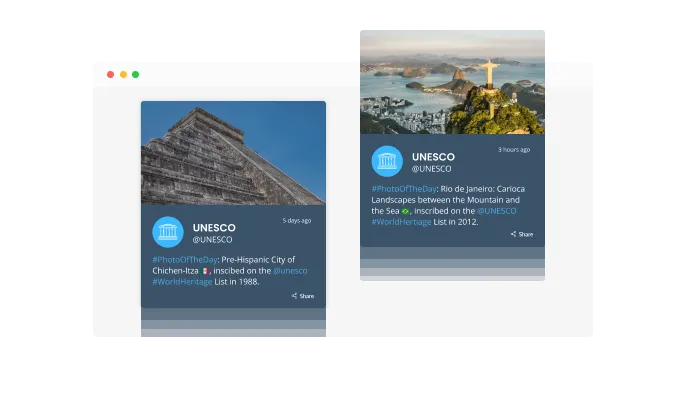
Your page will look more lively with Mastodon Feed's "ticker" animation that mimics an old news ticker. It can be used to grab the user's attention immediately.

The Mastodon Feed widget has the “auto-refresh” option which, when toggled, keeps refreshing and updating the feed with new posts.
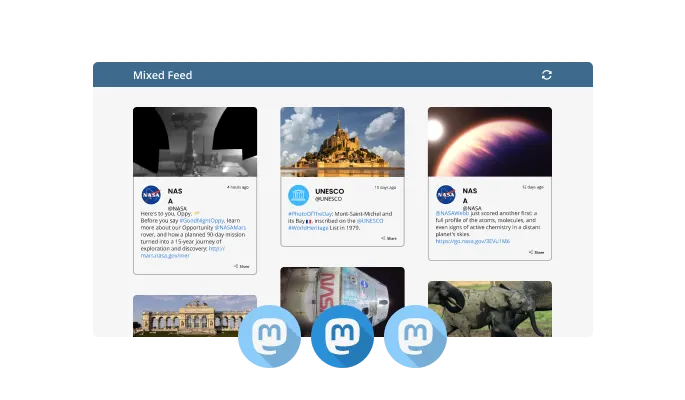
Tabs and Mixed are two different feed types in the Mastodon Feed widget. The Tabs type keeps all your tabs organized by order of feed, while the Mixed type, mixes the various Mastodon feeds to create a diverse feed.
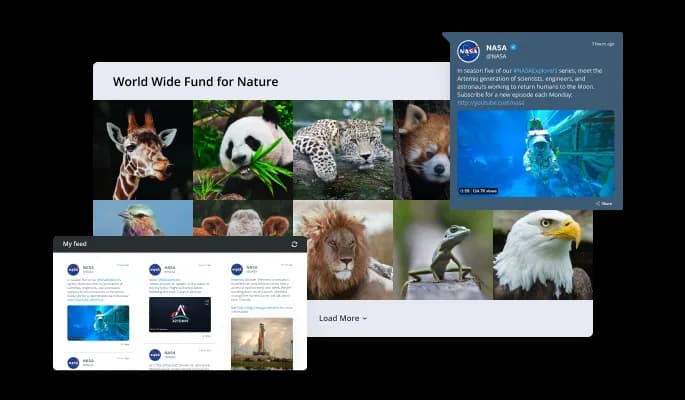
The Mastodon Feed widget comes available with multiple layouts that you can choose from to make sure it fits your overall website design and style.
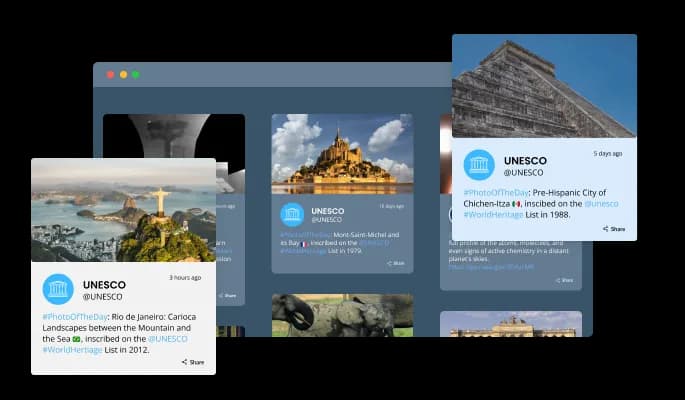
Various beautiful skins are available for the Mastodon Feed widget, so you don't have to spend much time customizing it.
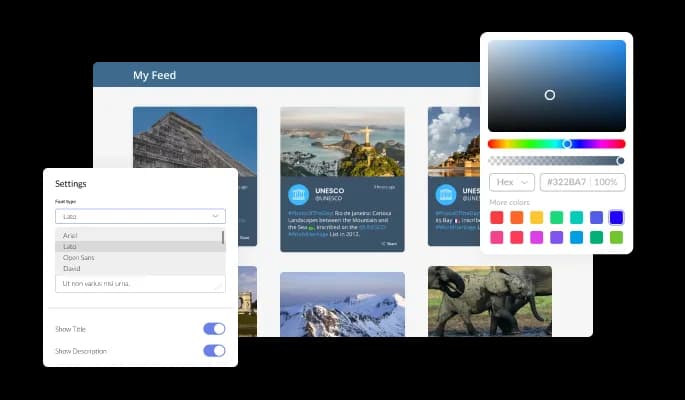
The Mastodon Feed widget offers full customization options to make it fit your needs. Change the colors, the fonts, the spacing, and anything else!
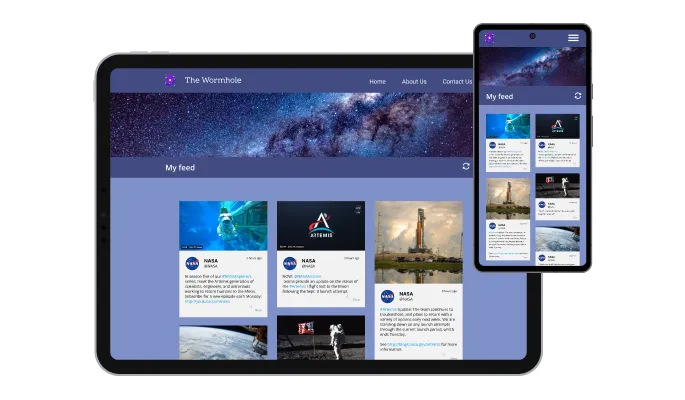
Any device will look great with the Mastodon Feed widget. You will be ahead of your competitors with this feature in today's mobile-first world.

Custom CSS can be added to the Mastodon Feed widget, as with all Common Ninja widgets.

You can embed the Mastodon Feed widget on your website quickly by copying a single line of code. The Mastodon Feed widget will also be updated automatically with every change you make.
There are various options for displaying the date and time of the feeds, an option that will enable you to further customize the Mastodon Feed widget according to your needs, and the preferences of your visitors.
You can easily customize the characters' length to save space and make the Mastodon Feed widget more compact.
The Mastodon Feed widget provides full RTL support for those who write from right to left. Make your news accessible to more users from all over the world.
The Mastodon Feed widget is easy to use and requires no coding knowledge. Our intuitive dashboard with the drag-and-drop feature will enable you to customize the widget any way you’d like to with just a few simple clicks.
Build your Mastodon feed in the editor
Open the editorFree to use · No credit card · No signup to try it
Common Ninja has amazing no-code widgets that would beautify a website built on any builder. It is very easy to use and customise. It has as many widgets for almost everyone willing to make their website impressive.
Outstanding service. I use their widgets to help me with my web design business and whenever I need help they are very quick to help.
Excellent company with excellent service!!! We used it to build a survey, it was very user friendly. The service was perfect. Amit helped us with every problem and question we had, thank you very much!!!
Common Ninja saved the day when building our website and the customer service Daniel, the co-founder and CEO, provided was amazing.
Any of them. Mastodon is a network of independent servers rather than one company, so an account is a username plus the server it lives on. Give the widget both parts and it reads that account's public timeline, whether the server is a large public instance or one you host yourself.
Update the account in the editor and the embed already on your page keeps working, because the snippet does not change. Mastodon's own migration leaves your old account pointing at the new one, but the feed should be repointed so it follows the posts rather than the redirect.
No. The widget reads public posts, so you paste the account and Common Ninja handles the rest. There is no application to register on the instance, no access token to generate, and no rate limit for you to manage.
You can point the widget at any public account, which covers featuring a project account, a maintainer, or a partner. Anything an instance keeps private, including followers-only and direct posts, will not appear, because the widget only reads what the server publishes openly.
The feed reflects what the account's public timeline contains, so an account that boosts a lot will show a mix. If you want the page to show only your own writing, either keep boosts on a separate account or use a shorter character cap and a tighter layout so the feed reads as a highlights strip.
They are related. Mastodon publishes a public RSS feed for each account, which is why a feed of public posts is possible without any special access. This widget takes care of finding and reading that for you, then styles the result, which a raw RSS URL on its own does not do.
Yes, the layouts are responsive and cards reflow to the screen width. Since Mastodon posts can be long, the character cap matters more on a narrow screen than a wide one, so preview at phone width before publishing.
Yes. Each feed is a separate widget with its own account and settings, so a project account can sit on the homepage and a maintainer's account on a team page. On the free plan each widget counts separately against your plan's widget allowance.
Pick your platform. Each takes under 4 minutes.

Display the latest posts from your Instagram page

Display a feed of the latest posts from a Facebook user or page

Display the latest tweets from your X
Display the latest posts from your Linkedin page

Display the latest posts from any RSS feed

Display the latest posts from any platform and website's RSS feed
It is possible to limit the number of posts displayed per page.
You can decide where the tabs should be positioned in the Mastodon Feed settings menu.
Yes, you can switch on or off auto-refreshing.
Yes, you can add a background image to further customize its behavior.
Yes, you can customize the feed’s height.
Yes, you can easily do so from the “Templates” tab.
Yes, currently there’s a “ticker” animation that you can trigger.
Yes, there are lots of beautiful skins that you can choose from to save time and start using the widget as quickly as possible.
Yes, you can either upload an image or select an icon from a large selection of available icons to add to your Mastotod Feed or leave it all blank.
Using the Mastodon Feed widget is very easy. Simply sign up and start using the free version. There's no need to worry about complicated setup or installation processes, as the Mastodon Feed widget is designed to be user-friendly and straightforward. Once you've signed up, you'll have access to all of the basic features and functions of the widget, which you can use to enhance your website and improve your online presence. From there, you can choose to upgrade to the paid version if you want to access more advanced features and capabilities. Regardless of which version you choose, you'll find that the widget is a powerful and easy-to-use tool that can help you take your online presence to the next level.
The Common Ninja Mastodon Feed widget is a free tool rich with features and options. While this widget is free to use, it does have a limit on the number of views it can handle. This means that after a certain number of views, the widget may no longer be visible or functional on your website. It is important to note that this view limit may vary depending on your plan. Despite this limitation, Common Ninja's Mastodon Feed is still a valuable tool for businesses looking to increase customer engagement and improve the overall user experience of their website.
The Common Ninja's Mastodon Feed widget is a versatile tool for any website builder. This means that you can easily add this widget to your website or store no matter what platform you use to build your website. The Mastodon Feed widget will work seamlessly with your platform whether you are using a popular website builder or something more specialized. This means you can enjoy all the benefits of this powerful tool without having to worry about compatibility issues.
Yes. The Mastodon Feed widget can be used in a GDPR-compliant way. Collecting visitor information is always opt-in: it stays off until you turn it on in the widget’s settings, and you decide what is collected. As the website owner, you remain responsible for how you use your visitors’ data.
Yes. We are eager to hear your request. Please visit our Feature Request page.
While a Mastodon Feed itself may not directly improve the search engine optimization (SEO) of a website, it can potentially contribute to improved SEO in several ways. For example, by regularly posting content on Mastodon and linking back to the website, the website can gain inbound links from other Mastodon users, which can improve its authority and ranking in search engines. Additionally, the content posted on Mastodon can be indexed by search engines, potentially improving the website's visibility for relevant keywords. Finally, a Mastodon Feed can provide a more dynamic and engaging experience for website visitors, which can improve user engagement metrics and potentially boost the website's ranking in search engines.
A Mastodon Feed widget can potentially improve the user experience (UX) of a website in several ways. First, it can provide real-time updates and fresh content for website visitors, which can help to keep them engaged and interested. Additionally, a Mastodon Feed widget can enable website visitors to easily share or interact with the content, which can enhance the overall interactivity of the website. Furthermore, a Mastodon Feed widget can help to create a sense of community and connection with website visitors, as it allows them to see what other users are saying and contributing. Overall, a Mastodon Feed widget can provide a more dynamic and engaging experience for website visitors, which can improve their UX.
Mastodon is a free, open-source social networking platform that allows users to create and join communities, known as "instances," to share and discuss content with like-minded individuals. Mastodon is similar to other social media platforms, but it is decentralized and does not have a central authority controlling the content or user experience. Users can post messages, images, and other content, as well as interact with other users through likes, shares, and replies. Mastodon also supports various privacy and security features, such as blocking users, restricting posts' visibility to specific groups, and using end-to-end encryption for private messages.
A Mastodon Feed is a stream of content, typically displayed in chronological order, users of a Mastodon instance generate that. A Mastodon Feed can include various types of content, such as text, images, videos, and links. It can also include interactions between users, such as likes, shares, and replies. A Mastodon Feed can be displayed on a website as a widget, allowing website visitors to see the latest content from the Mastodon instance and interact with it. This can help to provide fresh, dynamic content for the website and engage website visitors.
There are several potential benefits to displaying a Mastodon Feed on a website, including:
To find the RSS feed for your Mastodon account, you will need to log in to your Mastodon account and go to your profile page. Once on your profile page, you can find the RSS feed link by looking for a link that says "RSS" or "Atom" in the website's footer or in the "About" section of your profile.
If you are unable to find the link to your RSS feed on your profile page, you can try adding "feed" or "rss" to the end of your profile URL. For example, if your profile URL is "https://mastodon.social/@username", you can try accessing the RSS feed at "https://mastodon.social/@username/feed" or "https://mastodon.social/@username/rss".
If you are still unable to find the RSS feed for your Mastodon account, you can try using an online RSS feed finder tool, such as Feedity or FindRSS. These tools allow you to enter your profile URL and will automatically search for and provide the RSS feed for your account, if one is available.
Embedding the Mastodon Feed widget on your website is a straightforward process. Simply copy the provided code and paste it into the desired location on your website. The widget will seamlessly integrate into your site, allowing you to take advantage of its features and functions. No technical expertise or programming knowledge is required - just copy and paste the code to get started. This simple process allows you to easily add the widget to your website and enhance its functionality without any hassle.
A live Mastodon feed from any instance, refreshing itself, with multiple layouts, ready-made skins, ticker animation, post length control, RTL support, and custom CSS. Embed on 200+ platforms including WordPress, Shopify, Joomla, Squarespace, and Elementor.
Create your Mastodon feedFree to use · No credit card · No coding