


Verified review
Common Ninja has amazing no-code widgets that would beautify a website built on any builder. It is very easy to use and customise. It has as many widgets for almost everyone willing to make their website impressive.
The Common Ninja Notification Popup widget is a free, no-code embed that shows short alerts, social-proof notifications, and announcements on your website in compact corner or top-bar popups.
Set the notification content, pick a layout (corner popup, top bar, slide-in card), configure display rules (timed rotation, on page load, on scroll), enable full RTL support, customize the design with skins or Custom CSS, pick from a library of icons, and paste a one-line embed snippet on WordPress, Google Sites, Carrd, Shopify, Moodle, Webflow, Wix, and 200+ other platforms.
Use it to surface sales-just-happened social proof, system status updates, holiday announcements, free-shipping nudges, and any short message that should grab attention without taking over the screen.
"Sarah from Toronto just purchased the Pro plan." "Three people viewed this page in the last hour." Real-time-feel social-proof notifications lift conversion by signaling that other people are doing the thing the visitor is hesitating about. The pattern is well-established in conversion optimization; this widget makes it easy to ship.
A modal popup interrupts the visitor's flow. A small corner notification surfaces a message without blocking content. "new feature live", "holiday promo running", "shipping delays this week". The visitor sees the alert, dismisses it in one tap, and keeps reading. Lighter touch, less abandonment risk.
The notification animates in to draw the eye and then sits in the corner waiting for the visitor's attention. A close button removes it without affecting the rest of the page. Tunable display rules (auto-dismiss after N seconds, sticky until clicked, frequency caps per visitor) keep the alert from feeling pushy.
A full popup is a modal: it stops the visitor and demands attention for a lead-capture form, an exit-intent offer, or a content-rich announcement. A notification popup is a compact corner or top-bar alert designed to whisper, not shout. Use this Notification Popup for short transactional alerts and social proof; use the Common Ninja Popup Builder when you need a full modal with embedded widgets and lead capture.
Write a short headline and optional one-line body ("Sarah from Toronto just purchased Pro", "Free shipping on orders over $50", "New feature: dark mode is live"). Add multiple notifications and let them rotate, or fire a single static announcement. Attach a clickable link per notification so the alert can route visitors to the matching product, page, or article.
Choose a layout. Corner popup (bottom-left or bottom-right, fits social-proof patterns), top bar (sticky strip, works for site-wide announcements), or slide-in card (animates in from the side, more visual presence than a bar). Configure display rules (fire on load, fire on scroll, rotate every N seconds), pick from the icon library, enable full RTL support, and pick a skin or layer Custom CSS.
Copy the one-line embed snippet and paste it on WordPress, Google Sites, Carrd, Shopify, Moodle, Webflow, or any of the 200+ supported platforms. Notifications load with the page and fire based on your display rules. Edits in the Common Ninja editor push to every embed without re-paste.
Corner popup (bottom-left or bottom-right, fits social-proof patterns), top bar (sticky strip, works for site-wide announcements), slide-in card (animates in from the side, more visual presence). Switch between layouts in the editor without re-entering content.
Pick from a library of pre-designed skins (minimal, brand-vibrant, dark-mode, soft-shadow) for a fast visual fit. Each skin is a fully styled starting point; tune typography, accent colors, icon framing, and dismiss-button styling from there.
Renders correctly in right-to-left languages (Arabic, Hebrew, Persian, Urdu) with mirrored layout, reversed icon positioning, and right-aligned text. Useful for multilingual sites and businesses serving RTL audiences.
Layer Custom CSS over any skin to control corner offset, animation easing, shadow depth, border radius, dismiss-button placement, and per-breakpoint sizing. The widget disappears into your brand once styled.
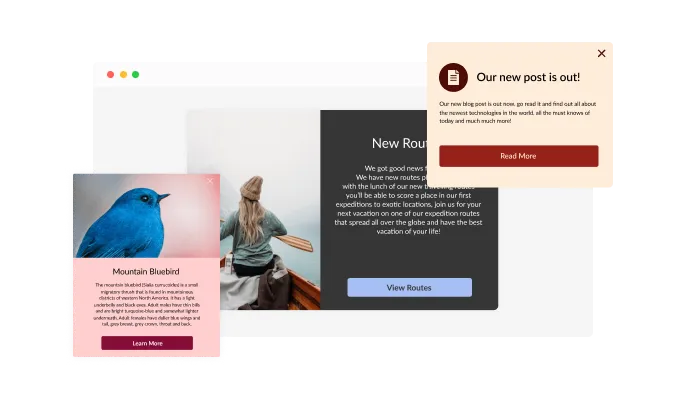
The Notification Popup widget comes available with multiple layouts that you can choose from to make sure it fits your overall website design and style.
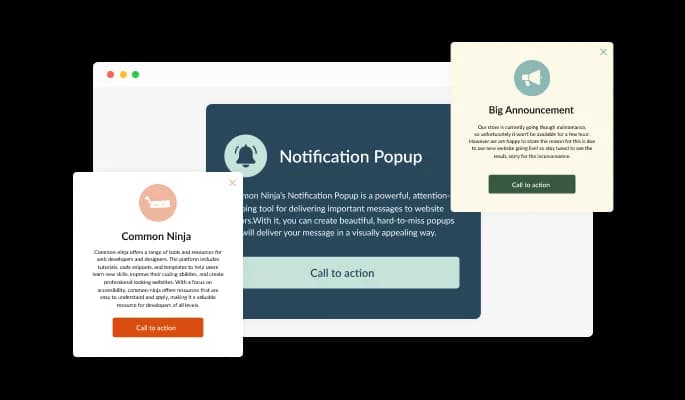
The Notification Popup widget comes with a variety of beautiful skins that you can choose from so you don’t have to spend much time on extensive customization.
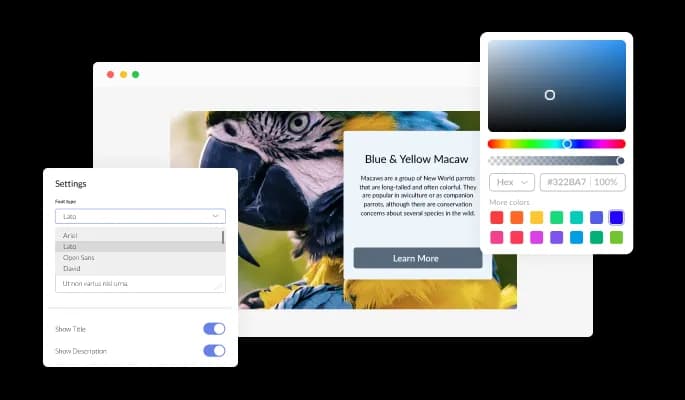
The Notification Popup widget features full customization options so you can edit the design to fit your needs. Change the colors, the fonts, the spacing and anything else!
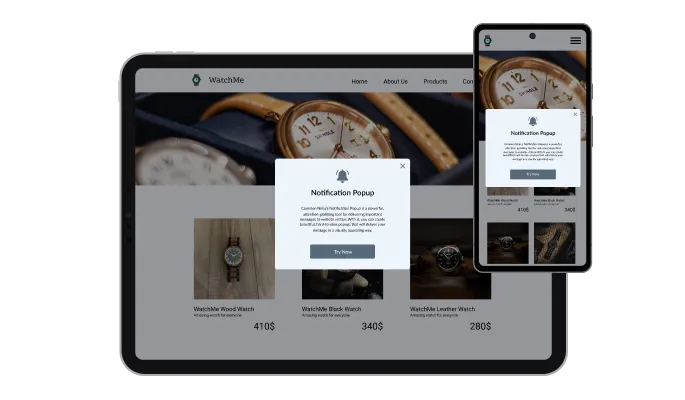
The Notification Popup widget is fully responsive and will look great on any device. In a mobile-first world, this feature will put you ahead of your competitors.

As with all of Common Ninja’s apps, you can add custom CSS to customize the Notification Popup app and be even more creative.

You can embed the widget on your website easily by copying a single line of code. The Notification Popup app will also be updated automatically with every change you make.
The Notification Popup widget features advanced display rules — like when or where to display the app — that you can set and customize. The rules include action triggers like “on exit”, “time delay”, “page scroll” and more.
The Notification Popup widget comes with a selection of beautiful icons that you can use to add to it and enrich its visual appearance.
The Notification Popup widget provides full RTL support for those who write from right to left. Make your news accessible to more users from all over the world.
The Notification Popup widget is easy to use and requires no coding knowledge. Our intuitive dashboard with the drag-and-drop feature will enable you to customize the app any way you’d like to with just a few simple clicks.
Whisper the right message at the right moment
Open the editorNo credit card · Setup in under 5 minutes
Common Ninja has amazing no-code widgets that would beautify a website built on any builder. It is very easy to use and customise. It has as many widgets for almost everyone willing to make their website impressive.
Outstanding service. I use their widgets to help me with my web design business and whenever I need help they are very quick to help.
Excellent company with excellent service!!! We used it to build a survey, it was very user friendly. The service was perfect. Amit helped us with every problem and question we had, thank you very much!!!
Common Ninja saved the day when building our website and the customer service Daniel, the co-founder and CEO, provided was amazing.
Yes. The free plan covers one Notification Popup with no time limit and no credit card. Upgrade only when you need additional notifications, advanced rotation logic, premium skins, per-visitor frequency caps, or features like A/B variants and per-notification analytics.
A Notification Popup is compact. A corner alert or top-bar strip designed to surface short messages (social proof, system status, announcements) without taking over the screen. The Popup Builder is for full modal overlays: lead-capture forms, exit-intent offers, content-rich announcements with embedded widgets. Use this Notification Popup for the whisper; use the Common Ninja Popup Builder when you need a full takeover.
Yes. Add multiple notifications in the editor and configure them to rotate on a timed schedule. Useful for social-proof patterns where you want different customer names cycling through ("Sarah from Toronto just purchased…", "Marcus from Berlin just signed up…"). Set rotation interval and order in the editor; the live widget cycles through automatically.
Fire on page load (with optional delay), fire on scroll depth (e.g. after 30% read), auto-dismiss after N seconds, sticky until visitor clicks the dismiss button, or rotate through a list on a timed interval. Combine rules with frequency caps so visitors don't see the same notification twice in a session.
Yes. Set a clickable URL per notification: the whole popup becomes clickable, routing visitors to the matching product, landing page, or article. Useful for social-proof notifications that link to the product just purchased, system-status alerts that link to a status page, or announcement banners that link to the full release notes.
No. The widget script loads asynchronously, so it doesn't block first paint or interactivity. Notifications themselves render after page load or trigger event, so they don't affect Largest Contentful Paint. Cumulative Layout Shift stays low because the notification floats over content rather than pushing it.
Build the widget in the Common Ninja editor (write notification, pick layout, set display rules), copy the embed snippet, and paste it into your site: WordPress via a Custom HTML block (Gutenberg) or Shortcode/Text widget (Classic); Shopify via the Custom HTML section in your theme editor or via a Custom Code app for sitewide injection; Carrd via an Embed element in the section where the snippet should load. Edits in the editor push to every embed without re-paste.
Yes. Each layout (corner popup, top bar, slide-in card) adapts across mobile, tablet, and desktop breakpoints. Corner popups respect iOS Safe Area insets so they don't collide with the home-bar gesture area. Top bars stay tappable across viewports. Dismiss buttons stay finger-sized on every breakpoint.
Pick your platform. Each takes under 4 minutes.
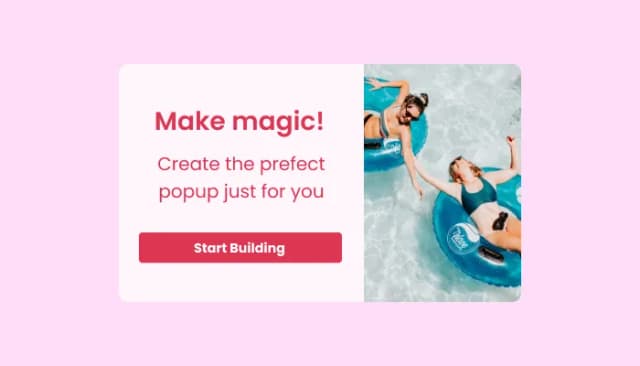
Easily craft engaging, personalized popups to boost conversions.
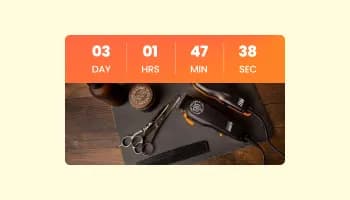
Displays a countdown clock, with multiple effects and styles
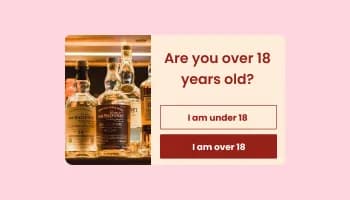
Asks users to confirm their age before accessing restricted content
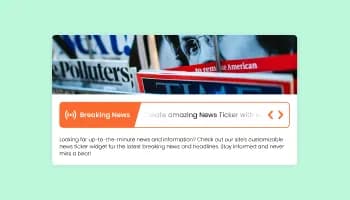
A dynamic display that showcases brief news snippets or updates through continuous scrolling
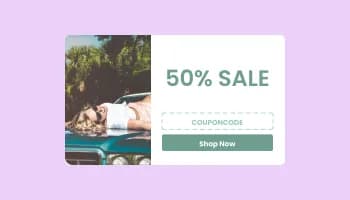
Promot coupon and discount with a popup
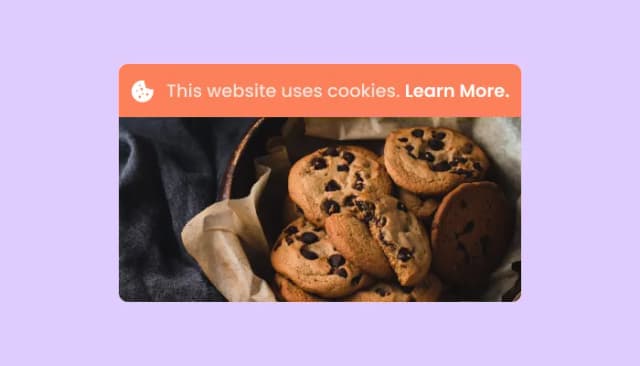
Adds a clear notice about cookie usage on your website, improving compliance with data privacy laws.
Yes, you can. Go to the “Display Rules” tab, and choose your desired triggers. You can learn more about the different triggers & rules here: https://help.commoninja.com/hc/en-us/sections/6900365183517-Display-Rules-Triggers
Yes, you can easily do so from the “Templates” tab.
Yes, there are lots of beautiful skins that you can choose from to save time and start using the widget as quickly as possible.
Yes, you can either upload an image, or select an icon from a large selection of available icons to add to your Notification popup, or, alternatively, you can leave it all blank.
Using the Notification Popup widget is very easy. Simply sign up and start using the free version. There's no need to worry about complicated setup or installation processes, as the Notification Popup widget is designed to be user-friendly and straightforward. Once you've signed up, you'll have access to all of the basic features and functions of the widget, which you can use to enhance your website and improve your online presence. From there, you can choose to upgrade to the paid version if you want to access more advanced features and capabilities. Regardless of which version you choose, you'll find that the widget is a powerful and easy-to-use tool that can help you take your online presence to the next level.
The Common Ninja Notification Popup widget is a free tool reach with features and options. While this widget is free to use, it does have a limit on the number of views it can handle. This means that after a certain number of views, the chat button may no longer be visible or functional on your website. It is important to note that this view limit may vary depending on your plan. Despite this limitation, Common Ninja's Notification Popup is still a valuable tool for businesses looking to increase customer engagement and improve the overall user experience of their website.
The Common Ninja's Notification Popup widget is a versatile tool for any website builder. This means that you can easily add this widget to your website or store no matter what platform you use to build your website. The Notification Popup widget will work seamlessly with your platform whether you are using a popular website builder or something more specialized. This means you can enjoy all the benefits of this powerful tool without having to worry about compatibility issues.
The Notification Popup widget is designed to comply with the General Data Protection Regulation (GDPR), a set of EU regulations protecting personal data and privacy. When using the Notification Popup widget, you can be confident that it will not collect or store personal data that could violate GDPR regulations. This ensures that your business is in compliance with these regulations and can protect your customers' data privacy. Overall, the Notification Popup widget is a secure and reliable tool that can be used to enhance your website without any concerns about GDPR compliance.
No need for coding skills. Our Notification Popup widget is designed to be easy to use, even for those with limited technical experience. The widget features a user-friendly interface that allows you to easily customize the widget without coding knowledge. You can fully customize the Notification Popup to match your branding. When you're done, simply copy the provided code and paste it into your website. It's that simple!
Yes. We are eager to hear your request. Please visit our Feature Request page.
A Notification Popup widget is a small window that appears on a website, typically in the corner or center of the screen, and displays a message or notification to visitors. Notification Popup widgets are often used to promote a specific action or feature, such as subscribing to a newsletter, downloading an app, or accessing a special offer.
Notification Popup widgets are designed to be unobtrusive and non-intrusive, allowing visitors to interact with them if they choose but not disrupting their browsing experience. They are often used to promote high-value actions or offers, as they are prominently displayed and easily accessible to visitors.
Some examples of Notification Popup widgets include a newsletter sign-up form, a promotional offer, or a notification about a new feature or update. Notification Popup widgets can be customized with different colors, fonts, and design elements to match the branding and style of the website.
The type of notification that you should show on a Notification Popup widget will depend on your specific goals and audience. Here are a few examples of notifications that you may want to consider:
Ultimately, the type of notification you choose for your Notification Popup will depend on your specific goals and audience, as well as your website's overall branding and style.
Embedding the Notification Popup widget on your website is a straightforward process. Simply copy the provided code and paste it into the desired location on your website. The widget will seamlessly integrate into your site, allowing you to take advantage of its features and functions. No technical expertise or programming knowledge is required - just copy and paste the code to get started. This simple process allows you to easily add the widget to your website and enhance its functionality without any hassle.
Surface short alerts, social-proof notifications, and announcements with corner / top-bar / slide-in layouts, configurable display rules, icon library, full RTL support, stylish skins, and Custom CSS. Embed on 200+ platforms including WordPress, Google Sites, Carrd, Shopify, Moodle, Webflow, and Wix.
Create your Notification PopupNo credit card · Setup in under 5 minutes