


Verified review
Common Ninja has amazing no-code widgets that would beautify a website built on any builder. It is very easy to use and customise. It has as many widgets for almost everyone willing to make their website impressive.
Try the editor, no signup
Pick a template, customize it, and watch it update live, no signup.
No credit card · Free forever plan
No credit card · Free forever plan
The Common Ninja Petition Form widget is a free, no-code embed that lets you collect signatures from supporters on your website with a structured signup form.
Add the fields you want signers to fill in (name, email, address, hand-drawn signature, comments), enrich the petition with images and context, customize the design with skins or Custom CSS, set up spam protection, enable payment collection for donation-tied petitions, configure host notifications, and paste a one-line embed snippet on WordPress, Squarespace, Joomla, Shopify, Webflow, and 200+ other platforms.
Use it to run advocacy petitions, gather signatures for community causes, collect support for policy changes, build mailing lists around shared interests, and turn audience attention into a concrete signature count, without piping signups through Mailchimp, Google Forms, or a paid petition platform.
Petition platforms (Change.org, Avaaz) keep signer data behind their walls and surface ads next to your petition. A petition form on your own site keeps the signatures in your dashboard, lets you export the full list to CSV whenever you need it, and keeps visitors on your domain where your messaging and follow-up paths live.
An optional signature pad lets signers draw their signature with mouse, trackpad, or finger on touch devices. Useful for petitions delivered to officials who expect signed pages rather than typed lists. Combine with name and address fields for a complete signature record per signer.
If your cause needs funding alongside signatures, enable payment collection in the same form. Signers can sign AND donate in one step instead of bouncing between a petition form and a separate donation flow. Useful for advocacy campaigns, legal-defense funds, and cause-driven organizing where supporters often want to give beyond just signing.
A Contact Form is for general inquiries (name, email, message). An RSVP Form is event-tuned (attendance, guest count, dietary). A Petition Form is signature-collection: pre-tuned with the right defaults (name, email, address, hand-drawn signature, optional comments) so you don't build the petition flow from scratch every time you launch a campaign.
Pick the fields signers will fill in: name and email at minimum, optionally postal code or address for geographic context, optional comments for supporting messages, and an optional hand-drawn signature pad. Mark fields required or optional, set validation rules, and group related fields with section headers.
Add a headline, a short explanation of the cause, supporting images or video, and a call to action for signers. Configure the petition header and footer copy. If your cause needs funding, enable payment collection in the same form so signers can sign AND donate in one step. Set host email notifications so you're alerted when new signatures arrive.
Copy the one-line embed snippet and paste it on WordPress, Squarespace, Joomla, Shopify, Webflow, or any of the 200+ supported platforms. Signatures save to your Common Ninja dashboard; export the full signer list to CSV whenever you need it for delivery to decision-makers, follow-up communications, or organizing efforts. Edits in the editor push to every embed without re-paste.
Pre-tuned for petitions: name, email, address (optional, useful for geographic-rep delivery), comments, hand-drawn signature pad. Add custom fields for cause-specific questions and reorder via drag-and-drop in the editor.
Optional signature pad lets signers draw with mouse, trackpad, or finger. Captures authentic signatures (rendered as image) alongside the typed text fields. Useful for delivery to decision-makers who expect signed documents.
Combine signature collection with optional donation. Signers sign AND give in one form. Configure suggested amounts, allow custom donation values, and route funds through a payment processor. Useful for cause-funding alongside advocacy.
Pick from a library of pre-designed skins (advocacy-bold, soft-pastoral, corporate-clean, dark-mode, brand-vibrant) for a fast visual fit. Layer Custom CSS for pixel-level control over field spacing, button styling, signature-pad framing, and header typography.
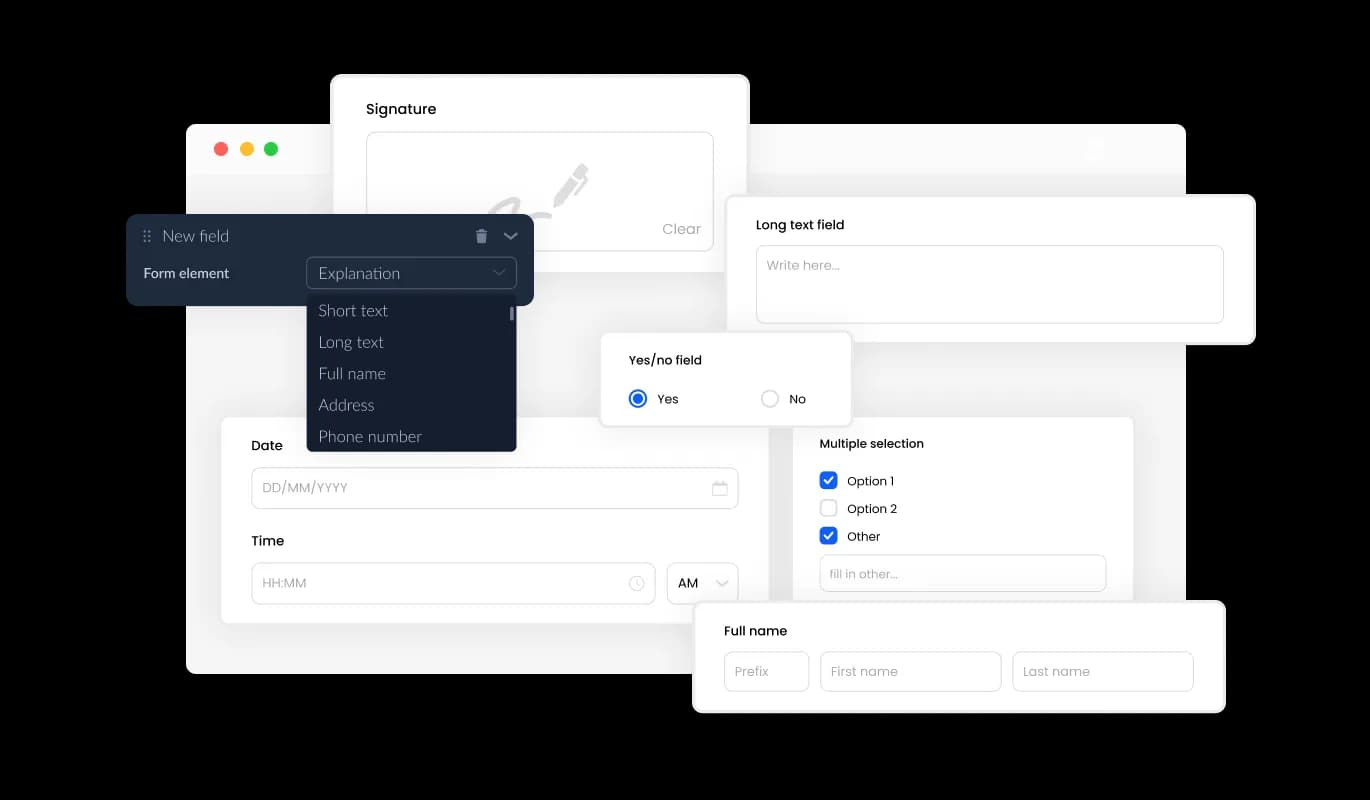
The Petition creator offers a wide range of fields that you can choose from and add to your form, catering to your specific requirements and objectives. You can access an extensive collection of field formats by clicking on the "Add Field" option. Additionally, you can easily adjust the field order by dragging and dropping them into your preferred sequence.
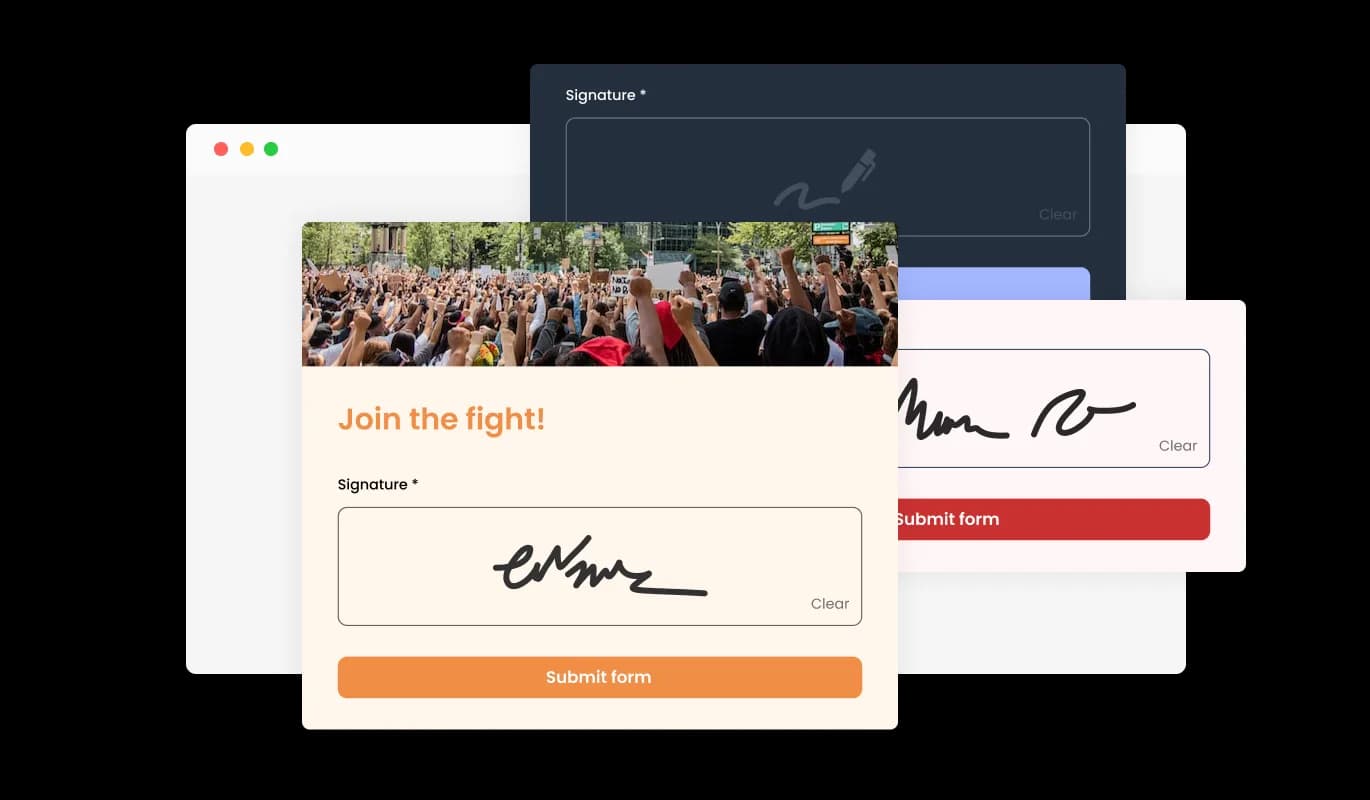
With the hand-drawn signature field feature in your online petition form builder, users can add a personal touch to their petitions by allowing signatories to provide their handwritten signatures. This feature provides a more authentic and personalized experience for both the user and the signatory, increasing the likelihood of signatories being more engaged with the petition. Additionally, hand-drawn signatures can help to validate the authenticity of the signatory, providing a greater level of trust for the petition. Overall, this feature is a great addition to your online petition form builder, enabling users to create more compelling and engaging petitions.
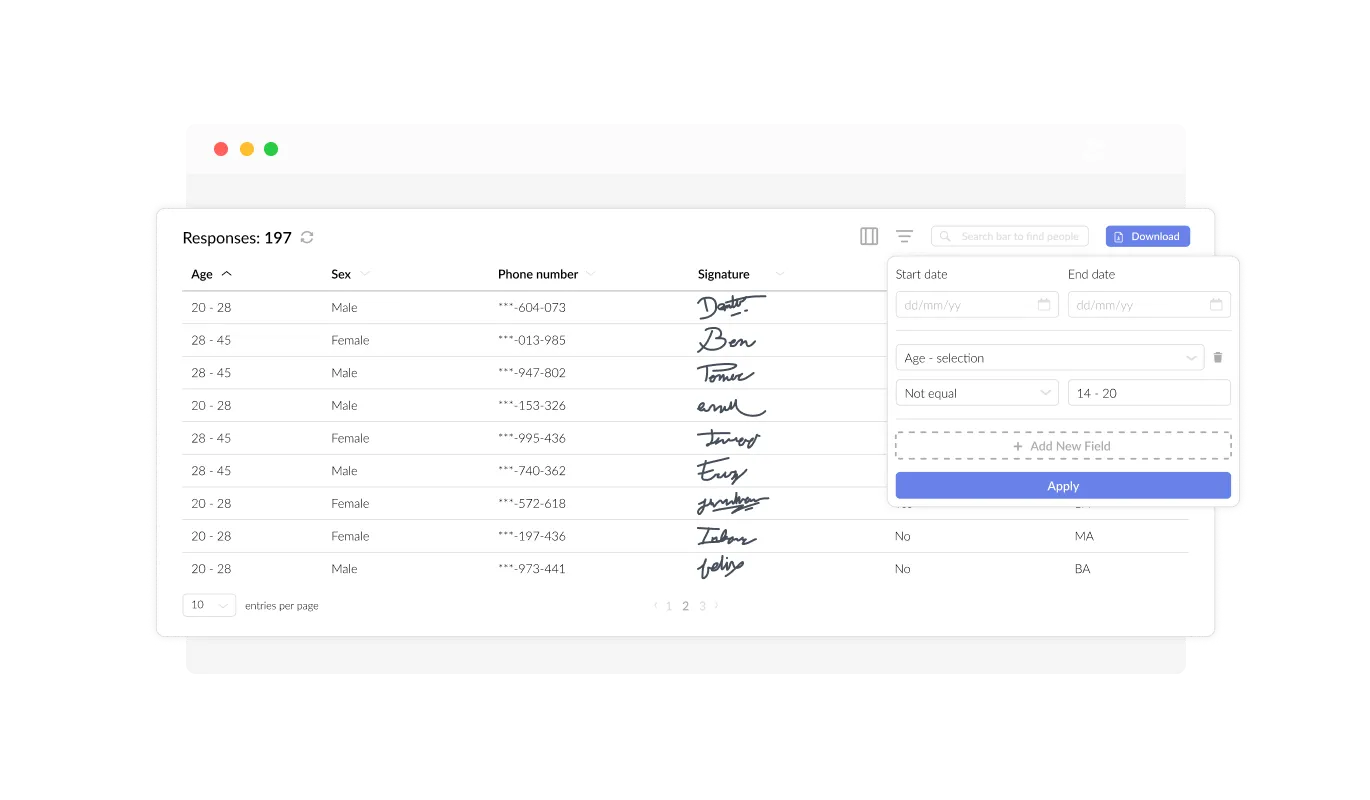
With the Online Petition Creator, you can effortlessly monitor and access all the entries submitted through the form in a user-friendly interface. This feature facilitates the organization and management of all communication and inquiries from users, helping you to respond promptly and effectively to their requests.
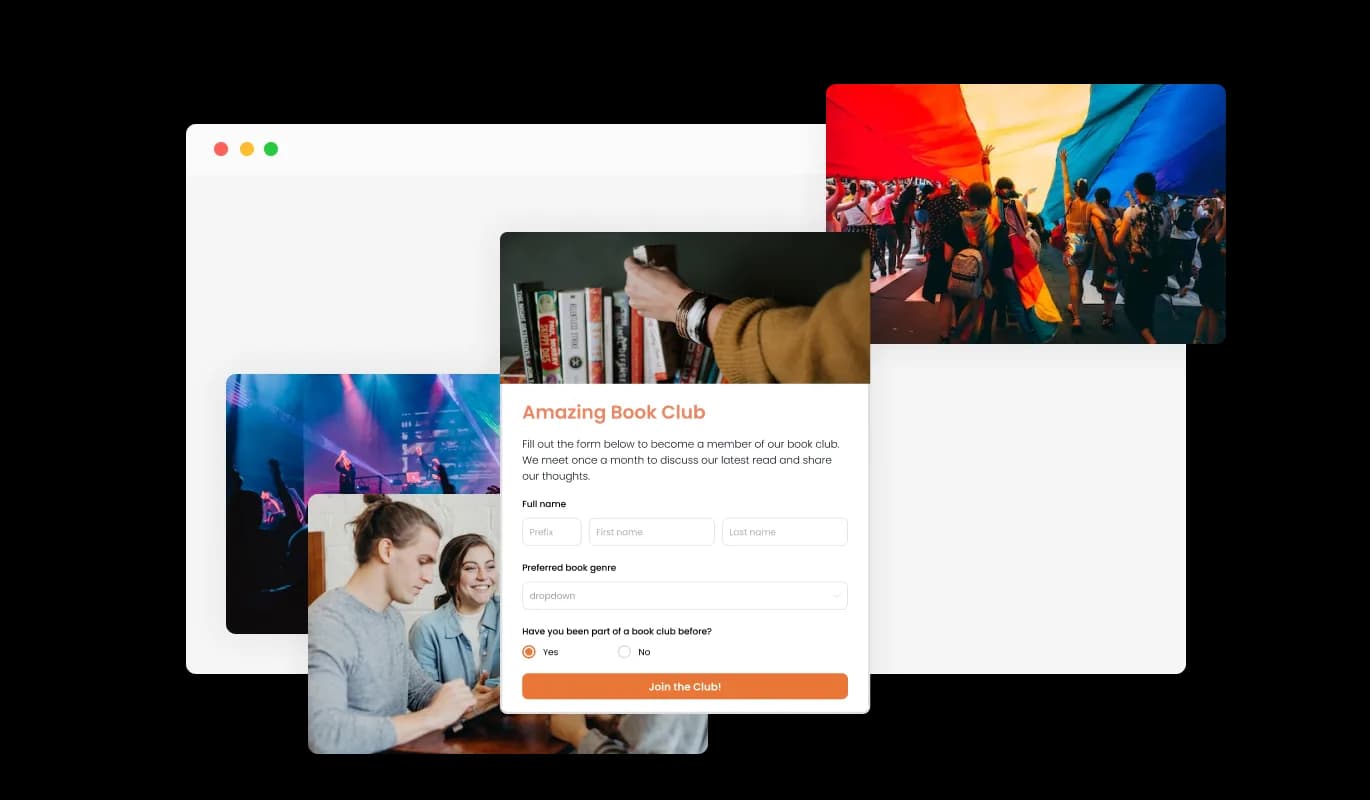
By adding titles, descriptive text, and images to your petition form, you can create a more engaging and user-friendly experience for your supporters. Including explanatory form elements can also help guide users through the submission process, resulting in a smoother and more efficient experience that can increase the likelihood of gathering more signatures or support for your cause.
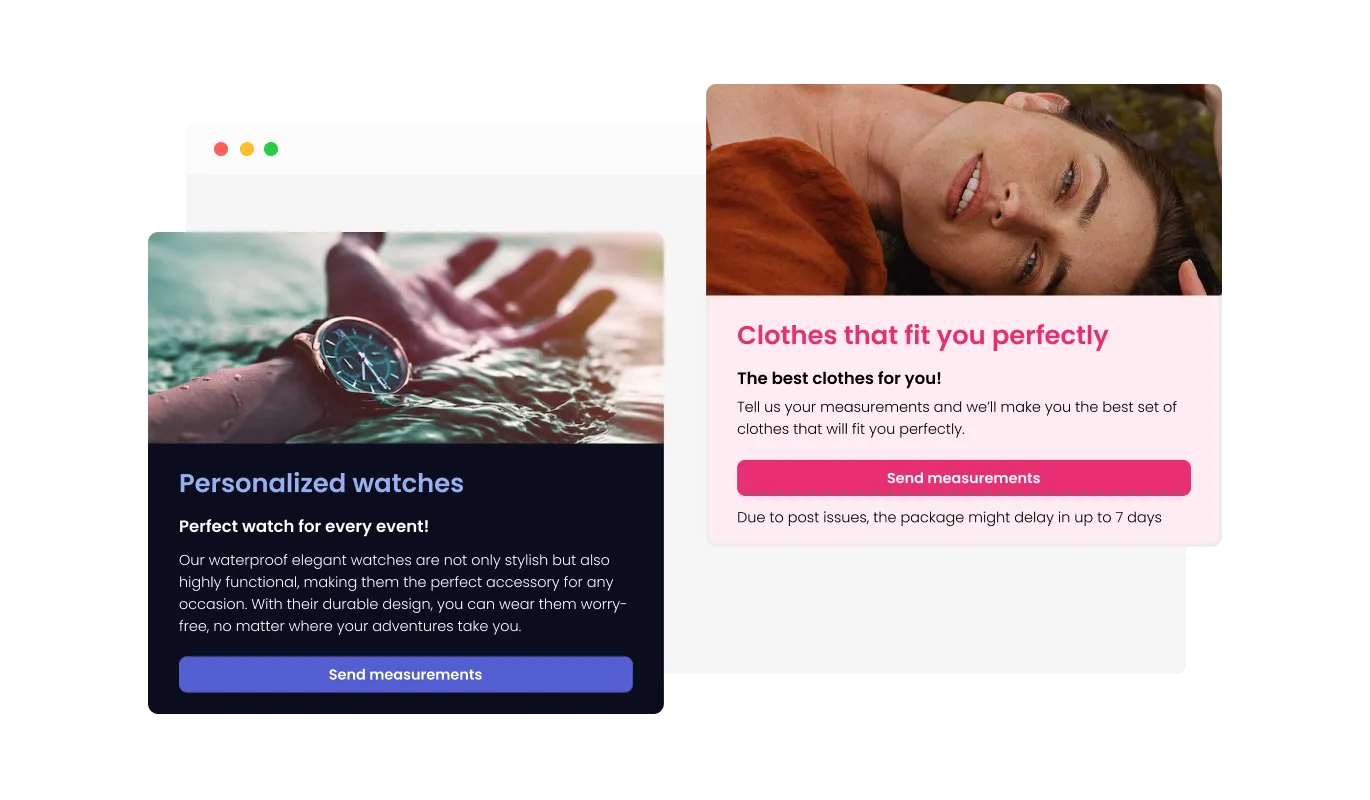
With the Petition Builder, you can customize the header and footer of your petition form, and even add images to make it more visually appealing and professional. This feature offers a great opportunity to promote your brand and create a more cohesive and engaging form that aligns with your website's design and aesthetic. By customizing your petition form, you can create a unique and memorable experience for your supporters, and build trust and credibility for your cause.
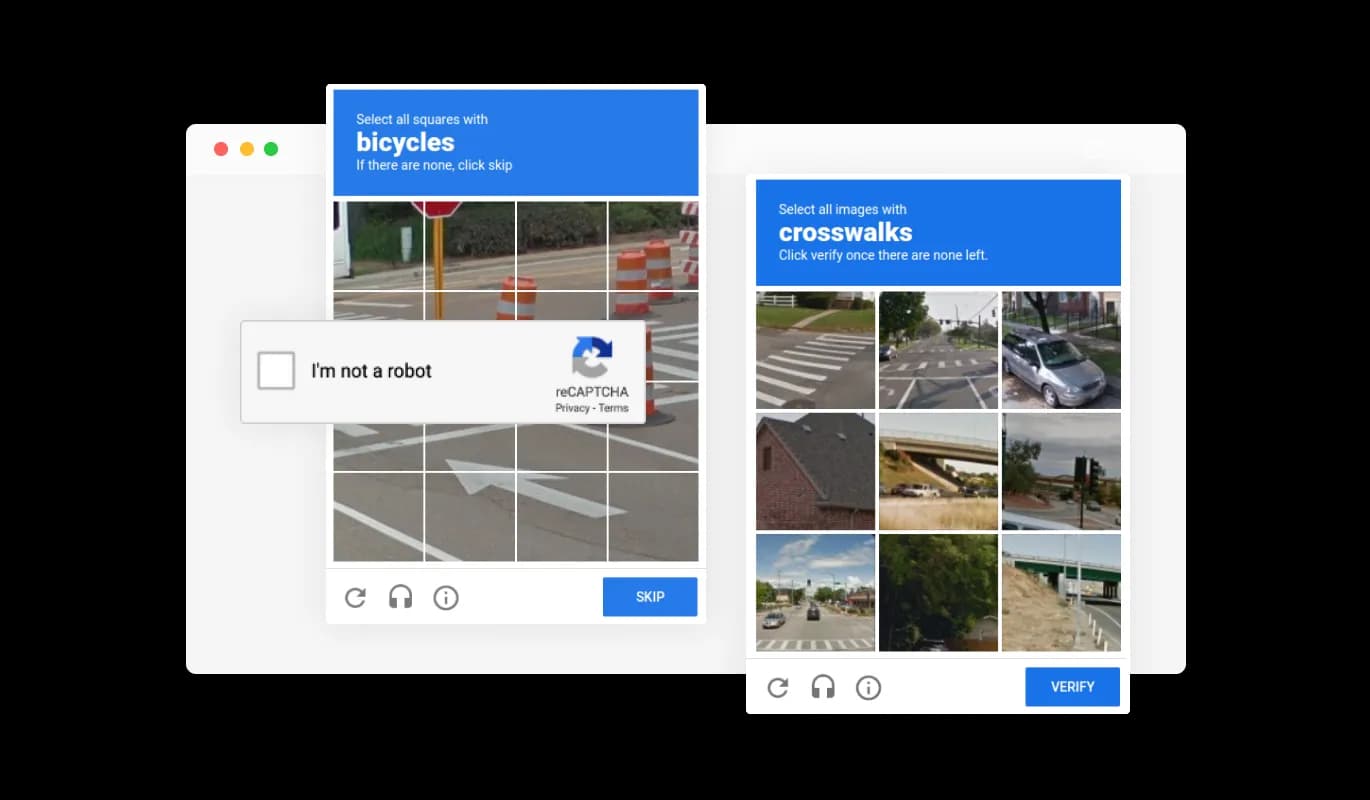
To keep your petition form free from spam and bot-generated entries, the Petition Form includes a CAPTCHA anti-spam feature. This feature requires users to complete a verification task before submitting their signature, ensuring that all signatures are genuine and from actual supporters. By adding this layer of protection, you can prevent bots and automated scripts from overwhelming your petition with spam messages, and maintain the integrity of your cause. With the CAPTCHA feature, you can be confident that every signature you receive is from a real person who cares about your cause.
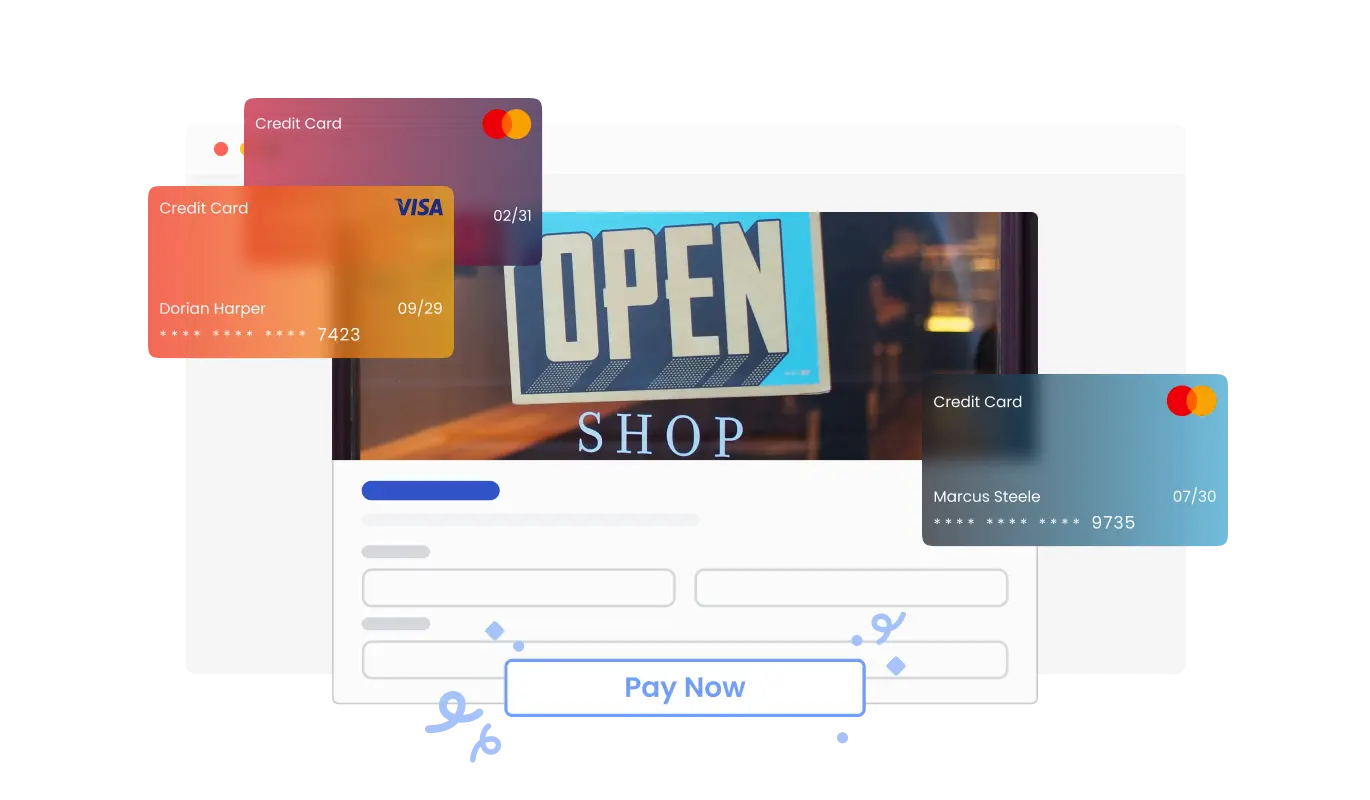
The Petition Form makes it easy to accept payments directly from your supporters. Whether you’re raising funds for a cause, organizing campaigns, or collecting donations, this feature integrates secure payment options into your form effortlessly. With a user-friendly setup and reliable payment processing, you can boost your fundraising efforts while providing a smooth experience for contributors.
The Petition Forms ensures HIPAA compliance, offering end-to-end data encryption and role-based access management to protect sensitive information. Seamless integrations, including a HIPAA-compliant API and support for tools like Google Sheets and EMR systems, enhance functionality. Additionally, activity tracking and audit logs provide full transparency over data access.
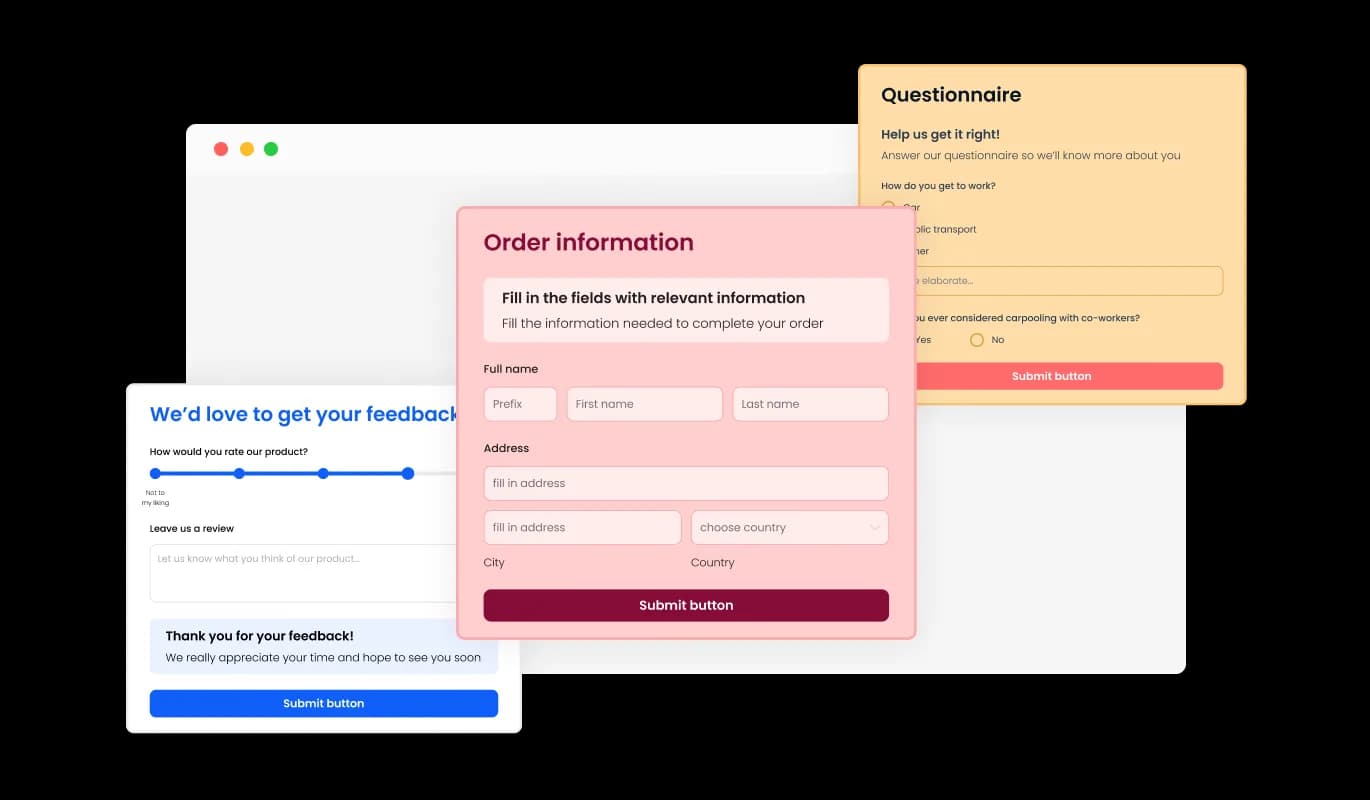
The Petition Form comes with a variety of beautiful skins that you can choose from so you don’t have to spend much time on extensive customization. These pre-designed skins cater to diverse tastes and preferences, allowing users to select the perfect theme that aligns with their cause and target audience for maximum impact.
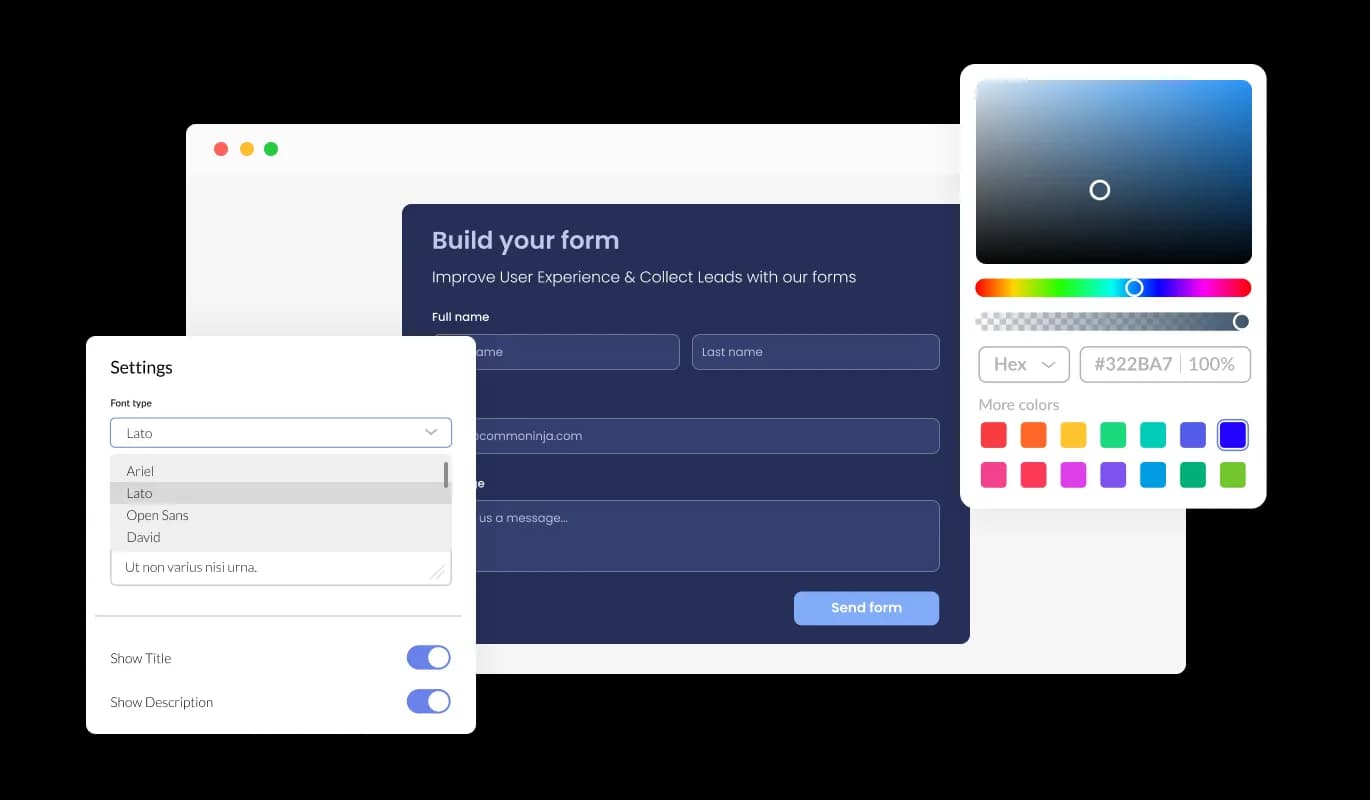
The Petition Form features full customization options so you can edit the design to fit your needs. Change the colors, the fonts, the spacing, and anything else! This flexibility enables users to craft unique and personalized petitions that not only effectively communicate their message, but also reflect their distinctive style and brand identity.
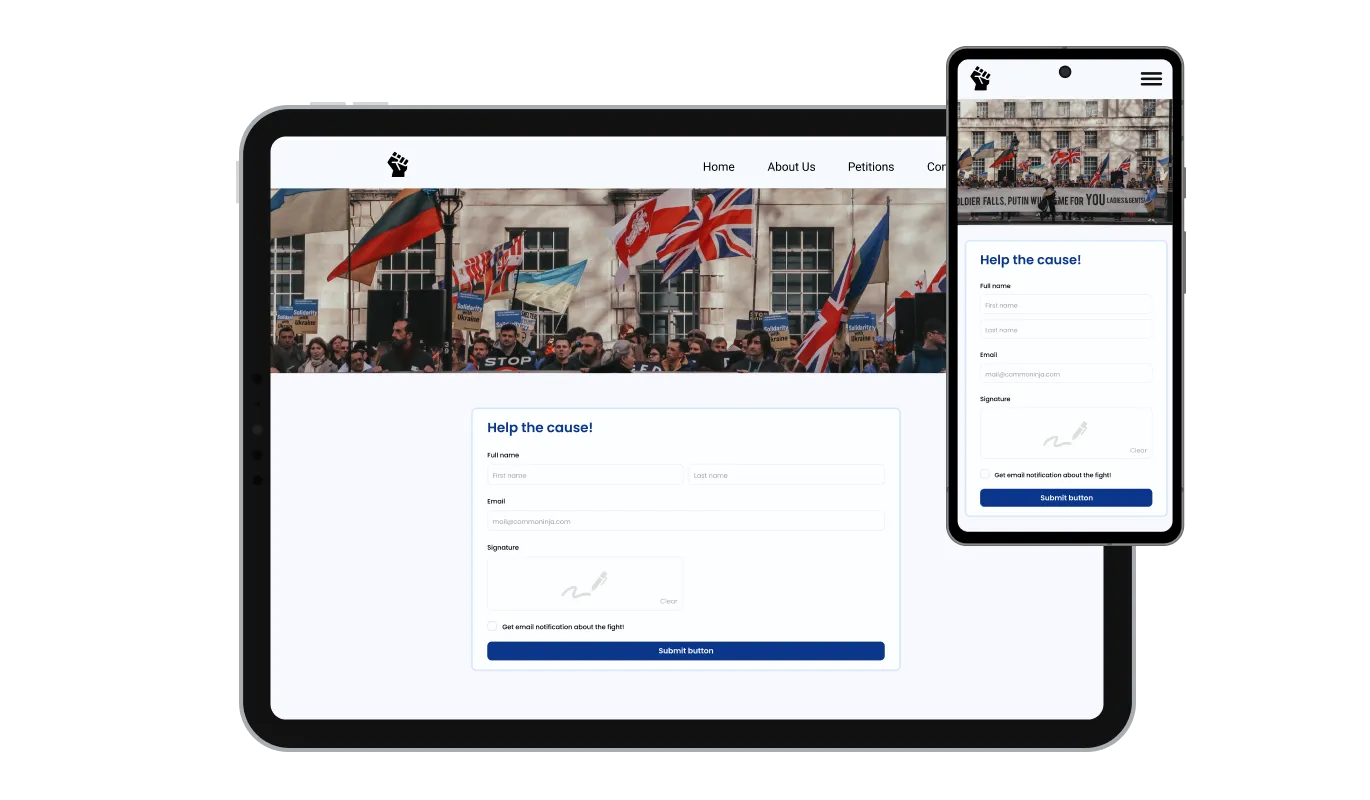
The Petition Form is fully responsive and will look great on any device. Having a form that is optimized for mobile viewing is essential in a world where more and more people are accessing the internet through their phones and tablets.

Our advanced editor is a powerful tool that gives you complete control over the appearance of the Petition Form. With this feature, you can easily customize every aspect of the petition's look and feel, from the colors and fonts to the layout and positioning. But if you're feeling particularly creative, you can take your customization to the next level by editing the CSS directly.

To embed the Petition Form on your website, simply copy and paste the provided code snippet into your page’s HTML code. Additionally, the Online Petition is designed to be auto-updating, meaning that any changes you make to the Petition Form editor will be reflected automatically on your website.
With the Petition Form, you can export all the submitted entries to a CSV file format, enabling you to analyze and integrate the data into other tools or software. This feature is particularly helpful for managing and keeping a record of all interactions with your petition supporters, as well as for generating reports and analyzing trends in your petition's success. By exporting your petition data, you can gain valuable insights into your petition's performance and make informed decisions to improve your campaign's effectiveness.
The Online Petition Form allows you to receive instant notifications whenever a new supporter signs your petition. With the ability to toggle notifications on, both for the form owner and for the submitting user, you can stay informed and up-to-date with all the latest submissions. Additionally, you can set up automated email notifications on every form submission, and send a confirmation email to the user upon successful submission. This feature ensures that you never miss an opportunity to engage with your supporters and build momentum for your cause.
The Petition Form Builder is easy to use and requires no coding knowledge. Our intuitive dashboard with the drag-and-drop feature will enable you to customize the petition any way you’d like to with just a few simple clicks.
Launch your petition on your own site in five minutes
Open the editorNo credit card · Setup in under 5 minutes
Common Ninja has amazing no-code widgets that would beautify a website built on any builder. It is very easy to use and customise. It has as many widgets for almost everyone willing to make their website impressive.
Outstanding service. I use their widgets to help me with my web design business and whenever I need help they are very quick to help.
Excellent company with excellent service!!! We used it to build a survey, it was very user friendly. The service was perfect. Amit helped us with every problem and question we had, thank you very much!!!
Common Ninja saved the day when building our website and the customer service Daniel, the co-founder and CEO, provided was amazing.
Yes. The free plan covers one Petition Form with no time limit and no credit card. Upgrade only when you need additional petitions, more signatures per month, advanced spam protection, payment collection, premium skins, or features like webhook integrations and per-petition analytics.
Hosted petition platforms (Change.org, Avaaz) put your petition on their domain. Your signers land on their site, see their ads, and become part of their audience. This widget runs the petition on YOUR site, with the signatures saved to your dashboard for you to export, deliver, or follow up with directly. Useful when you want full control over signer data, no platform-side ad placement, and signatures that stay in your campaign's ownership.
Yes. Add the optional signature pad as a field: signers draw their signature with mouse, trackpad, or finger on touch devices. The signature saves as an image alongside the typed name field, useful for petitions delivered to decision-makers who expect signed pages rather than just typed lists.
Yes. On plans that include payment integration. Enable payment in the form and signers can sign AND donate in one submission step. Configure suggested donation amounts or let signers enter their own value. Useful for advocacy campaigns, legal-defense funds, and cause-funding tied to support.
Signatures save to your Common Ninja dashboard with one row per signer. Export the full list to CSV whenever you need it: for delivery to decision-makers, follow-up emails, organizing communications, or merging into your campaign CRM. The CSV includes every field (name, email, address, comments, optional signature image reference) in one file.
Build the form in the Common Ninja editor (set up fields, enrich with cause content, configure notifications), copy the embed snippet, and paste it into your site: WordPress via a Custom HTML block (Gutenberg) or Shortcode/Text widget (Classic); Squarespace via a Code Block in your campaign-page section; Joomla via a Custom HTML module (Extensions → Modules → New → Custom HTML). Edits in the editor push to every embed without re-paste.
Yes. Honeypot fields and optional CAPTCHA block obvious bot patterns at submission. Email validation catches malformed addresses. For stricter integrity (one signature per email, IP-level rate limiting), paid plans add server-side dedup and IP-based throttling so your signature count reflects real supporters.
Yes. Field layouts adapt across mobile, tablet, and desktop breakpoints. Inputs reflow to single-column on narrow screens, dropdowns and radios stay tappable, and the signature pad scales to fingertip-sized drawing area on touch devices. Number inputs trigger the mobile numeric keyboard for less typing friction.
Pick your platform. Each takes under 4 minutes.
Create your form for any purpose with a friendly form builder
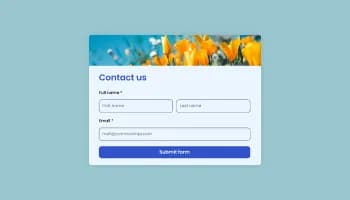
Allow users to send messages or inquiries, save submissions, enable notifications, and more

Allow users to register for events, save submissions, enable notifications, and more

Easily craft engaging, personalized popups to boost conversions.

Showcase customer testimonials using a rotating slider
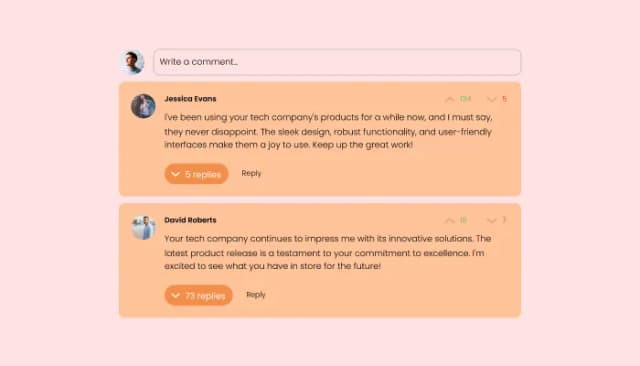
Comments system with upvote/downvote, email notifications, reply threads, and moderation tools.
An online petition form is a digital form that allows individuals or organizations to create a petition and collect signatures or support online. Online petition forms typically include fields for users to enter their name, email address, location, and a message of support. Petitions may be created for a variety of reasons, such as to raise awareness of a cause, advocate for a specific policy or action, or show support for a particular individual or group. Online petition forms offer a convenient and accessible way for individuals to participate in social and political movements and engage with causes they care about.
By following these best practices, you can create an effective online petition form that engages your audience and generates support for your cause.
Yes, you can easily do so from the “Templates” tab.
Yes, there are lots of beautiful skins that you can choose from to save time and start using the petition as quickly as possible.
Yes, you can either upload an image, or select an icon from a large selection of available icons to add to your petition, or, alternatively, you can leave it all blank.
It’s simple. All you need to do is to sign up and start using the free version.
Common Ninja’s Petition Form is free to use. It is limited to a certain amount of views, however.
Common Ninja’s Petition Form is compatible with ALL current and future website builders.
Yes, the Petition Form is GDPR-compliant.
No. Using our Petition Form is very simple. The petition comes with an intuitive drag-and-drop interface and fully customizable options. Once you’ve finished editing the petition to your liking, all you need to do is copy the provided code and add it to your website.
Yes. We are eager to hear your request. Please visit our Feature Request page.
Collect signatures with name, email, address, comments, and optional hand-drawn signature fields. Payment collection for donation-tied petitions, spam protection, host notifications, CSV export, stylish skins, and Custom CSS. Embed on 200+ platforms including WordPress, Squarespace, Joomla, Shopify, and Webflow.
Create your PetitionNo credit card · Setup in under 5 minutes