


Verified review
Common Ninja has amazing no-code widgets that would beautify a website built on any builder. It is very easy to use and customise. It has as many widgets for almost everyone willing to make their website impressive.
Pick a template, change the colours, what it counts from and the units, and watch your countup timer update as you go. No sign-up until you save.
The Common Ninja Count-Up Clock widget is a free, no-code embed that displays the time elapsed since an important date, days, hours, minutes, and seconds ticking up in real time on your website.
Set the starting date and time (the launch you're tracking, the anniversary, the milestone, the streak), choose which time units to display, write tailored labels ("days since launch", "hours streak-free", "years sober"), pick a layout and skin, customize the design with Custom CSS, and paste a one-line embed snippet on Notion, WordPress, Wix, Canva, Webflow, and 200+ other platforms.
Use it for company-anniversary bands, days-since-launch celebrations, sobriety counters, streak trackers, milestone markers, or any moment where the time elapsed itself is the story worth telling visitors.
"We've been building for 1,247 days" hits differently than "founded in 2022". A ticking elapsed-time counter shows that the work is ongoing, the brand is alive, and the time invested is meaningful. Useful for about-pages, milestone celebrations, and any moment where the duration itself is part of the story.
Visitors trust a brand that's been at it longer. A live counter showing "days serving customers", "hours uptime this year", or "years in business" turns abstract longevity into a concrete number ticking in real time, and that real-time tick signals that you're not just claiming history, you're still in motion.
Notion is the dominant platform for this widget: personal dashboards love elapsed-time counters for sobriety streaks, exercise habits, journaling consistency, days-since-quitting goals. Embed once in a Notion template and the counter ticks for every duplicated workspace, making the streak visible every time the dashboard loads.
Numbers Counter animates a single number from 0 to a target value when the section scrolls into view, used for stat-strip moments ("50,000+ customers", "1M+ widgets shipped"). Countdown counts DOWN to a future date (deadlines, launches). This Count-Up Clock ticks UP from a past date in real time. Elapsed time is the story. Three different widgets for three different jobs.
Enter the date and time the count-up started. Your company's launch day, your sobriety start date, a partnership anniversary, a habit-streak beginning, the day you opened doors. Set the timezone so the count is honest about when it started. The widget calculates elapsed time from that moment and ticks up in real time.
Choose which time units to display: years and months for long anniversaries, days and hours for medium-term streaks, all four (days / hours / minutes / seconds) for active live counters. Write tailored labels per unit ("days since launch", "hours streak", "years sober"). Pick a layout (horizontal row, vertical stack, compact pill) and a skin from the design library, or layer Custom CSS for pixel-level brand match.
Copy the one-line embed snippet and paste it on Notion, WordPress, Wix, Canva, Webflow, or any of the 200+ supported platforms. The counter loads with the page and updates every second (or every minute / hour, configurable). Edits in the Common Ninja editor push to every embed without re-paste.
Customize the label for years, months, days, hours, minutes, seconds, "days since launch", "hours streak", "years sober", "minutes uptime today". Each unit carries its own label so the counter speaks the language of your specific milestone.
Horizontal row (compact, fits in headers and announcement bands), vertical stack (more presence, suits about-page milestones), or compact pill (tiny inline display for sidebar slots). Switch in the editor without re-entering data.
Pick from a library of pre-designed skins (minimal, brand-vibrant, dark-luxe, glow, holiday) for a fast visual fit. Each skin frames the elapsed-time digits with its own typography, accent colors, and divider styling. Turn the same data into a celebration band or a quiet sidebar marker.
Layer Custom CSS over any skin to control digit typography, unit-label styling, divider style between units, tick-animation easing, and per-breakpoint sizing. The widget integrates with your site's design system without rebuilding from scratch.
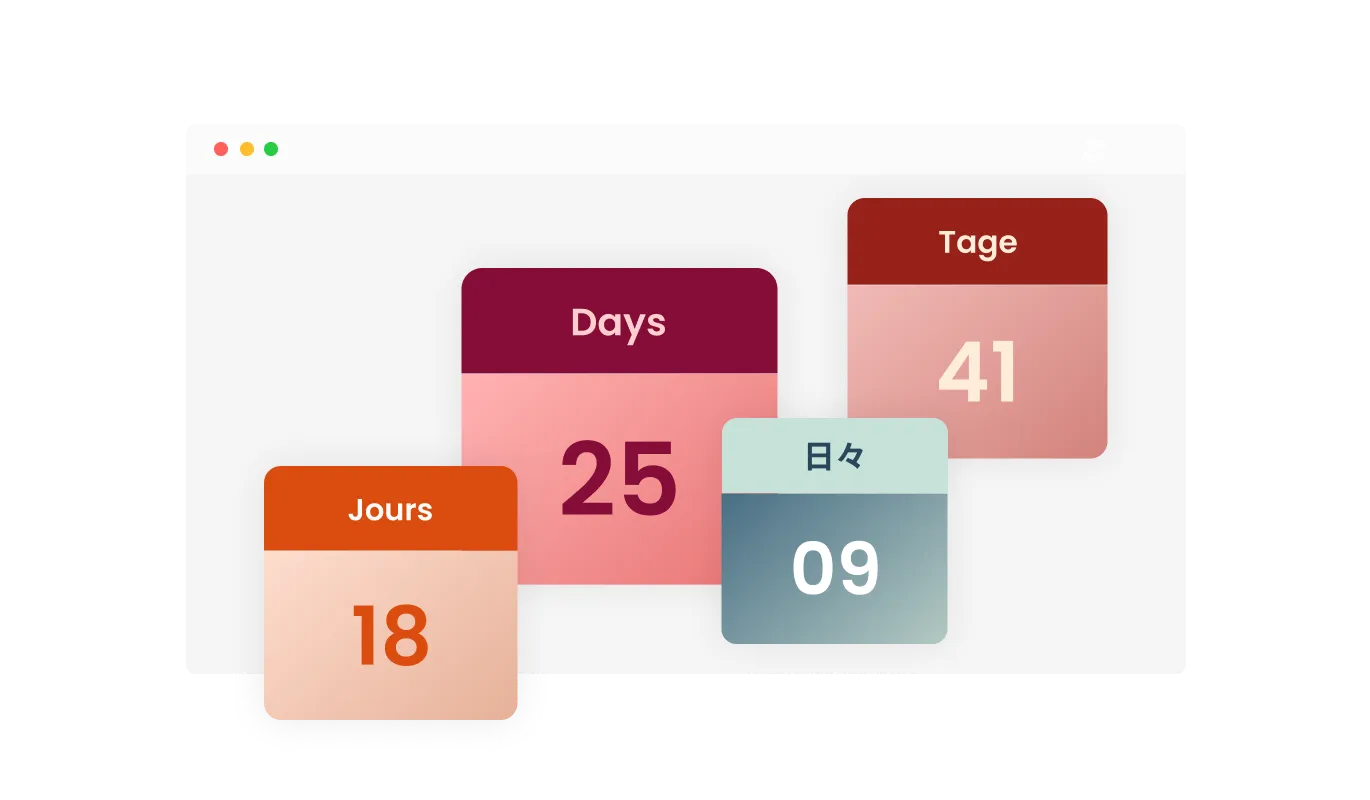
The Count-Up Clock widget empowers you with the ability to customize the titles and labels for days, hours, minutes, and seconds, ensuring that the count-up timer aligns perfectly with your unique event or promotion. Craft labels that resonate with your audience and context, enhancing the overall user experience and making it more engaging and purposeful.
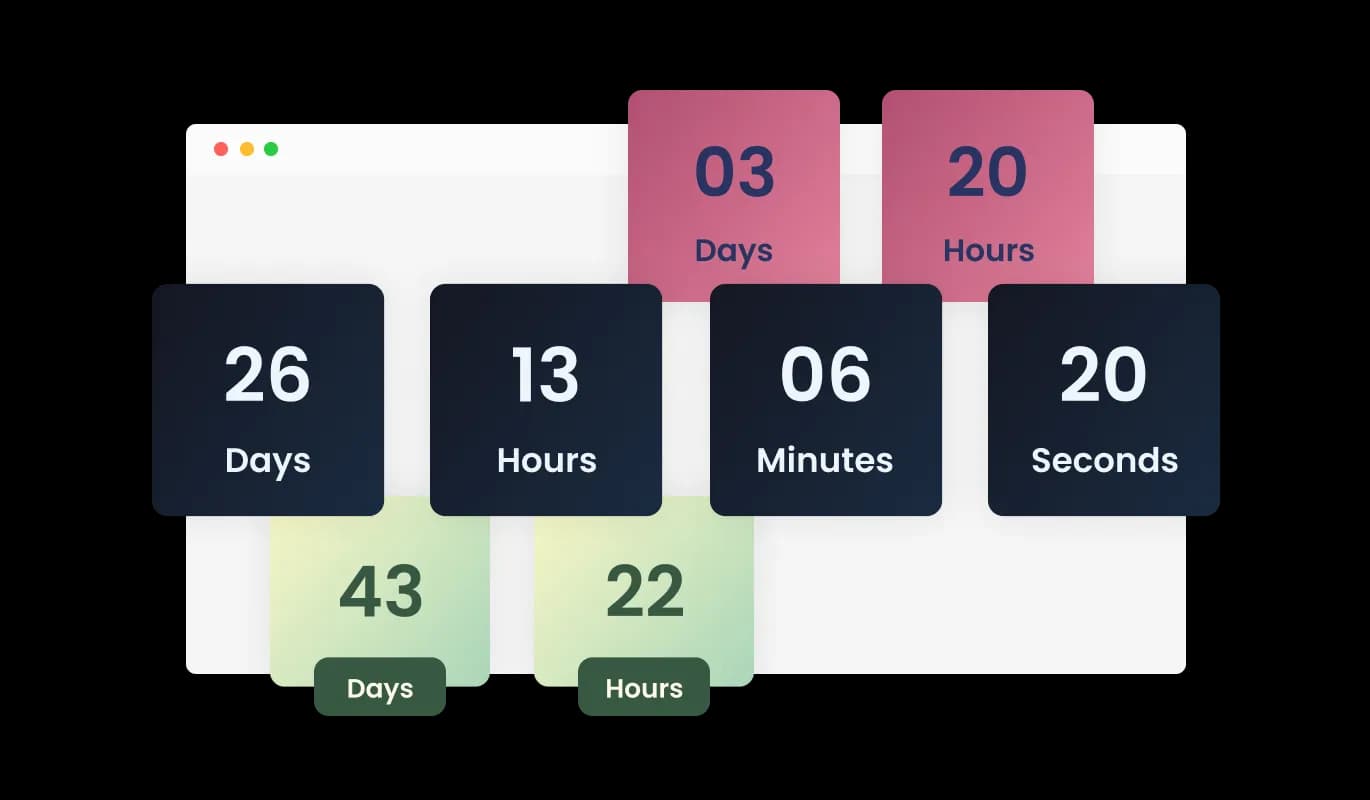
The Count-Up Clock widget provides a variety of design themes, making it a breeze to harmonize the widget's look with your website's aesthetic. Explore multiple pre-built themes and effortlessly adjust the widget's appearance to seamlessly integrate with your site's overall design.
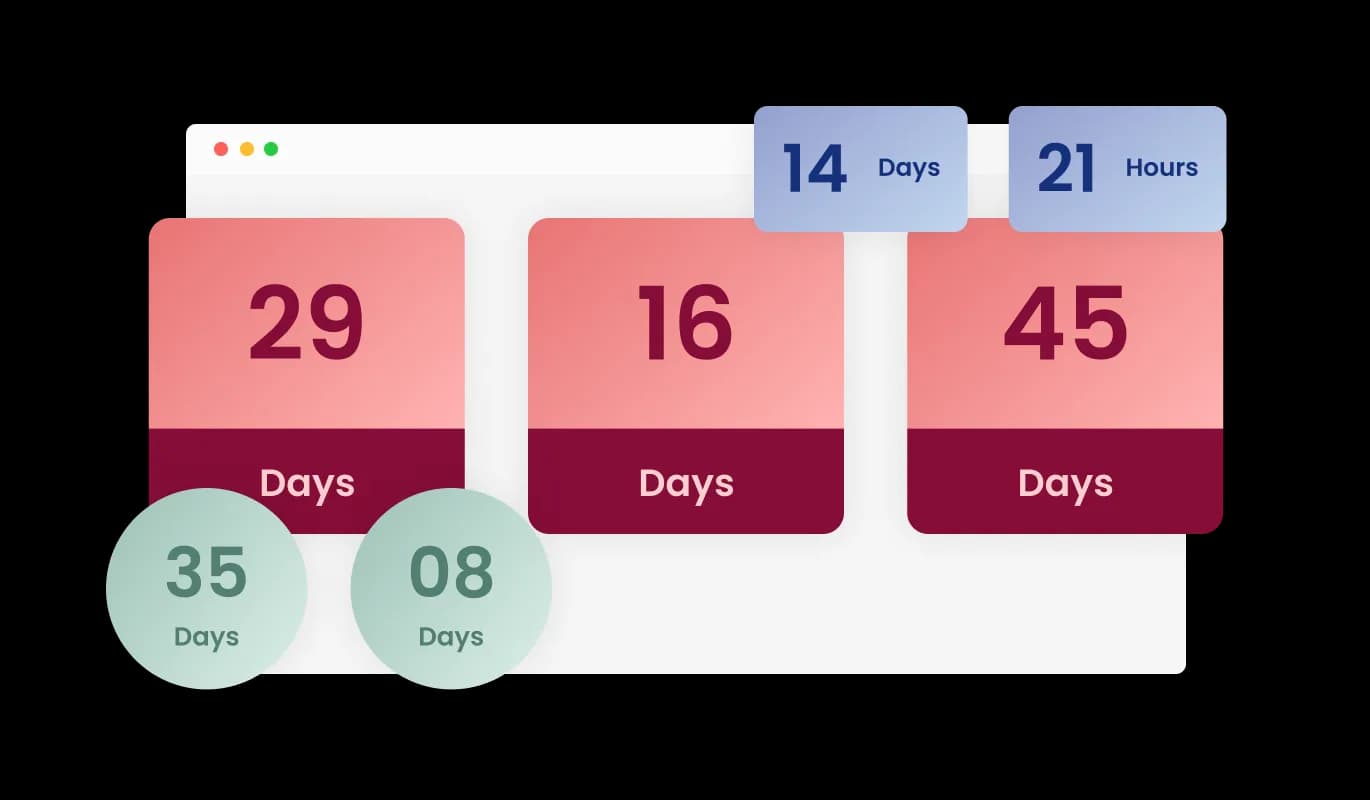
With the Count-Up Clock, you have access to a range of layout options designed to suit your website's aesthetics. Choose from various presentation styles, including horizontal, vertical, or circular count-up displays, to create an attractive and visually pleasing countdown that complements your website's design seamlessly.
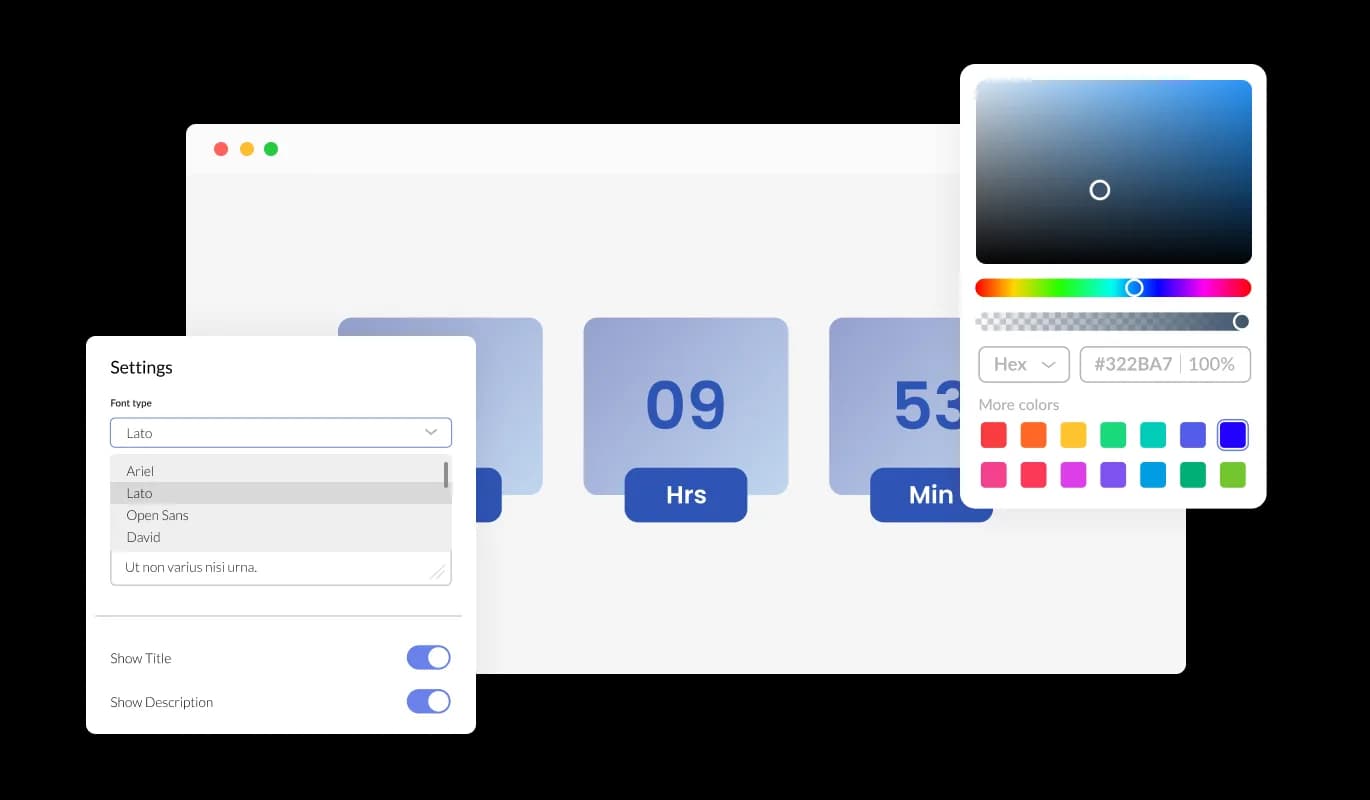
The Count-Up Clock offers comprehensive customization, so you can tailor the design to your requirements. Modify colors, fonts, spacing, and every other element to build a clock that counts up from your chosen date and matches your site’s style.
The Count-Up Clock widget features a responsive design that guarantees optimal display and functionality on various devices and screen sizes. Whether your visitors access your website from a desktop, tablet, or mobile device, the count-up timer automatically adapts to provide a smooth and visually appealing experience, ensuring your website maintains a professional and engaging presence.

For those seeking in-depth customization, the Count-Up Clock widget offers full CSS control. This advanced feature empowers experienced users and web developers to finely adjust the timer's appearance and behavior, ensuring it harmonizes perfectly with their precise design preferences and needs.

Count-Up Clock widget offers effortless integration with a variety of website builders and platforms, guaranteeing a seamless addition of the count-up timer to your site. Its user-friendly setup ensures a hassle-free experience, free from technical challenges or compatibility concerns.
The Count-Up Clock widget adds an element of dynamic engagement to your website with captivating animations that showcase the transition of numbers as they count up from a specific event. Customize the animation style and speed to your liking, ensuring that your count-up timer becomes a standout feature for your website visitors.
Implementing the Count-Up Clock is a breeze, requiring no coding skills or technical expertise. Its user-friendly interface and straightforward setup process make it accessible to users of all experience levels, enabling anyone to effortlessly create and customize a count-up timer for their website.
The Count-Up Clock widget is designed for ease of use and doesn't demand any coding expertise. Our intuitive dashboard, equipped with a simple drag-and-drop interface, empowers you to customize the widget precisely as you desire with just a few effortless clicks.
Make your time-since story tick in real time
Open the editorNo credit card · Setup in under 5 minutes
Common Ninja has amazing no-code widgets that would beautify a website built on any builder. It is very easy to use and customise. It has as many widgets for almost everyone willing to make their website impressive.
Outstanding service. I use their widgets to help me with my web design business and whenever I need help they are very quick to help.
Excellent company with excellent service!!! We used it to build a survey, it was very user friendly. The service was perfect. Amit helped us with every problem and question we had, thank you very much!!!
Common Ninja saved the day when building our website and the customer service Daniel, the co-founder and CEO, provided was amazing.
Yes. The free plan covers one Count-Up Clock with no time limit and no credit card. Upgrade only when you need additional clocks, advanced styling options, premium skins, or features like per-counter analytics and milestone-celebration animations.
A Numbers Counter animates a fixed number from 0 to a target value when the section scrolls into view, used for stat-strip moments like "50,000+ customers" or "1M+ widgets shipped". A Count-Up Clock ticks elapsed time forward in real time from a fixed past date, "137 days since launch", "4 years 2 months in business". Use Numbers Counter for static-fact stat strips; use this Count-Up Clock when the time elapsed itself is the story.
A Countdown ticks DOWN toward a future date: deadlines, product launches, sales ending. A Count-Up Clock ticks UP from a past date: anniversaries, days-since-launch, sobriety streaks, business longevity markers. Same time-display engine, opposite direction, different use cases.
Choose any combination of years, months, days, hours, minutes, seconds. For long anniversaries, years + months reads cleanest. For active streak counters, days + hours feels right. For live-uptime banners, all four (days / hours / minutes / seconds) make the live tick visceral. Hide units that aren't relevant to keep the display tight.
The start date is anchored in the timezone you configure. Every visitor worldwide sees the same elapsed-time number based on that anchor ("137 days since launch" reads the same from Tokyo and Toronto). If you want a visitor-personal counter ("how long you've been on our site", "hours since you joined"), use a paid-plan feature that anchors per-visitor instead.
Build the widget in the Common Ninja editor (set start date, pick units and labels, customize design), copy the embed snippet or URL, and paste it into your site: Notion via /embed with the embed URL; WordPress via a Custom HTML block (Gutenberg) or Shortcode/Text widget (Classic); Wix via the HTML embed widget (Add → Embed → HTML iFrame/Embed a Widget). Edits in the editor push to every embed without re-paste.
No. The tick is a tiny JavaScript interval that updates the displayed digits without re-rendering the rest of the page. CPU impact is negligible, no extra network requests are needed after initial load, and Core Web Vitals stay healthy. You can also configure the update interval (per second, per minute, per hour) to reduce activity on long-elapsed counters where second-by-second accuracy doesn't matter.
Yes. Layouts (horizontal row, vertical stack, compact pill) adapt across mobile, tablet, and desktop breakpoints. Digits scale to stay readable on narrow viewports, units stack vertically when horizontal space runs out, and the tick animation respects mobile browser performance.
Pick your platform. Each takes under 4 minutes.
Showcase statistics, metrics, or countdowns in an animated visually appealing display
Displays a timer counting down to a specific date or event
Displays a countdown clock, with multiple effects and styles
Displays multiple time zones; customizable, responsive design.
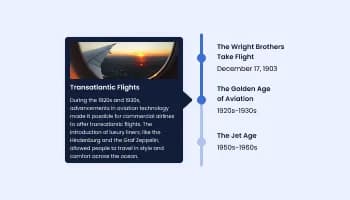
Show events or important moments in the order they occurred, using pictures and text

Track real-time visitor counts on your website with our customizable Visitor Counter widget.
The Count-Up Clock is a widget that displays the time that has passed since a specific event or date on your website.
Installation is easy! Simply embed the provided code into your website's HTML, and the widget will be up and running.
Can I customize the appearance of the Count-Up Clock?
You can count up from any past event, whether it's an anniversary, product launch, milestone, or any other significant occasion.
No coding skills are necessary. The widget offers a user-friendly interface for easy setup.
Absolutely! You can add the widget to as many pages as you like.
Yes, it's fully responsive and adapts seamlessly to different screen sizes, including mobile devices.
It updates in real-time, continuously displaying the accurate time that has passed since your event.
Yes, you can customize the animation style and speed to suit your preferences.
The widget offers various layout styles, including horizontal, vertical, and circular timers.
Yes, it's designed to integrate seamlessly with various website builders and platforms.
Yes, you can use it for both personal and commercial websites.
There's no limit; you can count up from any past date, regardless of how far back it is.
Yes, we offer dedicated customer support to assist you with any questions or problems you may encounter while using the widget.
Display the time elapsed since a launch, anniversary, or milestone, years / months / days / hours / minutes / seconds with tailored per-unit labels, multiple layouts, stylish skins, and Custom CSS. Embed on 200+ platforms including Notion, WordPress, Wix, Canva, Webflow, and Visual Composer.
Create your Count-Up ClockNo credit card · Setup in under 5 minutes