How to add Flip Card Builder to a Wix website

Learn how to embed Common Ninja’s Flip Card Builder on your Wix website without coding.

Create a customizable Flip card

loved by 500K+ businesses

widget-editor

In This Guide

In this quick guide, you'll learn how to embed the Flip Card Builder into your Wix website by generating your embed code and adding it seamlessly to your website.

Embed Flip Card Builder on Wix
01
Create a Flip Card Builder app for Wix on Common Ninja
First, create a Wix Flip Card Builder app on Common Ninja. On the apps catalog, find the Flip Card Builder and enter the Editor.
Create a Flip Card Builder app for Wix on Common Ninja
02
Save the Flip Card Builder app
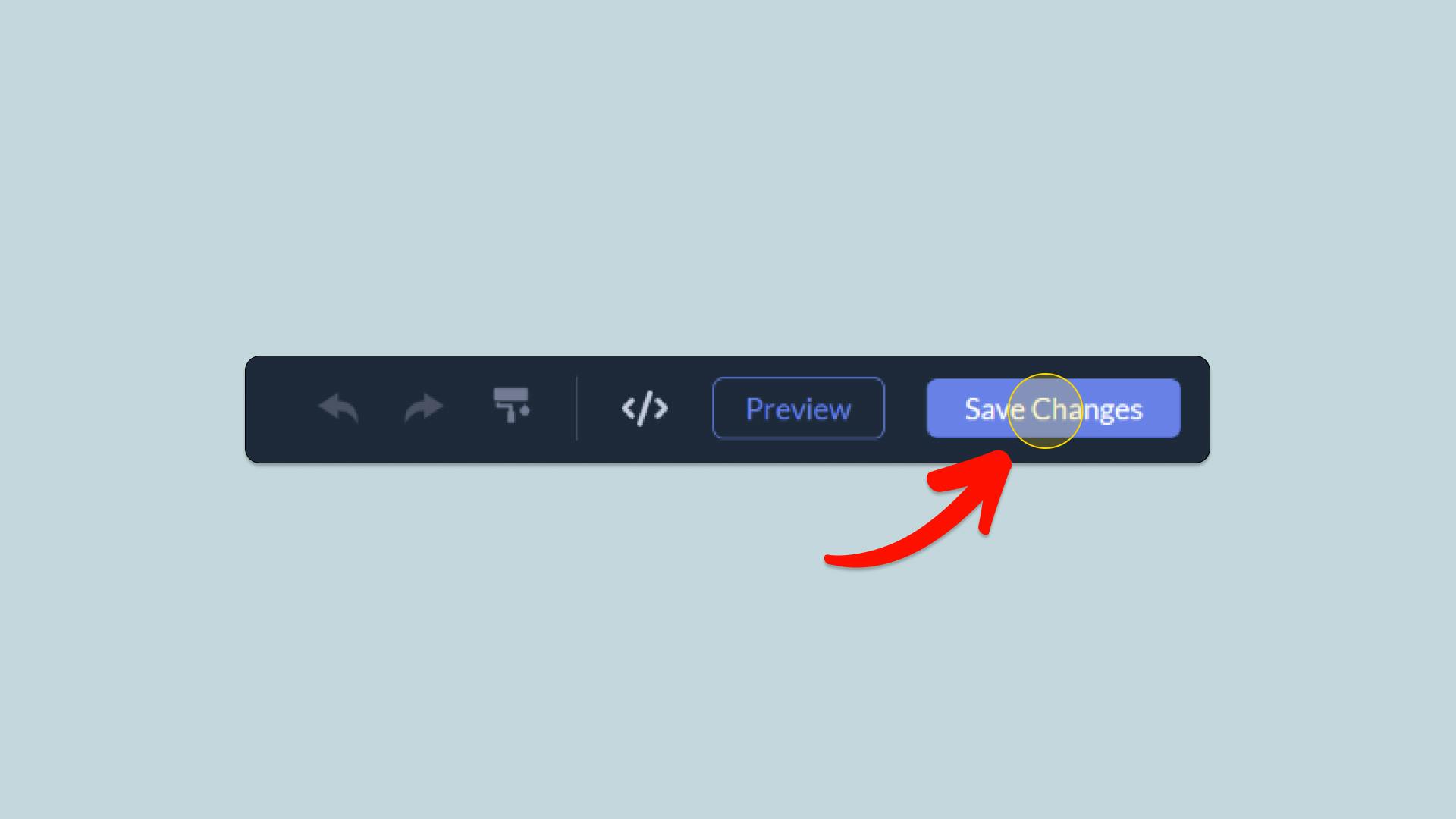
When you're done creating the Flip Card Builder app, click on the Save Changes button at the right top corner of the editor. If you don't have an account on Common Ninja, you'll have to register first.
Save the Flip Card Builder app
03
Copy the Flip Card Builder Embed Code
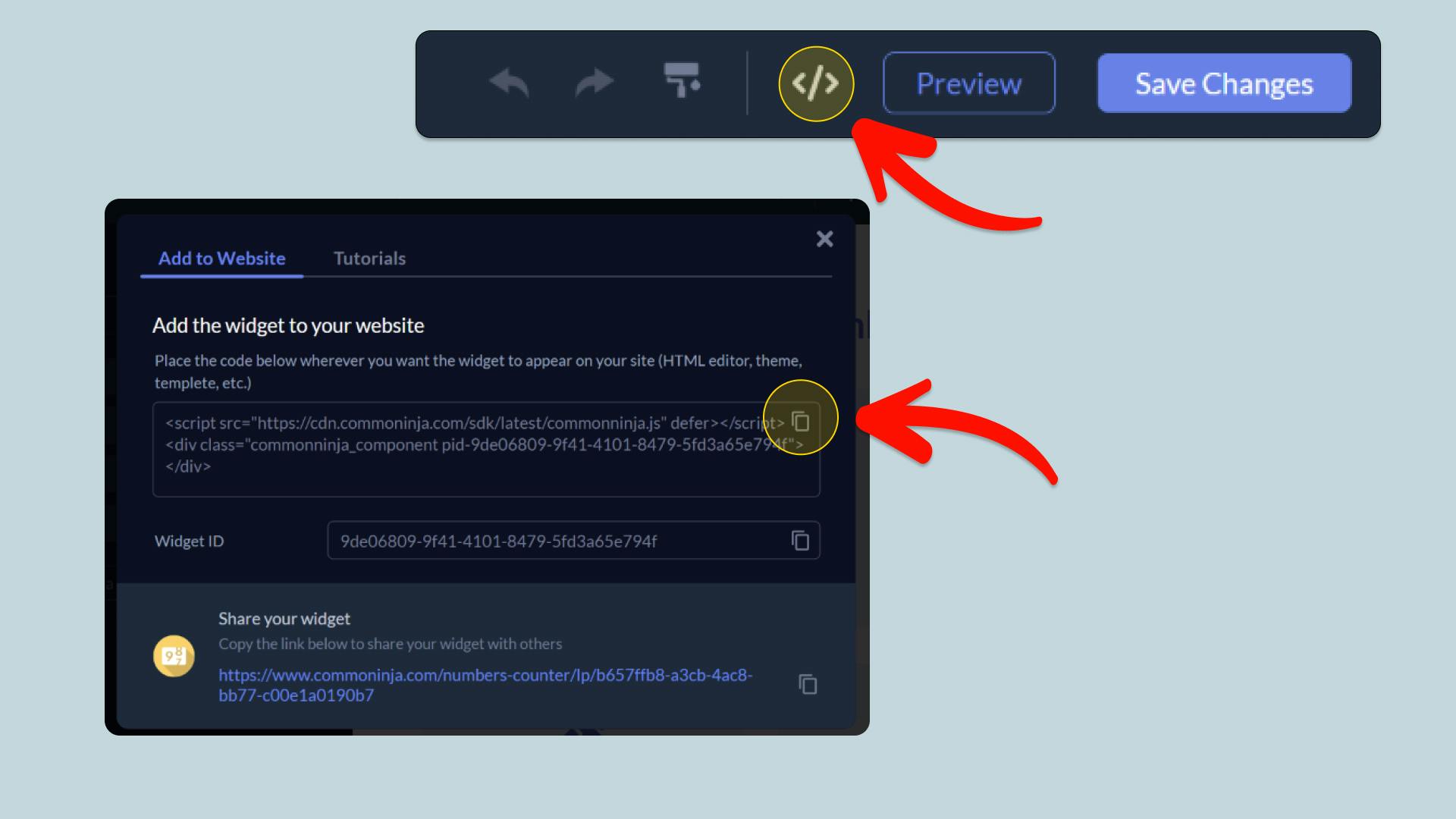
When you're ready to add the Flip Card Builder app to your Wix website, click the Add To Website button at the top bar of the Editor. On the window that opens, click the Copy Icon to copy the app embed code. In the next steps, you will paste this code into your Wix website.
Copy the Flip Card Builder Embed Code
04
Paste the code to your Wix website’s HTML field.
Next, go to your Wix website editor and find the HTML field. It is most likely in the form of an HTML/Code widget or module which you can find on the Wix’s editor. Add it to your page, and paste the Flip Card Builder Embed Code you’ve copied before to the HTML field. Save and update, and that’s it, you should have Common Ninja’s Flip Card Builder app on your Wix website.
Paste the code to your Wix website’s HTML field.
05
Alternative Method 1: Through the HTML option in the text’s editing area.
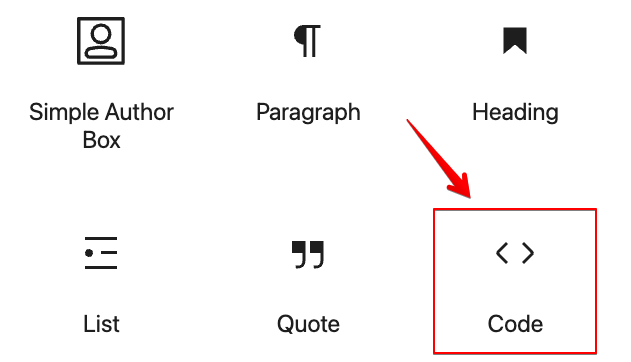
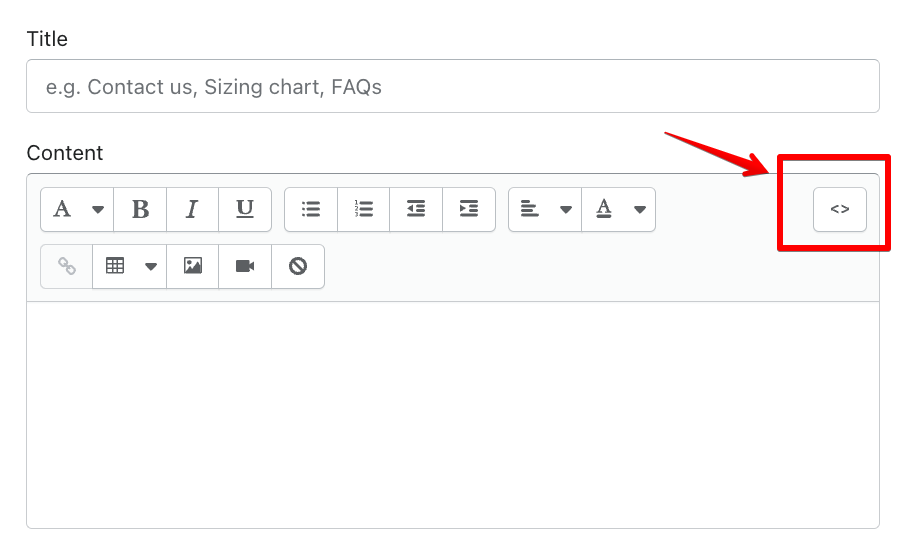
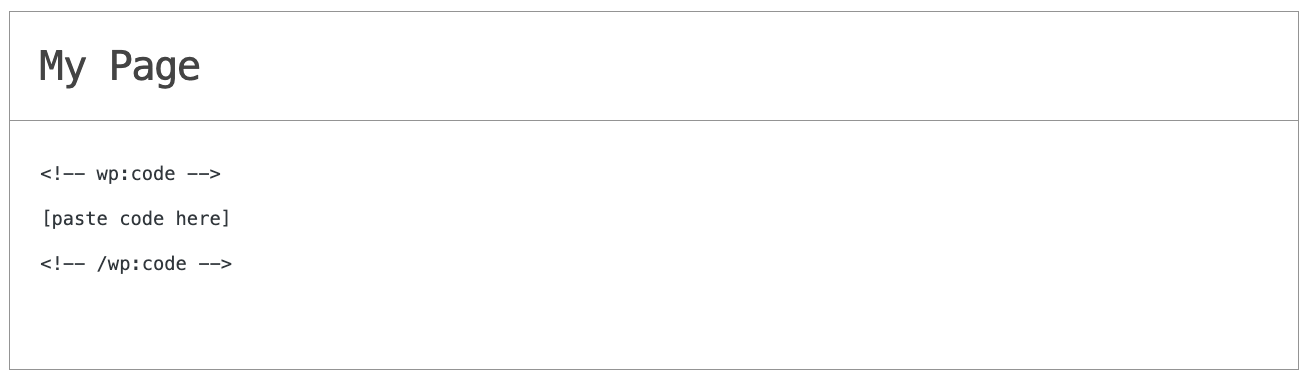
If you can't find the HTML/Code widget or module, there's another way to put Common Ninja’s Flip Card Builder app on your Wix app. You can just add the code to a special HTML section in the text editor.
Alternative Method 1: Through the HTML option in the text’s editing area.
06
Alternative Method 2: Add it directly to your Wix website’s HTML code.
If you're having trouble finding a widget or a special part in your text editor where you can add the Embed Code, you can try a different way to add the Flip Card Builder app to your Wix website. You can do this by putting it straight into your Wix website's HTML code.
Alternative Method 2: Add it directly to your Wix website’s HTML code.

Why Use This Widget

Use the Flip Card Builder widget when you want interactive two sided cards tailored to your content without manual design work. A flip card lets you show a focused front view, such as a title or image, and reveal secondary details on the back only when users choose to explore. This keeps layouts clean while still offering depth. With a builder, you define fields, flip behavior, and styling to fit features, FAQs, team bios, products, or learning materials. The interaction increases engagement because visitors actively discover content. It also improves memory and clarity since each card is a distinct unit. By creating consistent flip card patterns across your site, you make information easier to scan and more enjoyable to explore.

This tutorial was written by the Common Ninja product team, creators of interactive, no-code widgets for Wix website. Common Ninja helps over 500,000 users build engaging online experiences without coding.

See every widget for Wix

Building on another platform?