


Verified review
Common Ninja has amazing no-code widgets that would beautify a website built on any builder. It is very easy to use and customise. It has as many widgets for almost everyone willing to make their website impressive.
Try the editor, no signup
Pick a template, customize it, and watch it update live, no signup.
No credit card · Free forever plan
No credit card · Free forever plan
The Common Ninja QR Code widget is a free, no-code way to generate a QR code and display it on your website. Pick a type, enter the details, choose a layout, and paste one line of embed code.
Codes can carry a URL, plain text, an email, a phone number, an SMS, WiFi credentials, an App Store link, a file download, a location, or a social profile.
Nine layouts pair the code with a title and description, and colours, skins, fonts, spacing, and custom CSS keep it consistent with the page around it.
Some things only work on a phone: an app install, a wallet pass, a mobile ticket, a WhatsApp chat. A code on the desktop page is the shortest path there, and it beats asking someone to type a URL into their handset.
Cafes, hotels, clinics, and venues hand out the same three things all day. A WiFi code that joins the network without a typed password, a menu code, and a location code answer them without a member of staff.
Print is permanent, but the page holding the code is not. Generating the code on your site means the campaign it points at can change without reprinting anything that already went out.
Anywhere a printed surface needs to reach a web page, a code is the bridge. Badges, flyers, packaging inserts, and slides all end up pointing at something, and a typed URL loses people that a scan does not.
A QR code is not only a link. Pick the type that matches the job, whether that is a URL, WiFi credentials, a phone call, an email, a location, or a file download, because the type decides what a phone does when it scans.
Nine layouts pair the code with a title and a description. The label is the part people read before deciding to scan, so Download the app or View the menu earns more scans than a bare square does.
Copy the snippet from the Add to Website tab and paste it where the code belongs. Changing the destination later updates every page carrying the embed, with nothing to reprint.
URL, plain text, email, phone, SMS, WiFi, App Store, file download, geolocation, and social media. The type controls what the phone does on scan, so the code can join a network or start a call, not only open a page.
The code sits alongside a heading and a line of context, so a visitor knows what they are getting before they raise a phone. Pick the arrangement that fits a contact section, a product page, or a banner.
Adjust colours and pick a skin so the block reads as part of your layout rather than a pasted screenshot. Keep enough contrast between the code and its background for a camera to resolve it.
The block scales across phone, tablet, and desktop while keeping the code, title, and description readable, and a custom CSS field handles exact sizing when a footer or sidebar needs it smaller.
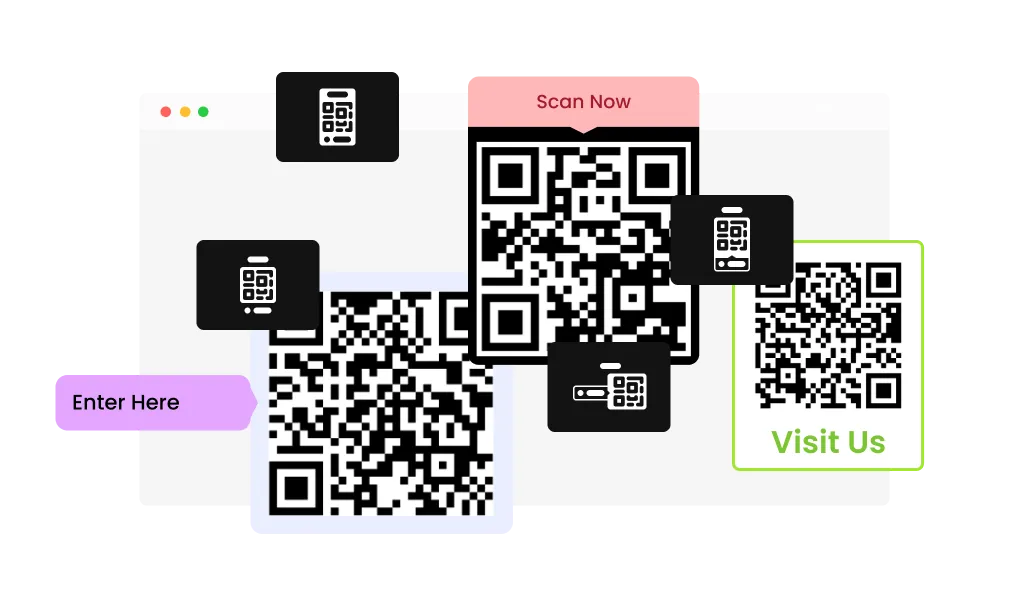
Pick from nine layouts that combine the QR code image with a title and description. This makes it easy to match the widget to different pages, like a contact section, a product page, or an event banner. You can keep the design consistent while still tailoring the message around each Website QR Code.
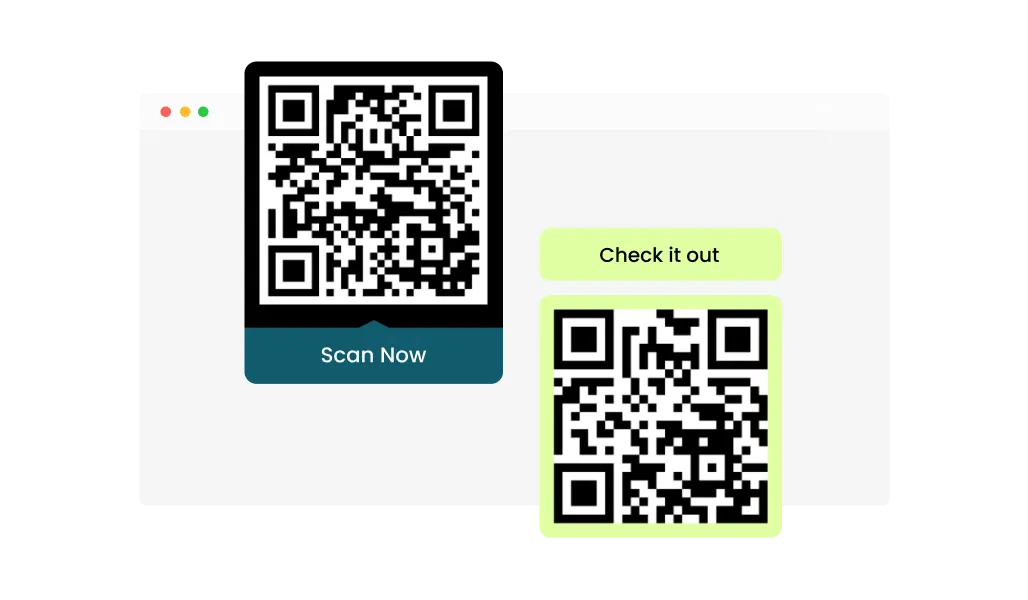
Adjust colors and choose from design skins to keep your QR code element aligned with your site style. This helps the QR block feel like part of your layout instead of a copied image. It’s a simple way to keep branding consistent across every Website QR Code you publish.
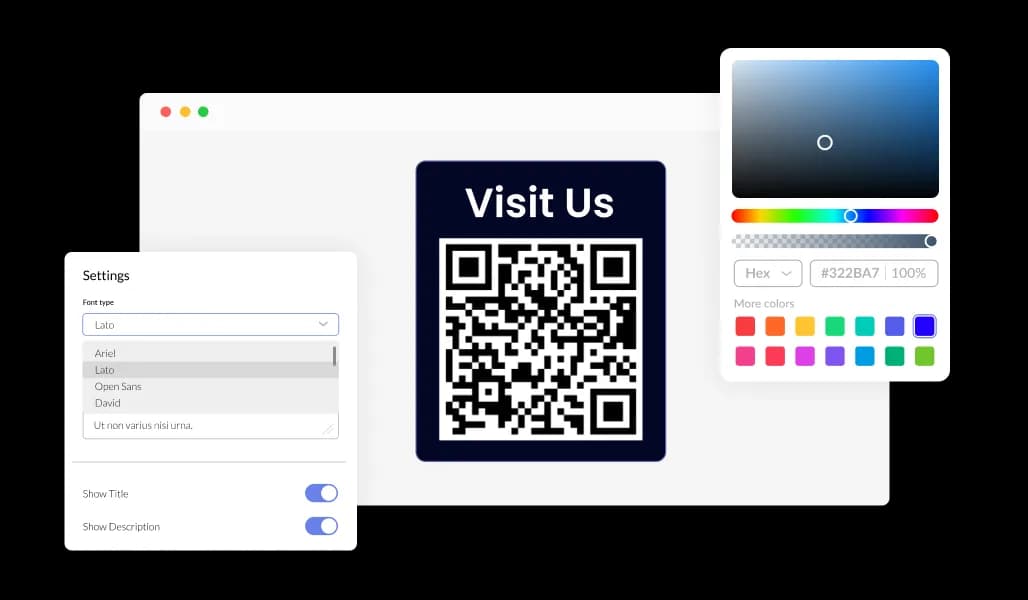
Control fonts, spacing, and styling so the widget fits cleanly into any section. This is useful when you need the QR to be prominent on landing pages, or subtle in a footer or sidebar. If you want extra precision, you can also fine-tune a Custom QR Code to match specific campaigns.
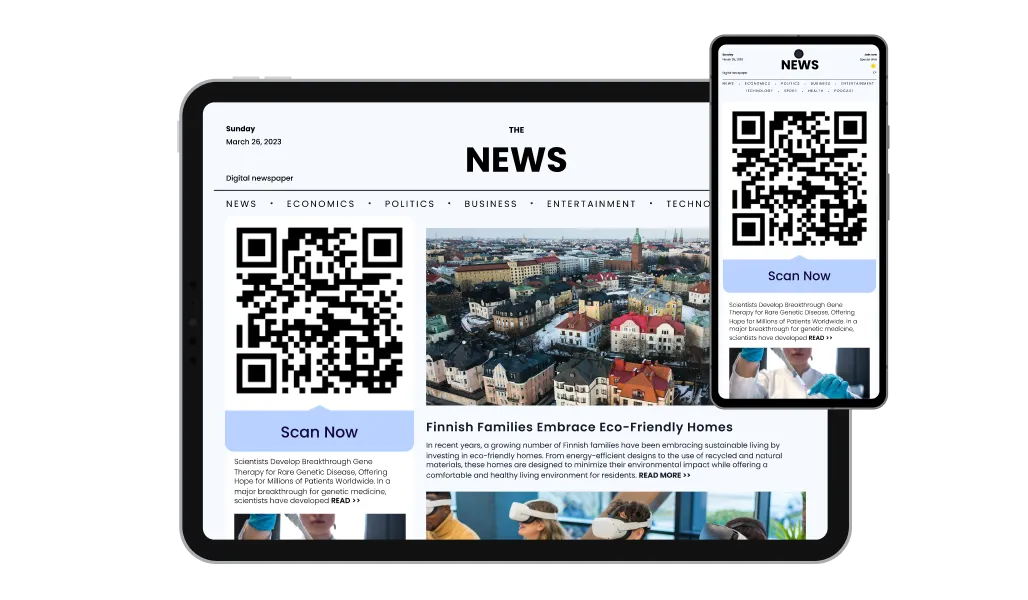
The widget adapts smoothly to mobile, tablet, and desktop screens. That keeps the QR code, title, and description readable and well-aligned across layouts. A responsive Website QR Code element helps maintain a consistent experience on every screen size.
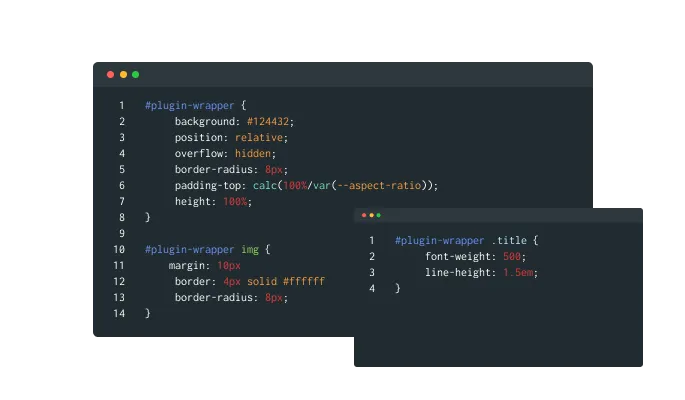
As with all of Common Ninja’s apps, you can add custom CSS to customize the QR Code widget and be even more creative.
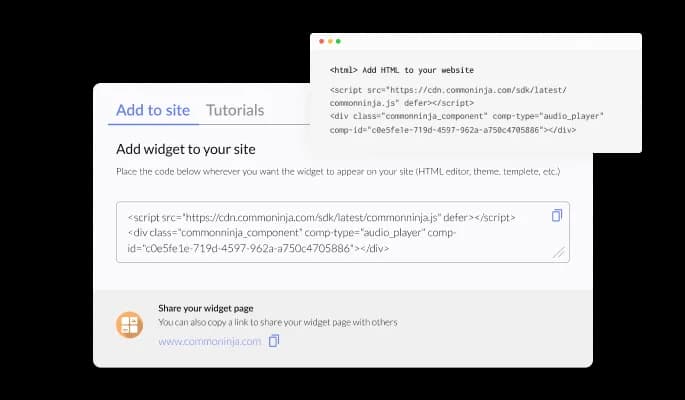
Add the widget to your website with a simple embed process. Changes you make in the editor update automatically, so you don’t need to re-install anything. This keeps maintenance simple when you use the QR Code widget across multiple pages.
Create QR codes for different use cases, not just links. You can generate codes for things like plain text, email, phone call, SMS, WiFi, App Store, file download, geolocation, and social media. Each type collects the right information fields so your Custom QR Code points to exactly what you need.
Give visitors context so they know what they’ll get before they scan. A short label like “Download the app” or “View the menu” helps reduce confusion and increases scan intent. This is especially useful when you Embed QR Code blocks in multiple places across your site.
Create and publish a QR code in a few simple steps from a clear, guided editor. You can update the content quickly without touching code or dealing with complicated settings. This makes it practical to manage multiple Custom QR Code elements across your site.
Common Ninja has amazing no-code widgets that would beautify a website built on any builder. It is very easy to use and customise. It has as many widgets for almost everyone willing to make their website impressive.
Outstanding service. I use their widgets to help me with my web design business and whenever I need help they are very quick to help.
Excellent company with excellent service!!! We used it to build a survey, it was very user friendly. The service was perfect. Amit helped us with every problem and question we had, thank you very much!!!
Common Ninja saved the day when building our website and the customer service Daniel, the co-founder and CEO, provided was amazing.
Plain text, an email address, a phone number, an SMS, WiFi credentials, an App Store link, a file download, a geographic location, and social profiles. The type matters because it decides what the phone offers to do on scan, so a WiFi code joins the network rather than opening a page about it.
No. The code is generated from the details you enter, so it keeps working as long as what it points at keeps working. The thing to watch is the destination, because a code pointing at a URL you later delete will scan perfectly and land on a 404.
Yes, by editing the widget, and the change reaches every page carrying the embed. Anything already printed keeps the pattern it was printed with, so plan a print run around a URL you intend to keep.
Almost always size or contrast. A code needs enough physical size for the camera distance, and a clear quiet margin around it. Low contrast between the code and its background, or a code shrunk into a footer, are the two failures worth testing for before publishing.
Yes. A bare square asks people to scan on faith. A short line like View the menu or Join our WiFi tells them what they get, and the layouts pair the code with a title and description for exactly that reason.
The widget generates and displays the code on your website, so it is built for on-page use. You can point printed material at the same destination, but treat the printed version as permanent, because it cannot be edited after it leaves the printer.
Yes. The block is responsive and the nine layouts include compact arrangements, with custom CSS available for exact sizing. Keep it large enough to scan from normal viewing distance rather than shrinking it to fill a gap.
Pick your platform. Each takes under 4 minutes.
The Link In Bio page lets you organize links, social profiles, media, text, and contact options in one place.
Sticky buttons with links to social media accounts
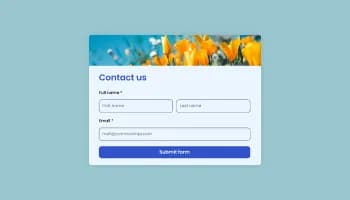
Allow users to send messages or inquiries, save submissions, enable notifications, and more

Display a button that will initiate a phone call
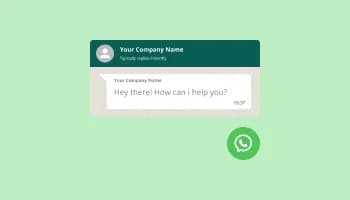
Add a WhatsApp chat button to your website, allowing users to start a chat using WhatsApp.
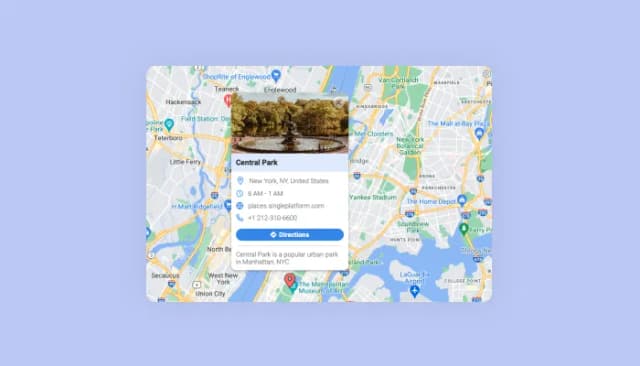
Display multiple locations with enriched details and customizable aesthetics.
The QR Code widget lets you generate a QR code image and display it on your website. You can add a title and description next to the code for context. It’s designed for quick setup and clean placement on any page.
You can use it to direct visitors to a page, open an app link, share contact details, or provide quick access to information. It works well for menus, event pages, customer support, promotions, and downloads. Many sites use it to connect offline audiences to online actions.
The QR Code Generator can create multiple QR types such as URL, text, email, phone, SMS, WiFi, app links, file download, location, and social links. Each type includes its own relevant fields so you enter the right details. This helps you build a Custom QR Code that matches the exact use case.
The widget includes 9 layouts to choose from. Each layout displays the QR code image along with a title and description. This makes it easy to pick a style that fits different sections of your site.
Yes, you can customize styling such as colors, fonts, and spacing to match your brand. This helps the QR code block blend naturally into your site design. You can also style it differently per page to match specific campaigns.
Yes, every layout supports a title and description area. This gives visitors a clear reason to scan, like “Get directions” or “Download the brochure.” Clear labeling is especially helpful when you Embed QR Code elements in multiple places.
Yes, the QR Code widget is built to be responsive across desktop, tablet, and mobile. The QR code image and accompanying text stay aligned and readable across screen sizes. This keeps your Website QR Code looking consistent everywhere.
You can embed the widget using a simple embed method provided in the editor. Once it’s added, updates you make in the editor are reflected automatically. This makes it easy to manage an Embed QR Code section without repeated installs.
No, the widget is designed to be easy to use without coding. You can select a QR type, enter the needed information, and publish it in minutes. The editor keeps everything straightforward and organized.
Yes, you can create different QR codes for different pages or goals. For example, one Custom QR Code can link to your booking page while another opens your WiFi details. This helps you tailor scans to the intent of each page.
Yes, you can use the QR code you generate on your website in offline materials too. Many businesses place it on flyers, packaging, menus, or storefront signs to drive people to a specific page. It’s a simple way to connect offline promotion with online results.
Generate codes for URLs, plain text, email, phone, SMS, WiFi, App Store links, file downloads, locations, and social profiles, then display them in one of nine layouts with a title and description. Colours, skins, fonts, spacing, full responsiveness, and custom CSS included. Embed on 200+ platforms including WordPress, Shopify, Wix, Webflow, and Squarespace.
Create your QR codeNo credit card · No coding