


Ticker Animation
The YouTube Feed widget comes with a “ticker” animation that imitates an old news ticker and adds a sense of action to your page. Use it to immediately grab the user’s attention.
The YouTube Feed widget allows users to choose between Tabs and Mixed feeds. In the Tabs type, you arrange all your tabs according to their feed order, whereas in the Mixed type, you mix different YouTube feeds to create a diverse feed.
The YouTube Feed widget has an "auto-refresh" option that keeps refreshing and updating the feed when toggled.
Using the YouTube Feed widget, you can add an animated "ticker" to your page to simulate an old news ticker. Grab the user's attention immediately with it.
The YouTube Feed widget comes with a “ticker” animation that imitates an old news ticker and adds a sense of action to your page. Use it to immediately grab the user’s attention.
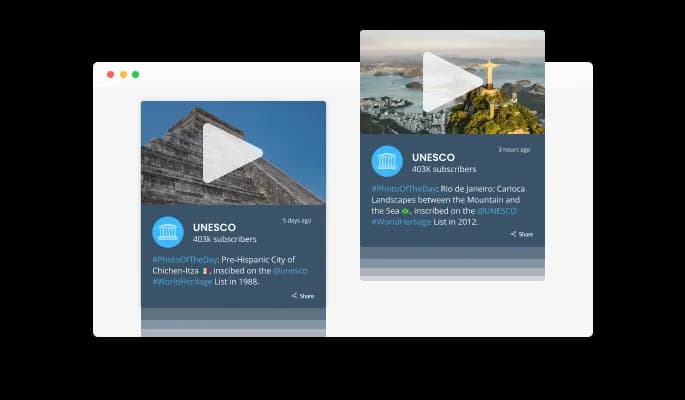
The YouTube Feed widget has the “auto-refresh” option which, when toggled, keeps refreshing and updating the feed with new posts.
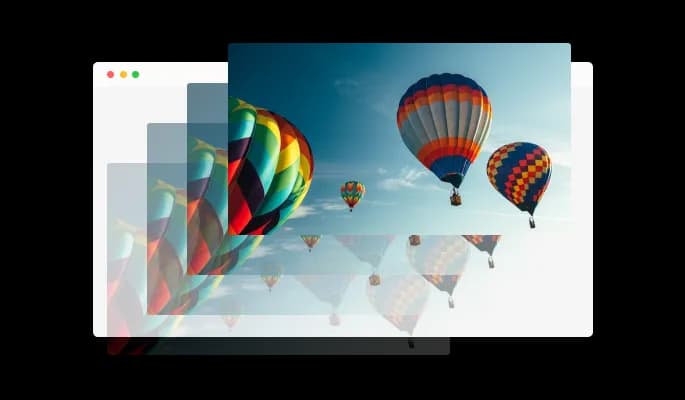
Two different feed types are available in the YouTube Feed widget — Tabs and Mixed. The Tabs type keeps all your tabs organized by order of feed, while the Mixed type, mixes the various YouTube feeds to create a diverse feed.
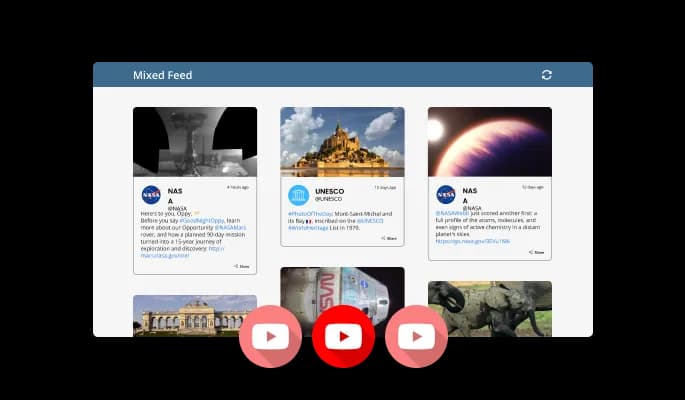
The YouTube Feed widget comes available with multiple layouts that you can choose from to make sure it fits your overall website design and style.
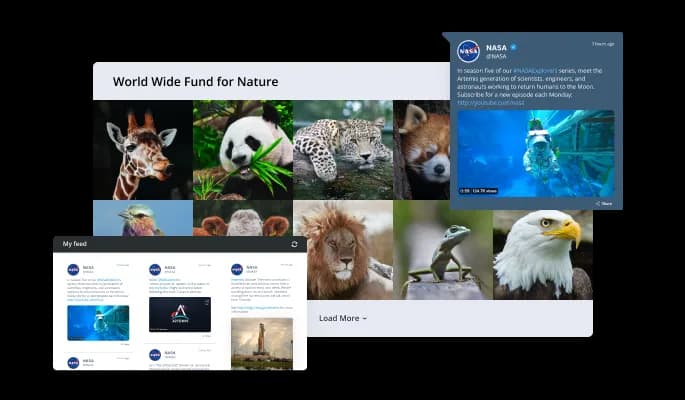
The YouTube Feed widget comes with a variety of beautiful skins that you can choose from so you don’t have to spend much time on extensive customization.
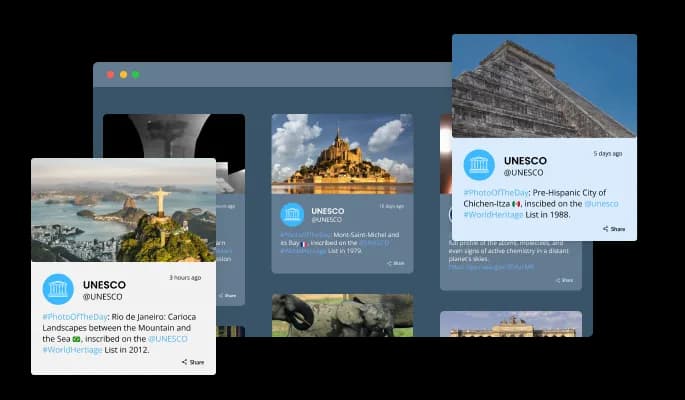

There are various options for displaying the date and time of the feeds — an option that will enable you to further customize the YouTube Feed widget according to your needs, and the preferences of your visitors.

You can easily customize the characters' length to save space and make the YouTube Feed widget more compact.

The YouTube Feed widget provides full RTL support for those who write from right to left. Make your news accessible to more users from all over the world.

The YouTube Feed widget is easy to use and requires no coding knowledge. Our intuitive dashboard with the drag-and-drop feature will enable you to customize the widget any way you’d like to with just a few simple clicks.
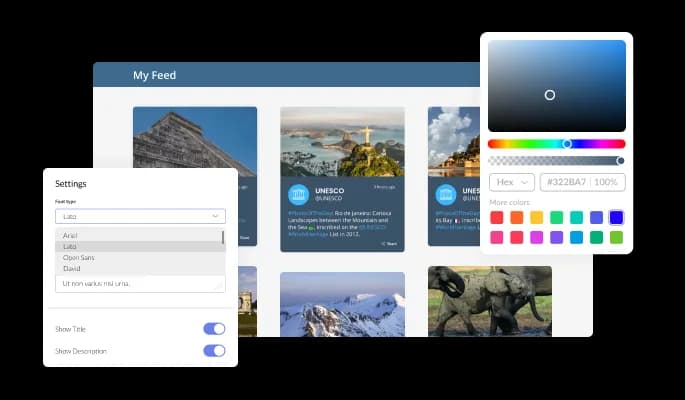
The YouTube Feed widget features full customization options so you can edit the design to fit your needs. Change the colors, the fonts, the spacing and anything else!
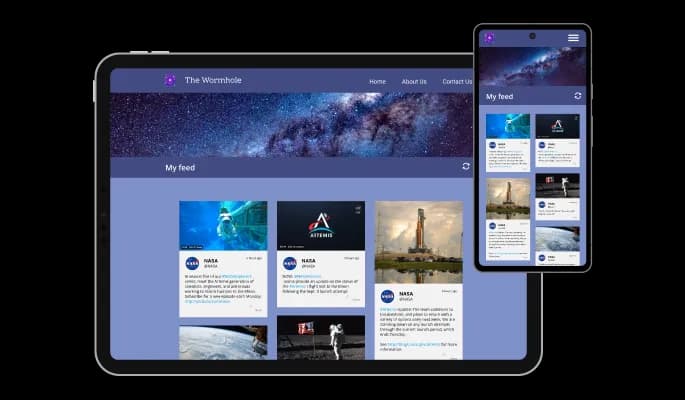
The YouTube Feed widget is fully responsive and will look great on any device. In a mobile-first world, this feature will put you ahead of your competitors.
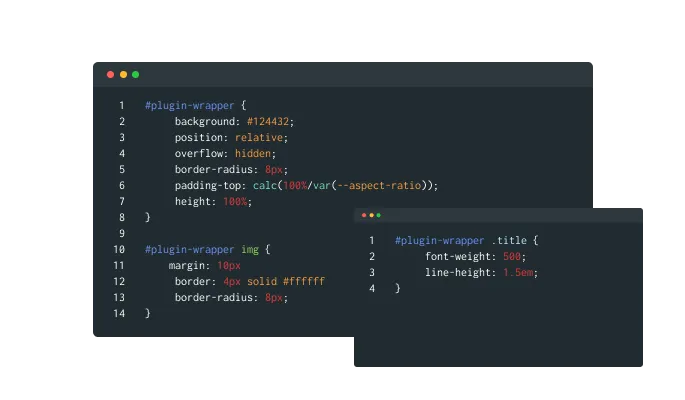
As with all of Common Ninja’s widgets, you can add custom CSS to customize the YouTube Feed widget and be even more creative.
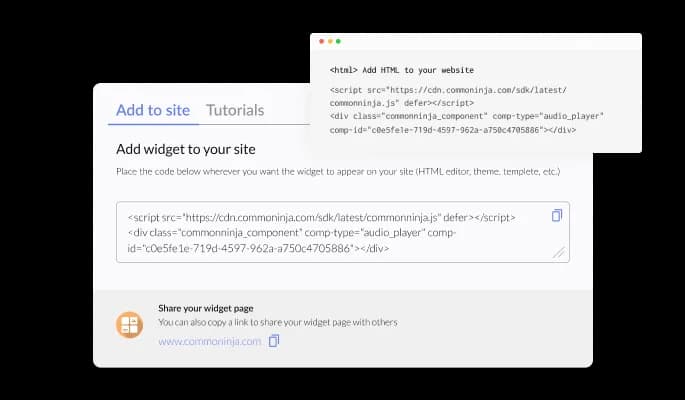
You can embed the widget on your website quickly by copying a single line of code. The YouTube Feed widget will also be updated automatically with every change you make.
It is possible to limit the number of posts displayed per page.
You can decide where the tabs should be positioned in the settings menu.
Yes, you can switch on or off auto-refreshing.
Yes, you can add a background image, and to further customize its behavior.
Yes, you can customize the feed’s height.
Yes, you can easily do so from the “Templates” tab.
Yes, currently there’s a “ticker” animation that you can trigger.
Yes, there are lots of beautiful skins that you can choose from to save time and start using the widget as quickly as possible.
Yes, you can either upload an image or select an icon from a large selection of available icons to add to your Notification Bar, or, alternatively, you can leave it all blank.
Using the YouTube Feed widget is very easy. Simply sign up and start using the free version. There's no need to worry about complicated setup or installation processes, as the YouTube Feed widget is designed to be user-friendly and straightforward. Once you've signed up, you'll have access to all of the basic features and functions of the widget, which you can use to enhance your website and improve your online presence. From there, you can choose to upgrade to the paid version if you want to access more advanced features and capabilities. Regardless of which version you choose, you'll find that the widget is a powerful and easy-to-use tool that can help you take your online presence to the next level.
The Common Ninja YouTube Feed widget is a free tool reach with features and options. While this widget is free to use, it does have a limit on the number of views it can handle. This means that after a certain number of views, the chat button may no longer be visible or functional on your website. It is important to note that this view limit may vary depending on your plan. Despite this limitation, Common Ninja's YouTube Feed is still a valuable tool for businesses looking to increase customer engagement and improve the overall user experience of their website.
The Common Ninja's YouTube Feed widget is a versatile tool for any website builder. This means that you can easily add this widget to your website or store no matter what platform you use to build your website. The YouTube Feed widget will work seamlessly with your platform whether you are using a popular website builder or something more specialized. This means you can enjoy all the benefits of this powerful tool without having to worry about compatibility issues.
No need for coding skills. Our YouTube Feed widget is designed to be easy to use, even for those with limited technical experience. The widget features a user-friendly interface that allows you to easily customize the widget without coding knowledge. You can fully customize the YouTube Feed to match your branding. When you're done, simply copy the provided code and paste it into your website. It's that simple!
The YouTube Feed widget is designed to comply with the General Data Protection Regulation (GDPR), a set of EU regulations protecting personal data and privacy. When using the YouTube Feed widget, you can be confident that it will not collect or store personal data that could violate GDPR regulations. This ensures that your business is in compliance with these regulations and can protect your customers' data privacy. Overall, the YouTube Feed widget is a secure and reliable tool that can be used to enhance your website without any concerns about GDPR compliance.
Yes. We are eager to hear your request. Please visit our Feature Request page.
A YouTube Feed widget is a type of graphical user interface element that displays a feed of the latest videos from a specified YouTube channel. This widget is often used on websites to showcase the website's YouTube content and provide an easy way for visitors to access and watch the videos directly on the website. The YouTube Feed widget may include features such as video thumbnails, video titles, and links to the videos on YouTube.
Displaying a YouTube Feed on a website can provide several benefits, including:
Including a YouTube Feed on a website can potentially improve its search engine optimization (SEO) in several ways. First, the YouTube Feed can provide fresh, regularly updated content for search engines to index, which can help to improve the website's ranking in search results. Additionally, the videos included in the YouTube Feed can be optimized with relevant keywords and meta tags to improve their visibility in search results. Furthermore, the presence of a YouTube Feed can signal to search engines that the website is active and engaging, which can also improve its ranking. Overall, a YouTube Feed can be a useful tool for improving a website's SEO if it is properly optimized and regularly updated.
Including a YouTube Feed on a website can potentially improve the user experience (UX) in several ways. First, the YouTube Feed can provide engaging, visual content for visitors to interact with, which can help to keep them on the website for longer periods of time. Additionally, the videos included in the YouTube Feed can provide valuable information and entertainment, which can enhance the overall value of the website for visitors. Furthermore, the YouTube Feed can provide a convenient and user-friendly way for visitors to access and watch videos, which can improve their overall experience on the website. Overall, a well-designed and properly implemented YouTube Feed can be a valuable addition to a website that can enhance its UX for visitors.
Embedding the YouTube Feed widget on your website is a straightforward process. Simply copy the provided code and paste it into the desired location on your website. The widget will seamlessly integrate into your site, allowing you to take advantage of its features and functions. No technical expertise or programming knowledge is required - just copy and paste the code to get started. This simple process allows you to easily add the widget to your website and enhance its functionality without any hassle.