


Verified review
Common Ninja has amazing no-code widgets that would beautify a website built on any builder. It is very easy to use and customise. It has as many widgets for almost everyone willing to make their website impressive.
The Common Ninja Video Carousel widget is a free, no-code embed that rotates videos in a sliding carousel on your website.
Pull videos from YouTube, Vimeo, or your own hosted MP4 source, pick a layout (single-video carousel, multi-card slider, grid with rotation), tune autoplay and slide timing, customize the skin or layer Custom CSS, and paste a one-line embed snippet on Elementor, WordPress, Squarespace, Google Sites, Webflow, Wix, Shopify, Framer, and 200+ other platforms.
Use it to showcase product demos, testimonials, course previews, tutorial libraries, marketing reels, and portfolio work in a fixed slot on your page without slowing page loads or installing a separate video plugin.
A product demo, a customer testimonial, a tutorial preview, and a brand reel all rotate through the same carousel without taking four separate sections on your page. Visitors see a single video frame; the carousel cycles content automatically or on swipe. Keeps the page tight and the message dense.
Mix sources freely: YouTube for marketing reels, Vimeo for higher-quality testimonials, MP4 for proprietary clips you don't want on a public platform. No platform lock-in, no need to upload everything to one place, no separate plugins per source.
Each slide renders a thumbnail first; the video player loads only when a visitor presses play. Pages stay fast under Core Web Vitals. Your LCP image is a thumbnail JPEG, not a video iframe, and you don't pay the bandwidth cost of preloading every clip.
A video gallery is a browsable grid for visitors who pick what to watch. A video carousel is a rotating slot that surfaces the next clip automatically. Use a carousel when one or two videos are the focal point of the section; use the dedicated Common Ninja Video Gallery widget when visitors should scan a library.
Paste YouTube and Vimeo URLs, drop in an MP4 link from your own host or CDN, or add a Wistia embed URL. Mix sources in a single widget: a YouTube product demo, a Vimeo customer testimonial, and a hosted MP4 walkthrough all rotate through the same carousel. Add a custom title and description per slide for context.
Choose single-video carousel (one large player, prev/next arrows), multi-card slider (2-4 thumbnails visible at once, swipe or arrow nav), or grid with rotation (fixed grid that rotates featured slot). Set autoplay on load or hover, time per slide, arrow and pagination style, and whether thumbnails lazy-load. Pick a skin from the design library or layer Custom CSS for a pixel-level brand match.
Copy the one-line embed snippet and paste it on your page on Elementor, WordPress, Squarespace, Google Sites, Webflow, or any of the 200+ supported platforms. Edits in the Common Ninja editor push to every embed without re-paste. Swap a slide, change the autoplay timing, switch skins, and your live page updates.
YouTube URLs, Vimeo URLs, hosted MP4 links, Wistia embeds. Paste any standard video URL and the carousel handles playback. Mix sources in a single widget; each slide can come from a different platform without breaking the carousel.
Single-video carousel (one frame, prev/next nav), multi-card slider (2-4 thumbnails visible, swipe gestures), grid with rotation (fixed grid that rotates a featured slot). Switch layouts in the editor without re-pasting video sources.
Set autoplay on load (browser policy permitting), autoplay on hover, or manual-only navigation. Configure time per slide from 2 to 30 seconds, looping behavior, pause-on-hover, and arrow/dot pagination style. Tune the cadence to match your section's reading rhythm.
Pick from a library of pre-designed skins (minimal, cinematic, glassmorphic, dark-mode) for a fast brand match. Drop into Custom CSS for pixel-level control over arrow shapes, pagination dots, slide spacing, hover states, and thumbnail framing.
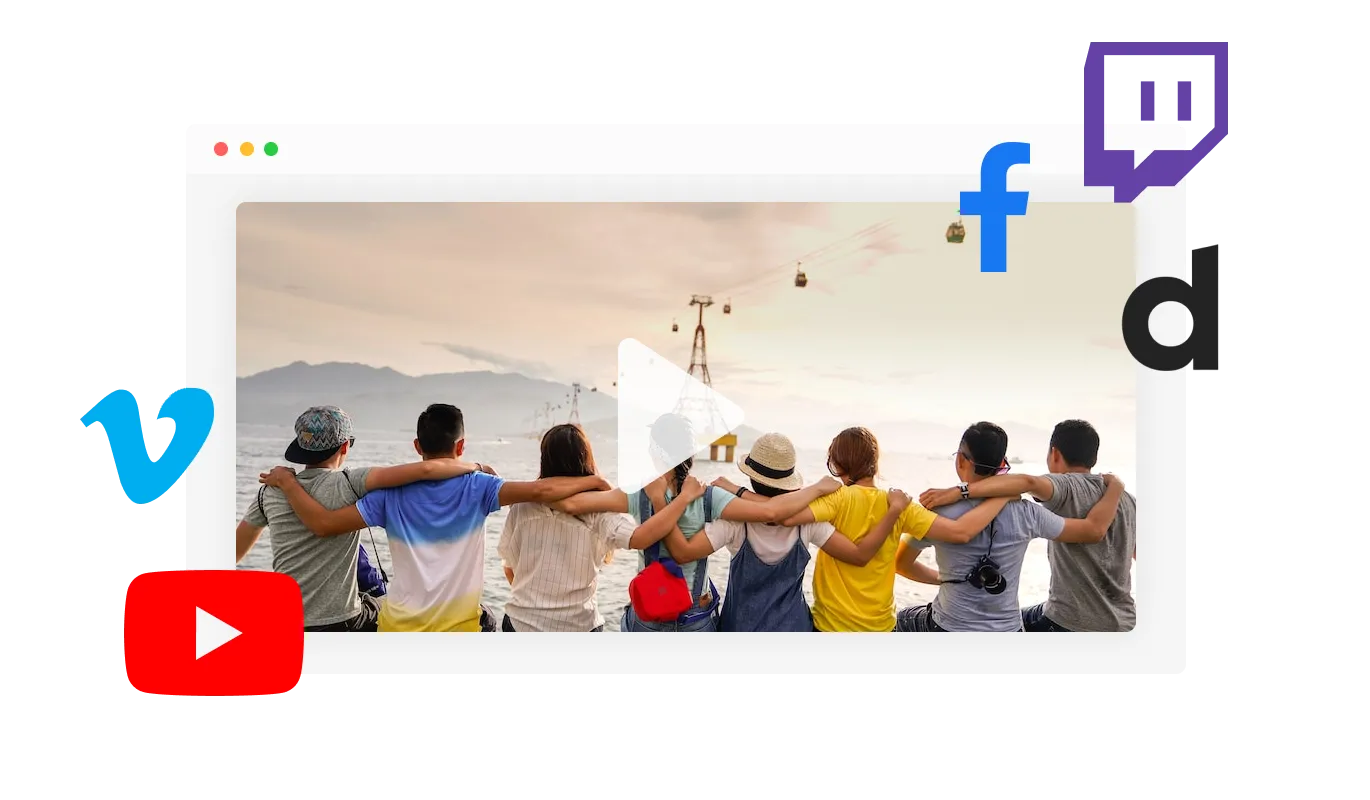
The Video Carousel widget supports a variety of video hosting platforms, including YouTube, SoundCloud, Facebook, Vimeo, Twitch, Streamable, Wistia, DailyMotion, Mixcloud, Vidyard, and Kaltura. With the ability to display videos from multiple platforms, you can provide your website's users with a diverse range of video content catering to different user preferences. This, allows you to leverage the strengths of each hosting platform.
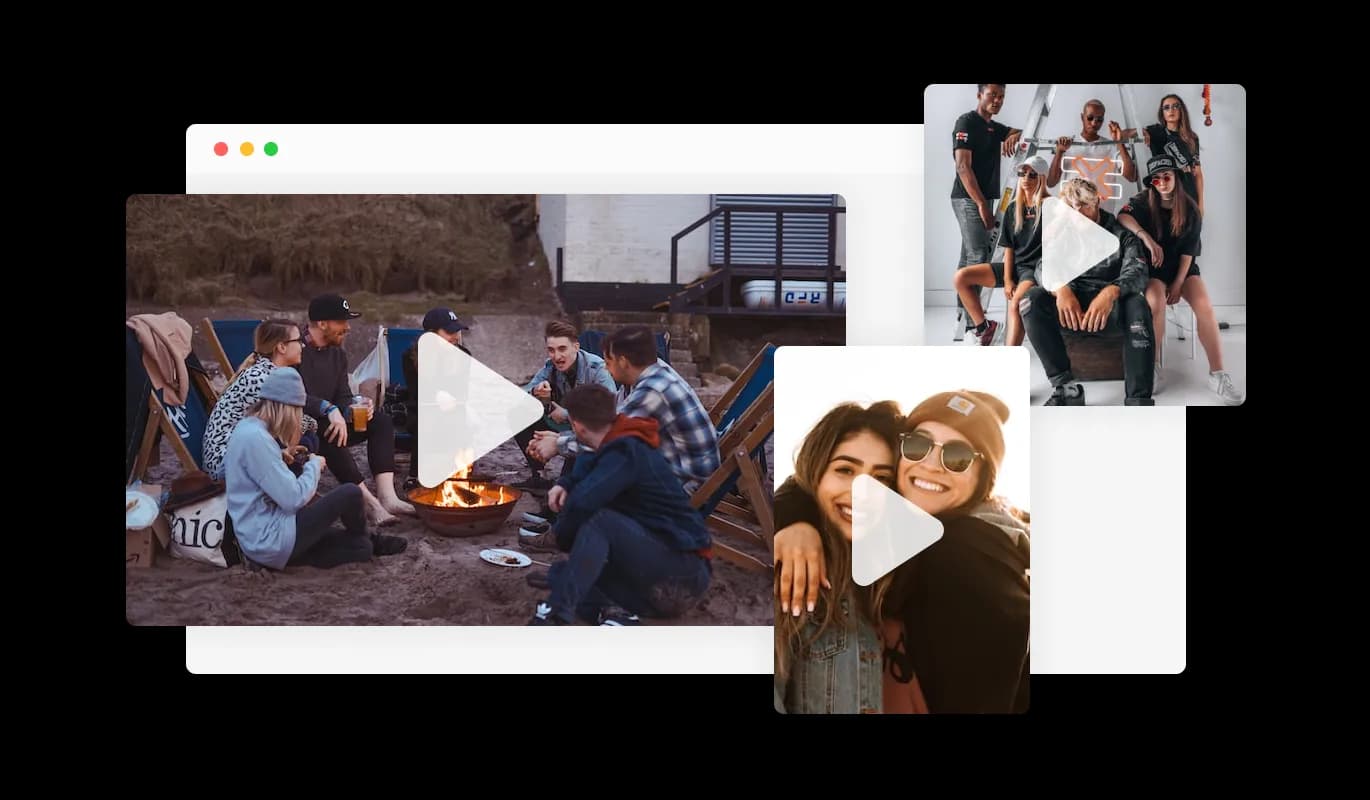
The Video Carousel widget comes with the option to change the carousel’s video sizes — from small, to large, vertical, or horizontal, you make the widget fit your specific needs. The ability to customize the size and orientation of your video carousel is a valuable feature that can enhance your website's visual design and usability. By having the option to change the size of the video carousel widget, you can ensure that it fits seamlessly into the layout of your website, without disrupting the overall design. Moreover, you can choose between a vertical or horizontal orientation, depending on the type of video content you want to showcase and the layout of your website.
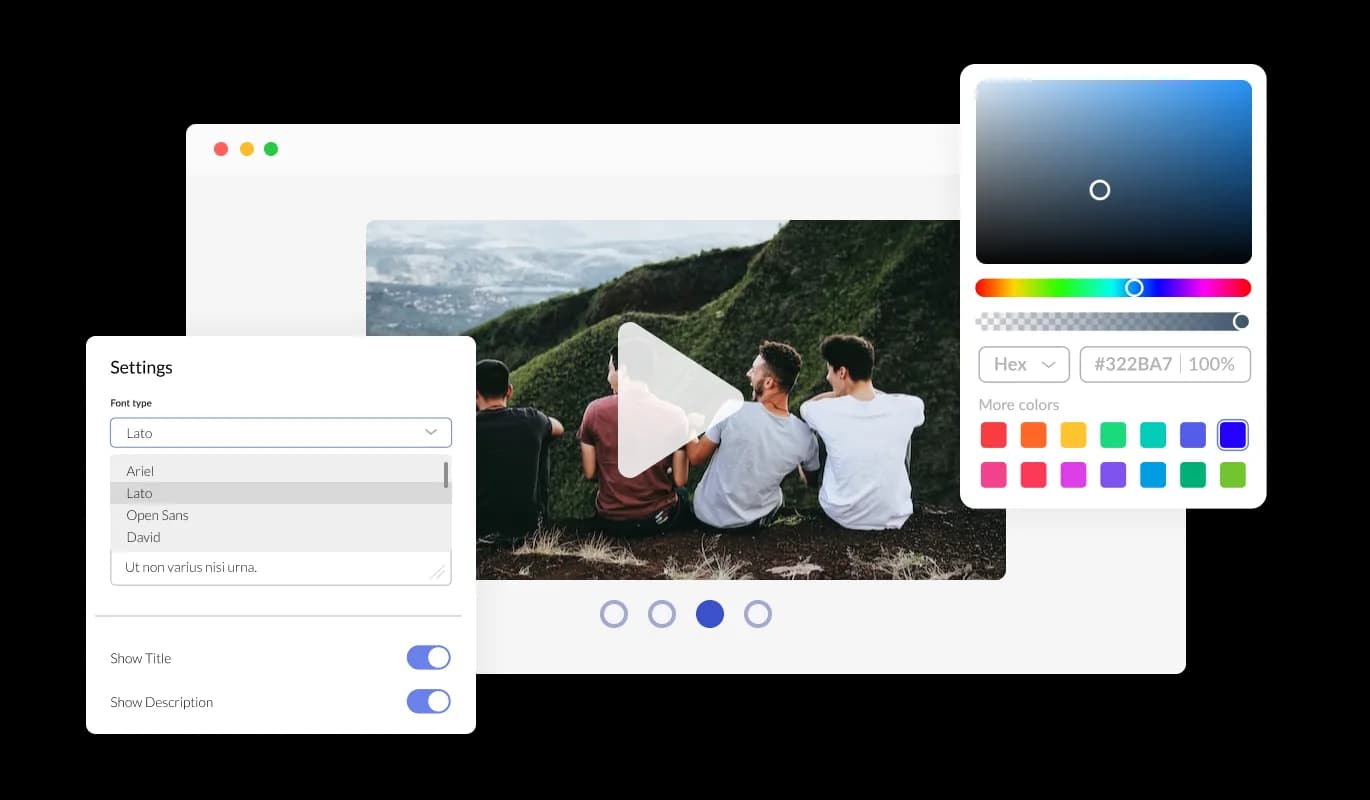
The Video Carousel widget features full customization options so you can edit the design to fit your needs. Change the colors, the fonts, the spacing, and anything else! The ability to fully customize the design of your video carousel is a powerful feature that can help you to create a more cohesive and visually appealing website. By having the option to customize the look&feel, you can ensure that your video carousel matches the style and branding of your website. This can create a more professional and polished appearance, helping to build trust and credibility with your users.

In addition to the built-in customization options, the Video Carousel widget allows you to add your custom CSS to enhance the button further and make it truly unique. Whether you're a seasoned developer or simply looking to get creative, the ability to add custom CSS gives you the power to take your website design to the next level. With custom CSS, you can change the button's size, shape, and positioning, or even create entirely new styles from scratch. The possibilities are endless, and with some creativity, you can make the Video Carousel widget your own. This level of customization allows you to create a button that fits perfectly with the look and feel of your website and enhances the overall user experience for your visitors. Whether you're looking to create a sleek, modern design or a more traditional, classic look, the Image Video Carousel and its custom CSS capabilities give you the tools you need to make it happen.

You can easily embed the Video Carousel widget on your website by copying a single line of code. The Video Carousel will also be updated automatically with every change you make. Copy the code for the Video Carousel widget and paste it into your website's HTML code.
With the option to change the arrow types of the slider, and the pagination icons below, you can further customize the widget and make it fit your design requirements.
The Video Slider widget comes with the options to control the speed at which the videos slide, and how much time should be spent on the videos. You can use these options to tailor your user’s experience.
The Video Carousel widget comes available with multiple layouts that you can choose from to make sure it fits your overall website design and style.
The Video Carousel widget is easy to use and requires no coding knowledge. Our intuitive dashboard with the drag-and-drop feature will enable you to customize the widget any way you’d like to with just a few simple clicks.
Common Ninja has amazing no-code widgets that would beautify a website built on any builder. It is very easy to use and customise. It has as many widgets for almost everyone willing to make their website impressive.
Outstanding service. I use their widgets to help me with my web design business and whenever I need help they are very quick to help.
Excellent company with excellent service!!! We used it to build a survey, it was very user friendly. The service was perfect. Amit helped us with every problem and question we had, thank you very much!!!
Common Ninja saved the day when building our website and the customer service Daniel, the co-founder and CEO, provided was amazing.
Yes. The free plan covers one Video Carousel widget with no time limit and no credit card. Upgrade only when you need additional widgets, more video slides per carousel, premium skins, advanced layout options, or features like custom analytics tracking and conditional slide visibility.
YouTube URLs, Vimeo URLs, hosted MP4 files, and Wistia embed URLs. Paste any standard video URL and the carousel handles the player. You can mix sources within one widget. A YouTube slide, a Vimeo slide, and an MP4 slide all rotate through the same carousel without separate setup.
A Video Carousel is a rotating slot: one or a few videos visible at a time, cycling automatically or on swipe. A Video Gallery is a browsable grid where visitors scan thumbnails and pick what to watch. Use a carousel when video is the focal point of a single page section and you want automatic rotation; use the Common Ninja Video Gallery widget when visitors should browse a video library.
Yes, with options. Autoplay on load (subject to browser policies. Most browsers require muted autoplay), autoplay on hover, or manual-only (visitors click to play). You can also control time-per-slide rotation independently from video autoplay. The carousel can rotate slides every 5 seconds while waiting for visitors to actively play each video.
Yes. Add as many video slides as your plan supports (the free plan covers a reasonable number; paid plans lift the cap). Each slide can have its own title, description, thumbnail, and source. Reorder slides via drag-and-drop in the editor; the live widget updates without re-paste.
Build the widget in the Common Ninja editor (add video URLs, pick layout, customize skin), copy the embed snippet, and paste it into your site: Elementor via the HTML widget on any page or section; WordPress via a Custom HTML block in the Gutenberg editor (or a Shortcode widget in Classic); Squarespace via a Code Block in your section. Edits in the editor push to every embed without re-paste.
No. Each slide renders a lightweight thumbnail JPEG first; the video player loads only when a visitor presses play. Your Largest Contentful Paint (LCP) measures against the thumbnail, not a video iframe, so Core Web Vitals stay healthy. You can also disable autoplay if you want to be extra cautious about mobile data usage.
Yes. Single-video and multi-card layouts adapt column count and slide sizing across mobile, tablet, and desktop breakpoints. Swipe gestures replace arrow buttons on touchscreens, autoplay respects mobile browser policies (most need muted autoplay or user gesture), and thumbnail sizing scales to keep load times tight on slow networks.
Pick your platform. Each takes under 4 minutes.

Showcases images in a rotating or sliding manner

An audio player compatible with various files and sources

Display the latest posts from your Instagram page
Embed interactive, customizable flipbooks from PDFs on your website.
Easily craft engaging, personalized popups to boost conversions.

Showcase customer testimonials using a rotating slider
Yes, you can easily do so from the “Templates” tab.
It’s simple. All you need to do is to sign up and start using the free version.
Common Ninja’s Video Carousel widget is free to use. It is limited to a certain amount of views, however.
Yes, the Video Carousel widget is GDPR-compliant.
No. Using our Video Carousel widget is very simple. The widget comes with an intuitive drag-and-drop interface and fully customizable options. Once you’ve finished editing the widget to your liking, all you need to do is copy the provided code and add it to your website.
Yes. We are eager to hear your request. Please visit our Feature Request page.
You can use videos from these video hosting platforms, on the video carousel:
A video carousel is a graphical user interface element commonly used in websites that displays multiple videos horizontally or vertically in a scrolling manner, allowing users to browse and select from a list of videos.
It is a popular design pattern for presenting video content and is often used in video-sharing platforms, e-commerce sites, and social media networks.
Using a video carousel on your website can provide several benefits, including:
Rotate YouTube, Vimeo, and MP4 videos in one fixed slot on your page with single-video or multi-card layouts, custom autoplay timing, thumbnail-first loading for fast LCP, stylish skins, and Custom CSS. Embed on 200+ platforms including Elementor, WordPress, Squarespace, Google Sites, and Webflow.
Create your Video CarouselNo credit card · Setup in under 5 minutes