


Verified review
Common Ninja has amazing no-code widgets that would beautify a website built on any builder. It is very easy to use and customise. It has as many widgets for almost everyone willing to make their website impressive.
Try the editor, no signup
Pick a template, customize it, and watch it update live, no signup.
No credit card · Free forever plan
No credit card · Free forever plan
The Common Ninja Support Form widget is a free, no-code embed that lets teams collect support tickets and help requests from customers through a custom form on their website.
Add the field types you need (name, email, issue category, priority, order or account ID, description, custom questions), let users attach files or screenshots for issue detail, enable spam protection, customize the design with skins or Custom CSS, set notification emails so agents get pinged on new tickets, and paste a one-line embed snippet on WordPress, Squarespace, Wix, Webflow, Shopify, and 200+ other platforms.
Use it for help centers, SaaS product support, customer service pages, IT and internal help desks, and small-business contact-support pages, any moment where you need a clean intake flow with ticket data export, without piping requests through a paid help-desk platform.
Email-based support scatters requests across your inbox. A dedicated support form on your help page collects every request into one structured list, no replying-to-each-email guesswork, no missed messages, no manual sorting. The ticket list lives in your Common Ninja dashboard with a clean export to CSV.
Generic contact forms ask for name and email. A support form asks the questions that speed up resolution, issue category, priority, order or account ID, product area, and a file or screenshot of the problem. The agent gets the context they need to help without a second round of back-and-forth emails.
A screenshot of the error, a photo of the damaged product, a log file, a receipt, the form can collect the attachment alongside the request, instead of asking the customer to send it in a separate email. Attachments arrive with the ticket so agents diagnose faster and reply once.
A Contact Form (enriched at /widgets/contact-form) is for general inquiries, name, email, message. A Form Builder (enriched at /widgets/form-builder) is for any custom multi-field form. This Support Form is pre-tuned for support ticket intake with the right defaults (issue category, priority, order ID, file upload), so you don't build from scratch every time.
Build the form with fields that match your support flow, name and email (required), issue category (billing, technical, account, other), priority, order or account ID, description, custom questions per team. Mark fields required or optional, set validation rules, group related fields with section headers.
Let users attach files or screenshots so agents see the issue detail up front instead of asking for it in a follow-up. Set notification email addresses so the team gets pinged when a new ticket arrives. Enable spam protection (honeypot, optional CAPTCHA) so the queue stays clean.
Copy the one-line embed snippet and paste it on WordPress, Squarespace, Wix, Webflow, Shopify, or any of the 200+ supported platforms. Tickets save to your Common Ninja dashboard; export the full ticket list to CSV whenever you need it for reporting or triage. Edits in the editor push to every embed without re-paste.
Multiple field types tuned for support, issue category (dropdown or radios), priority, order or account ID, description, custom questions per team. Add fields for product-specific details and reorder via drag-and-drop in the editor so the form matches your triage process.
Let users attach screenshots, photos, logs, or receipts alongside their request. Attachments arrive with the ticket in your dashboard, so agents see the problem up front instead of asking the customer to send files in a separate email.
Honeypot fields and optional CAPTCHA keep the queue clean. Validation rules block obvious junk (empty emails, malformed addresses, bot patterns) at submission so your ticket list reflects real requests, not spam.
Pick from a library of pre-designed skins (support-clean, corporate, dark-mode, brand-neutral) for a fast visual fit. Layer Custom CSS for pixel-level control over field spacing, button styling, header typography, and per-section dividers.
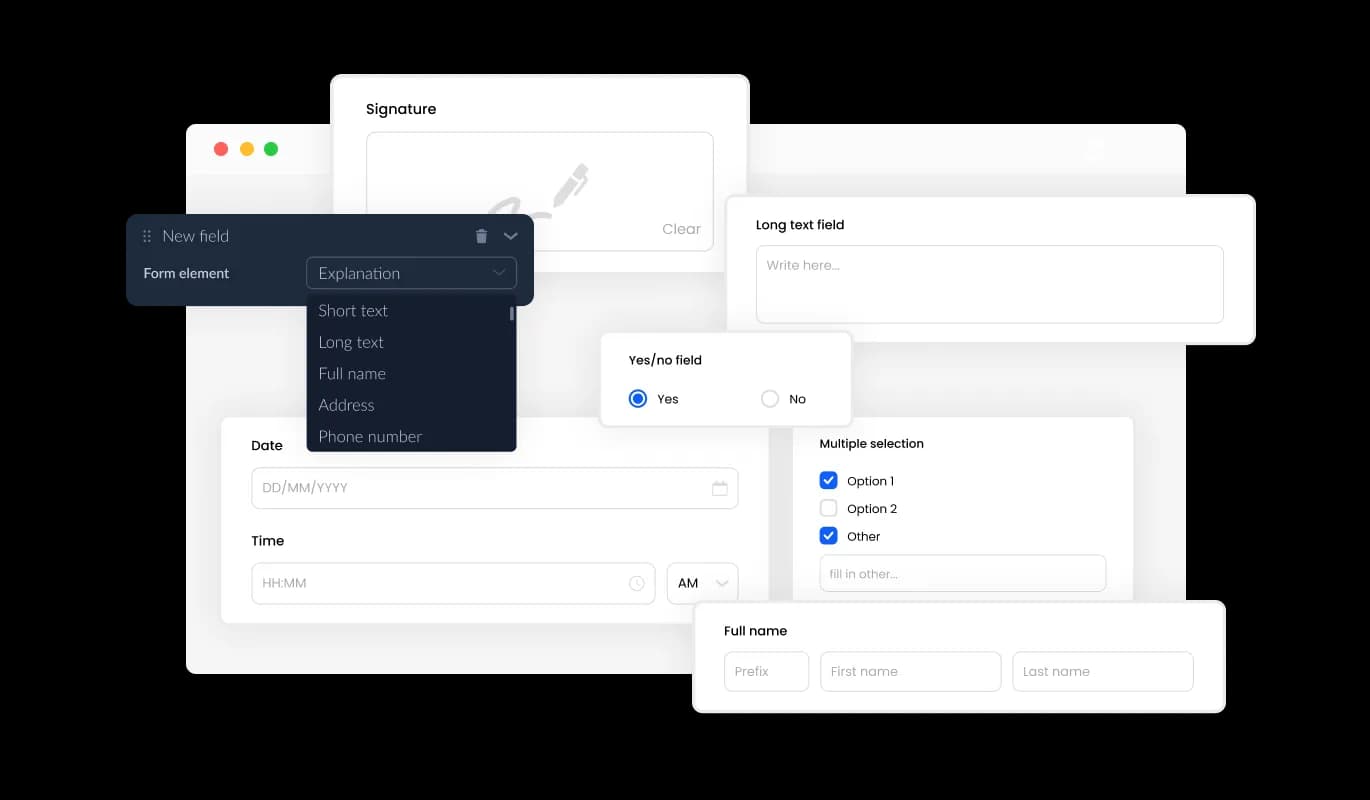
The Support Form Builder offers a wide range of customizable fields, from basic ones to unique and specialized formats, which allows you to tailor your form to your specific requirements and intended use. You can easily add fields by clicking on the "Add Field" option and selecting from the vast collection of formats available. Additionally, you can effortlessly reorder the fields by dragging and dropping them as needed.
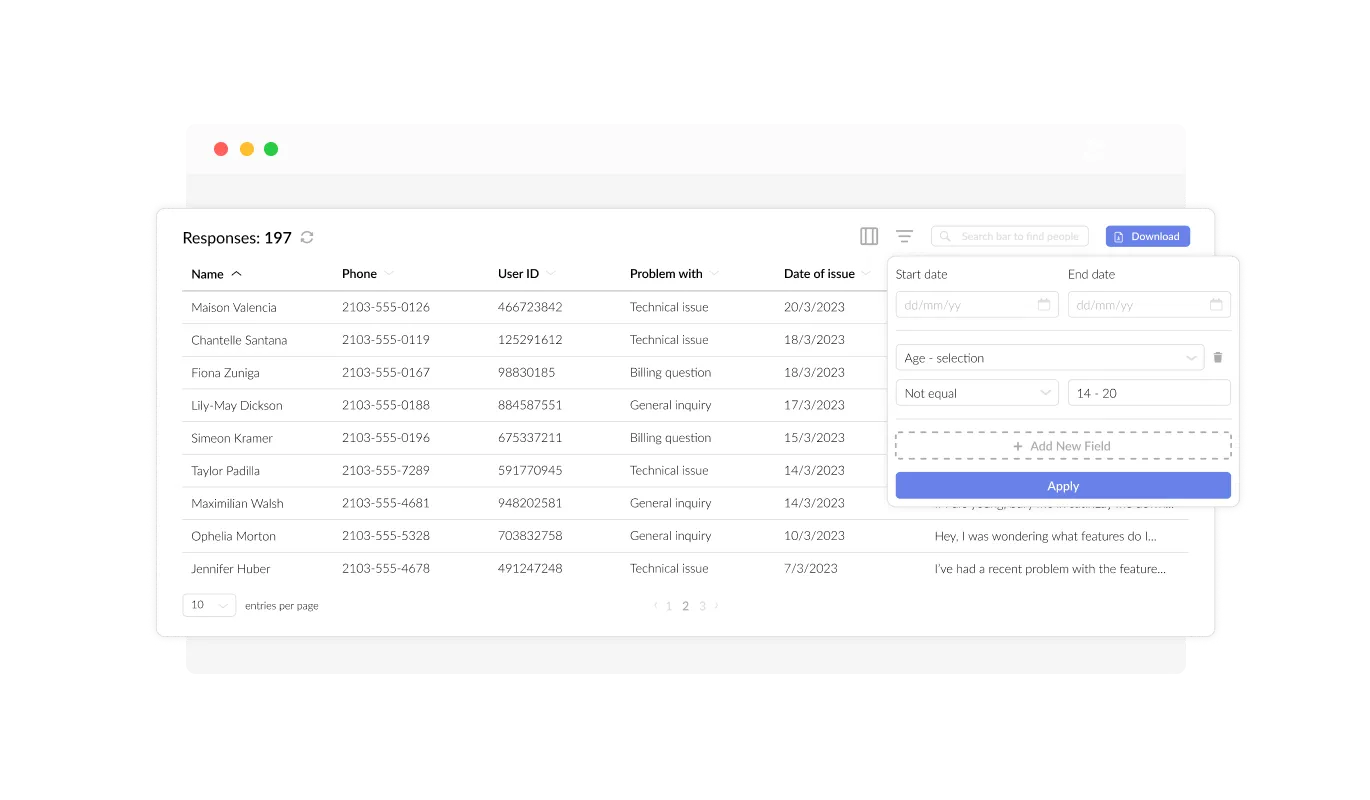
The Support Form enables you to conveniently manage and view all support ticket submissions in a clear and user-friendly display. This allows you to keep track of all user communications and inquiries, enabling you to respond promptly and efficiently to their support requests.

The Support Form allows you to easily receive relevant files and images from your users, which can significantly enhance the accuracy and effectiveness of your support ticket resolution process. This feature can be particularly useful for gathering essential data and documentation to help resolve user support requests promptly and efficiently.
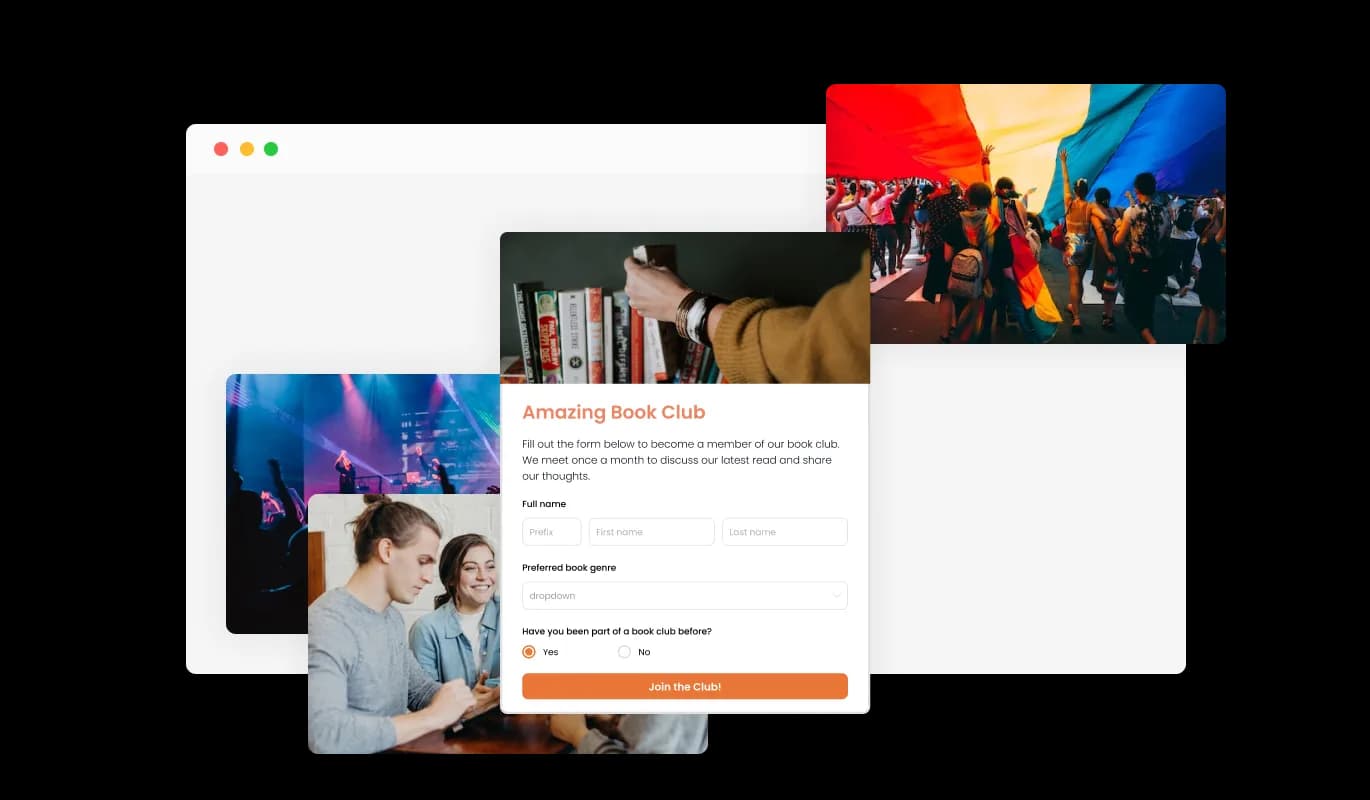
By integrating titles, descriptive text, and images into your support form, you can enhance the user experience and make it more comprehensive and user-friendly. The addition of explanatory form elements can guide users through the submission process, resulting in a seamless and efficient experience that increases the chances of successful support ticket resolution.

The Support Form enables you to personalize the support form's header and footer, including the addition of images. This feature presents a significant opportunity to elevate your brand's image and create a visually stunning and professional form that aligns with your website's overall design and aesthetic.
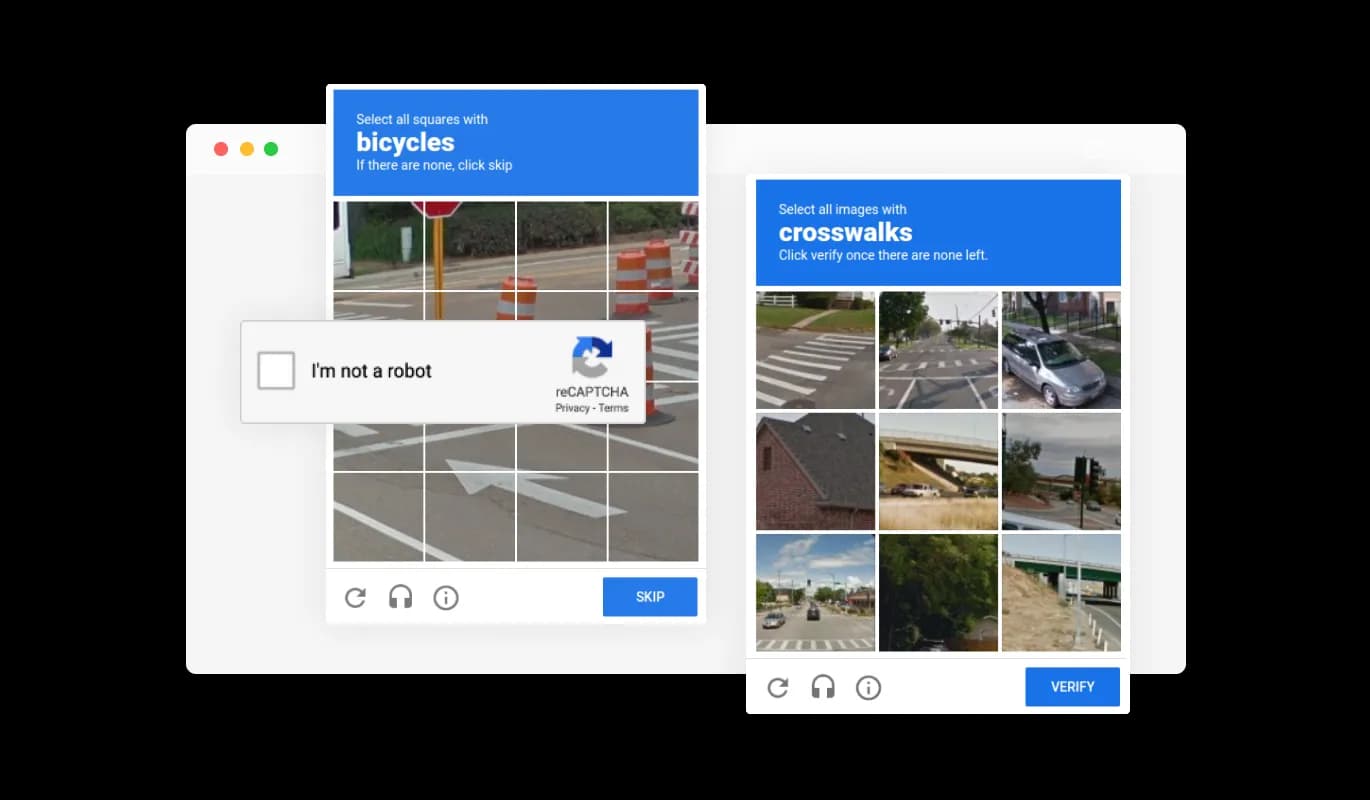
The Support Form offers the option to enable the CAPTCHA anti-spam feature, which requires users to complete a verification process before submitting the form. This feature helps prevent bots and automated scripts from submitting spam messages through your support form, ensuring that you only receive genuine messages from real users.
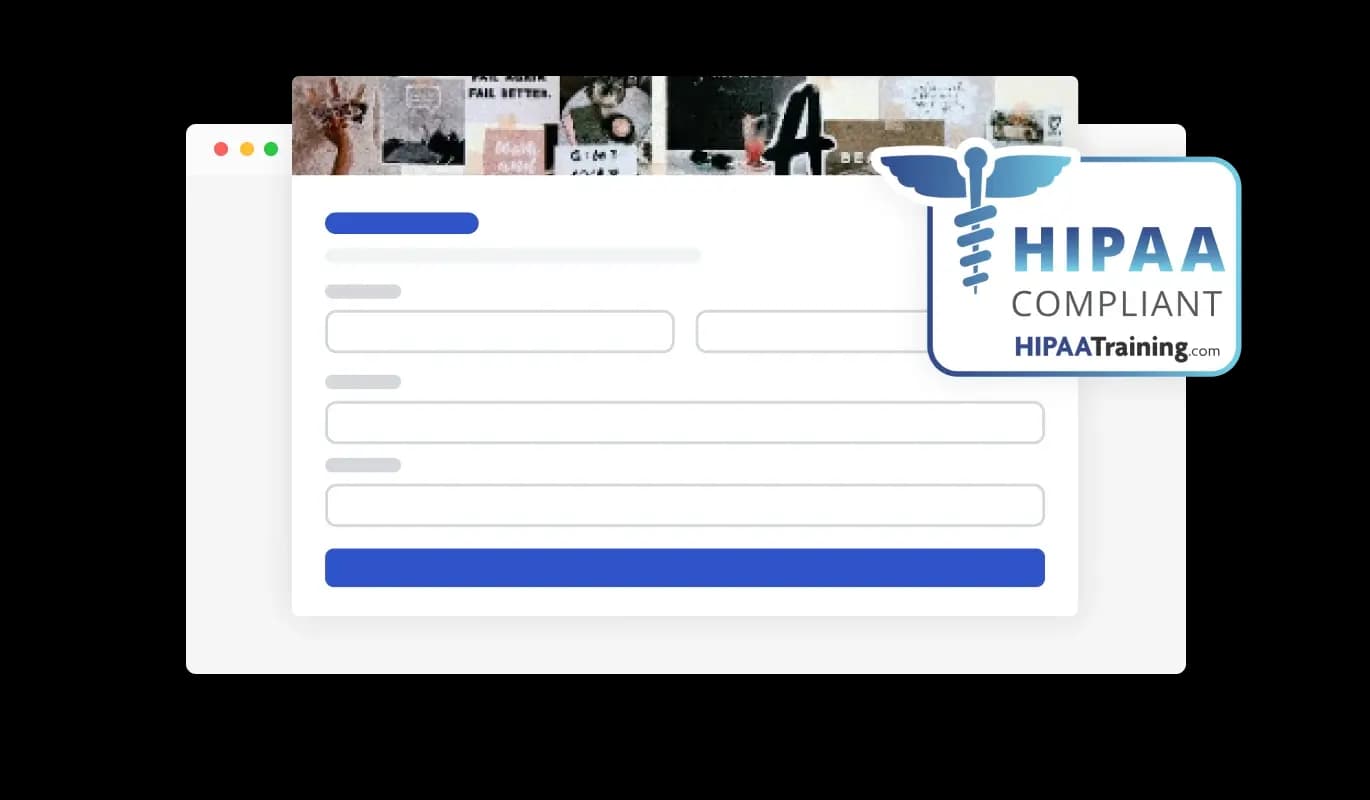
The RSVP Form ensures HIPAA compliance, offering end-to-end data encryption and role-based access management to protect sensitive information. Seamless integrations, including a HIPAA-compliant API and support for tools like Google Sheets and EMR systems, enhance functionality. Additionally, activity tracking and audit logs provide full transparency over data access.
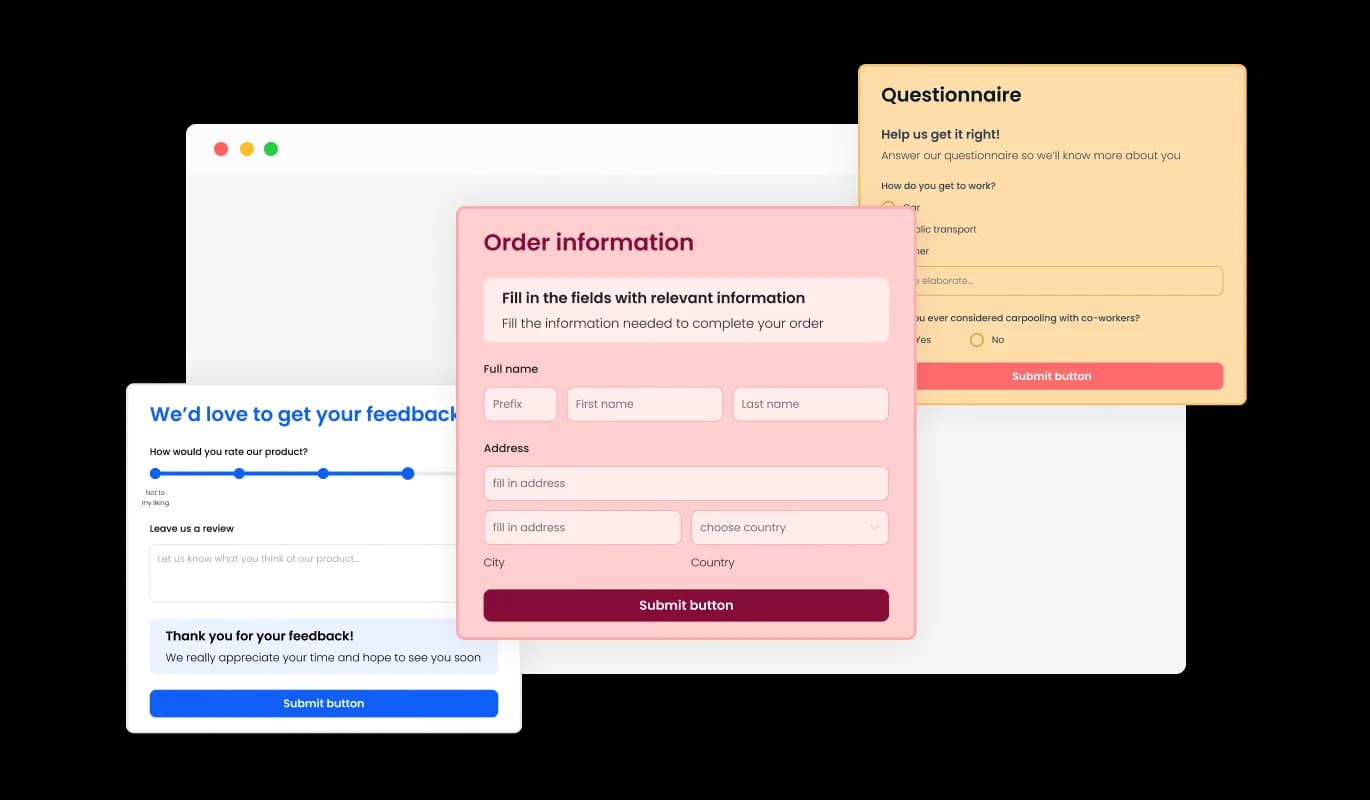
The Support Form offers a range of attractive skins to choose from, allowing you to jumpstart the design process without having to spend time on extensive customization.
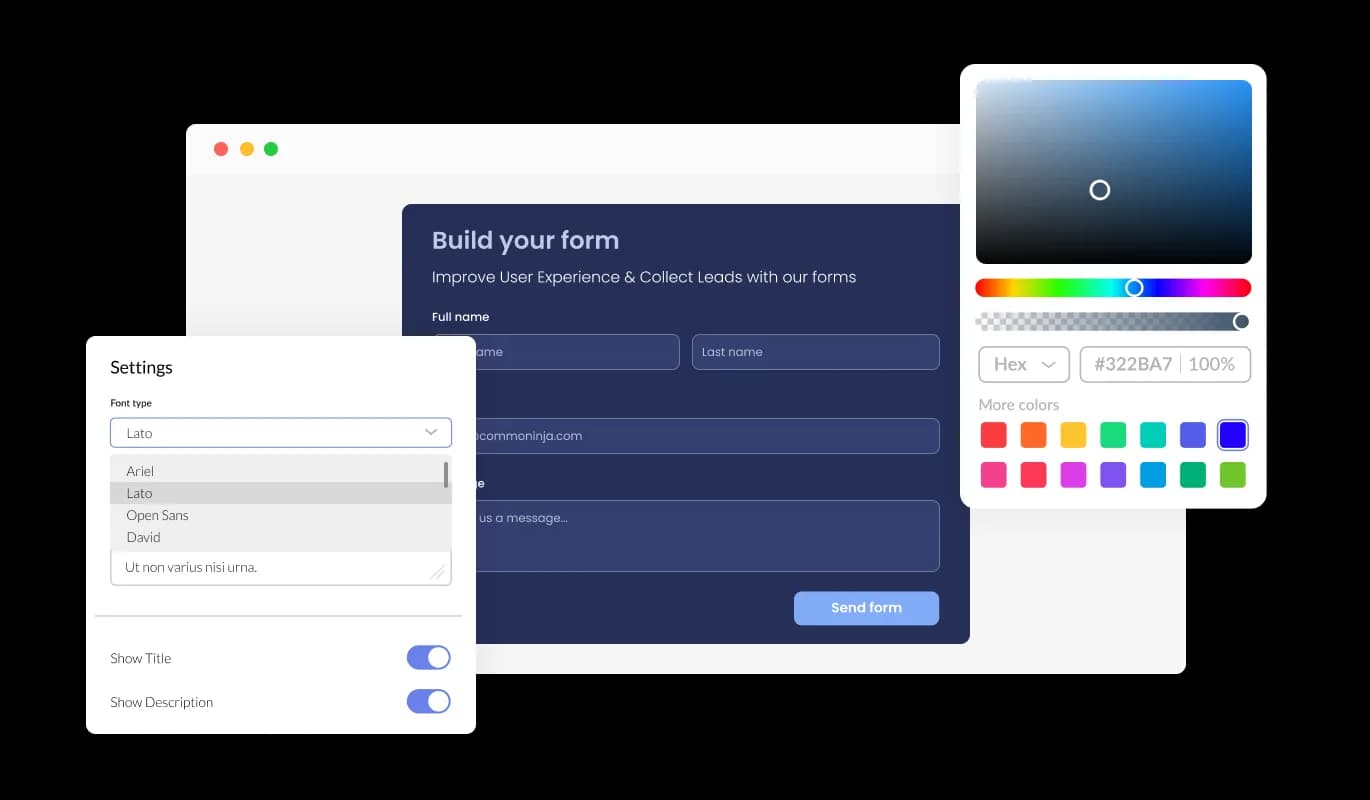
The Support Form offers a range of attractive skins that you can easily personalize to match your brand's image and website's overall look and feel. From changing the color scheme and font style to adding your logo and other design elements, you have complete control over the customization process to create a truly unique and personalized form. This allows you to better engage with your users and make a lasting impression that aligns with your brand's image.
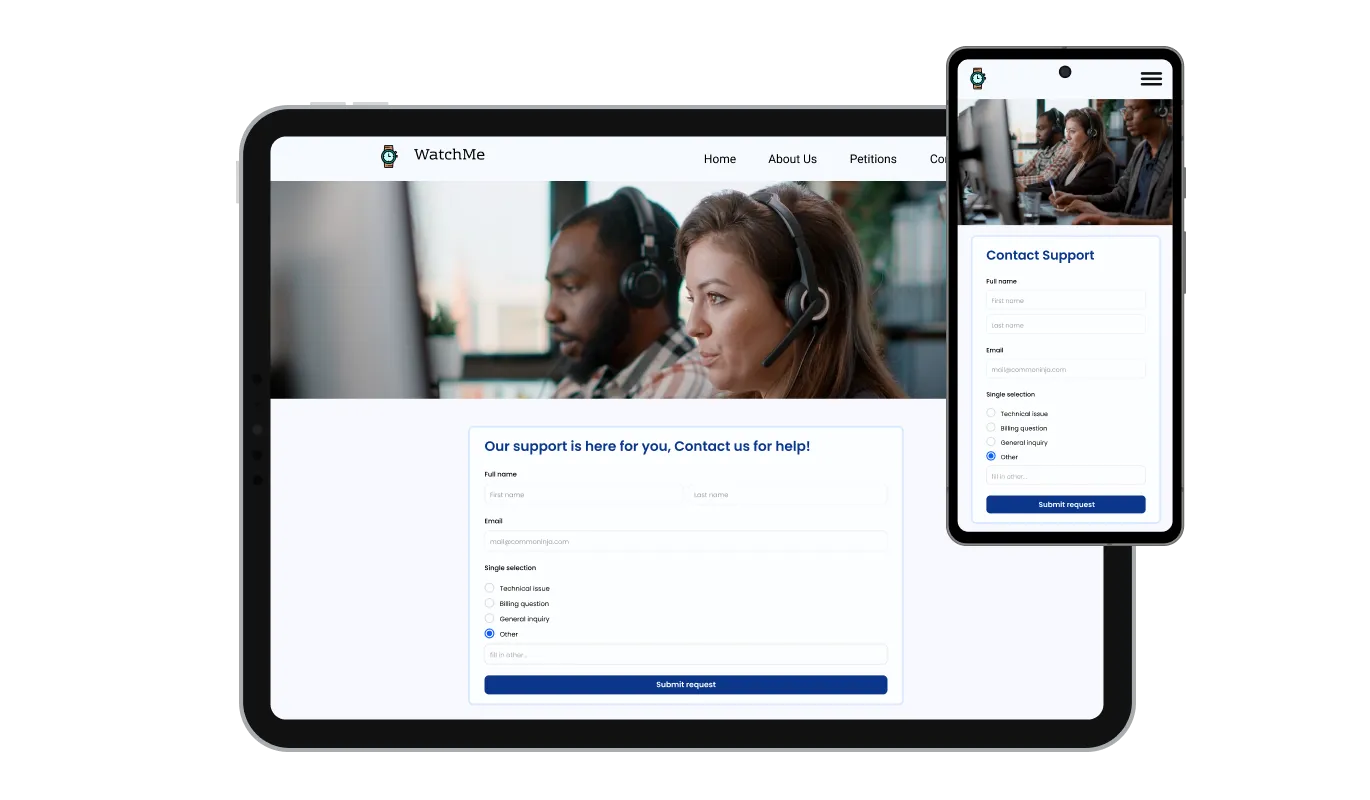
In today's world, where a growing number of people are using mobile devices to access the internet, it's essential to have a form that's optimized for mobile viewing. The Support Form is fully responsive and will appear great on any device. With a responsive support form, your users can easily access and fill out the form on the go, increasing the chances of receiving timely submissions and improving the overall user experience.

The Petition Form makes it easy to accept payments directly from your supporters. Whether you’re raising funds for a cause, organizing campaigns, or collecting donations, this feature integrates secure payment options into your form effortlessly. With a user-friendly setup and reliable payment processing, you can boost your fundraising efforts while providing a smooth experience for contributors.

Our advanced editor empowers you with full customization capabilities of the Support Form's appearance. You can easily modify every aspect of the support form, from colors and fonts to layout and positioning, with this powerful tool. For advanced users with CSS knowledge, direct CSS editing can take customization to the next level.

To embed the Support Form on your website, you can easily copy and paste the provided code snippet into your page's HTML code. The support form is designed to be auto-updating, so any changes you make to the Support Form editor will be automatically reflected on your website. This makes it a hassle-free process to personalize the form and seamlessly integrate it into your website for your customers to access easily.
The Support Form allows you to export the support ticket submissions to a CSV file, which can be easily imported into other software or tools for analysis or integration. This feature is especially beneficial for businesses that need to maintain a record of all their interactions with clients, and for data analysis and reporting purposes.
The Support Form allows you to activate notification settings for both the support form owner and the submitting user. You can set up automated email notifications for every support form submission to multiple email addresses and send a confirmation email to the user upon successful submission.
With the Support Form Editor, you don't need any coding knowledge to create and customize your form. Our intuitive user interface allows you to easily modify the form's fields, layout, and styling with just a few clicks. Plus, you can preview your changes in real-time to ensure that your form looks exactly the way you want it to.
Handle support requests without the inbox chaos
Open the editorNo credit card · Setup in under 5 minutes
Common Ninja has amazing no-code widgets that would beautify a website built on any builder. It is very easy to use and customise. It has as many widgets for almost everyone willing to make their website impressive.
Outstanding service. I use their widgets to help me with my web design business and whenever I need help they are very quick to help.
Excellent company with excellent service!!! We used it to build a survey, it was very user friendly. The service was perfect. Amit helped us with every problem and question we had, thank you very much!!!
Common Ninja saved the day when building our website and the customer service Daniel, the co-founder and CEO, provided was amazing.
Yes. The free plan covers one Support Form with no time limit and no credit card. Upgrade only when you need additional forms, more submissions per month, larger file uploads, premium skins, advanced field types, or features like webhook integrations and conditional logic.
A Contact Form is for general inquiries (name, email, message). A Form Builder is for any custom multi-field form. This Support Form is pre-tuned for support ticket intake, issue category, priority, order or account ID, description, file upload, so you start from a complete support-intake template instead of building every field from scratch. Same data backend; different starting point.
Yes. Enable the file upload field and users can attach screenshots, photos, logs, or receipts alongside their request. Attachments arrive with the ticket in your Common Ninja dashboard, so agents see the issue detail up front instead of asking the customer to send files in a separate email.
Tickets save to your Common Ninja dashboard with one row per submission. Export the full ticket list to CSV whenever you need it, for reporting, triage, or reviewing volume by category. The CSV includes every field (name, email, issue category, priority, description, custom answers) in one file.
Yes. Set notification email addresses in the editor, agents get an email whenever a new support ticket arrives, with the submission detail included. Useful for quick visibility into new requests without checking the dashboard. Configure separate notification recipients per form if you run multiple support queues.
Yes. Every submission lands in your Common Ninja dashboard where you can review it, filter by the fields you collected (issue category, priority), and export to CSV for support-ticket management in your own reporting or handoff to another tool. Use required category and priority fields so tickets arrive pre-sorted for triage.
Build the form in the Common Ninja editor (add support fields, enable file upload, set notification emails), copy the embed snippet, and paste it into your site: WordPress via a Custom HTML block; Squarespace via a Code block; Wix via an Embed HTML element. Edits in the editor push to every embed without re-paste.
Yes. Field layouts adapt across mobile, tablet, and desktop breakpoints, inputs reflow to single-column on narrow screens, dropdowns and radios stay tappable, the submit button stays finger-sized, and the form uses the correct mobile keyboard for each field type (email keyboard for email, numeric keyboard for order ID).
Pick your platform. Each takes under 4 minutes.

Create your form for any purpose with a friendly form builder

Allow users to send messages or inquiries, save submissions, enable notifications, and more

Allow users to add their feedback, save submissions, enable notifications, and more
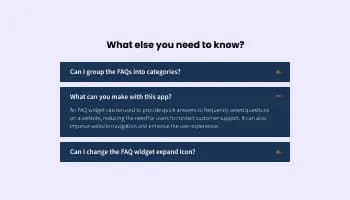
Displays common questions and answers for quick reference
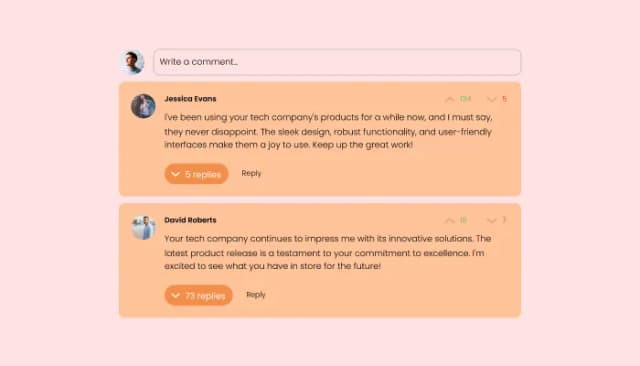
Comments system with upvote/downvote, email notifications, reply threads, and moderation tools.

Allow applicants to fill in job applications, save submissions, enable notifications, and more
A support form is an online form used by businesses or organizations to receive inquiries, feedback, or support requests from their customers or users. It typically includes fields for the user's name, contact information, the reason for the inquiry or request, and a message field where the user can provide details or additional information. The purpose of a support form is to provide a convenient and efficient way for customers or users to reach out for help or assistance, and for businesses to manage and track those requests in an organized manner.
The Support Form widget provides a range of customization options to help you tailor the look and feel of the form to match your website's design and branding. You can choose from a selection of attractive skins to quickly apply a pre-designed theme, or use the advanced editor to customize every aspect of the form's appearance, including colors, fonts, layout, and positioning. For more advanced customization, you can even edit the CSS directly.
To embed the Support Form widget on your website, simply copy and paste the provided code snippet into your page's HTML code. The widget is designed to be auto-updating, meaning that any changes you make to the Support Form editor will be reflected automatically on your website.
Yes, the Support Form widget is fully responsive and will adapt to any device, ensuring that users can easily submit inquiries or support requests from their desktop, tablet, or mobile device. This is important in a world where more and more people are accessing the internet through their phones and tablets.
Yes, you can easily do so from the “Templates” tab.
Yes, there are lots of beautiful skins that you can choose from to save time and start using the widget as quickly as possible.
Yes, you can either upload an image, or select an icon from a large selection of available icons to add to your support form, or, alternatively, you can leave it all blank.
It’s simple. All you need to do is to sign up and start using the free version.
Common Ninja’s Support Form widget is free to use. It is limited to a certain amount of views, however.
Common Ninja’s Support Form widget is compatible with ALL current and future website builders.
Yes, the Support Form widget is GDPR-compliant.
No. Using our Support Form widget is very simple. The widget comes with an intuitive drag-and-drop interface and fully customizable options. Once you’ve finished editing the widget to your liking, all you need to do is copy the provided code and add it to your website.
Yes. We are eager to hear your request. Please visit our Feature Request page.
Collect support tickets with pre-tuned issue category, priority, order ID, and description fields, file and image upload for issue detail, spam protection, agent notifications, CSV export, stylish skins, and Custom CSS. Embed on 200+ platforms including WordPress, Squarespace, Wix, Webflow, and Shopify.
Create your Support FormNo credit card · Setup in under 5 minutes